Reading
Open a book from the library. The reader draws the text itself with Pango and cairo, so there is no web view. The header and navigation fade away after a few idle seconds so the page fills the window; moving the pointer brings them back. Your position is remembered per book.
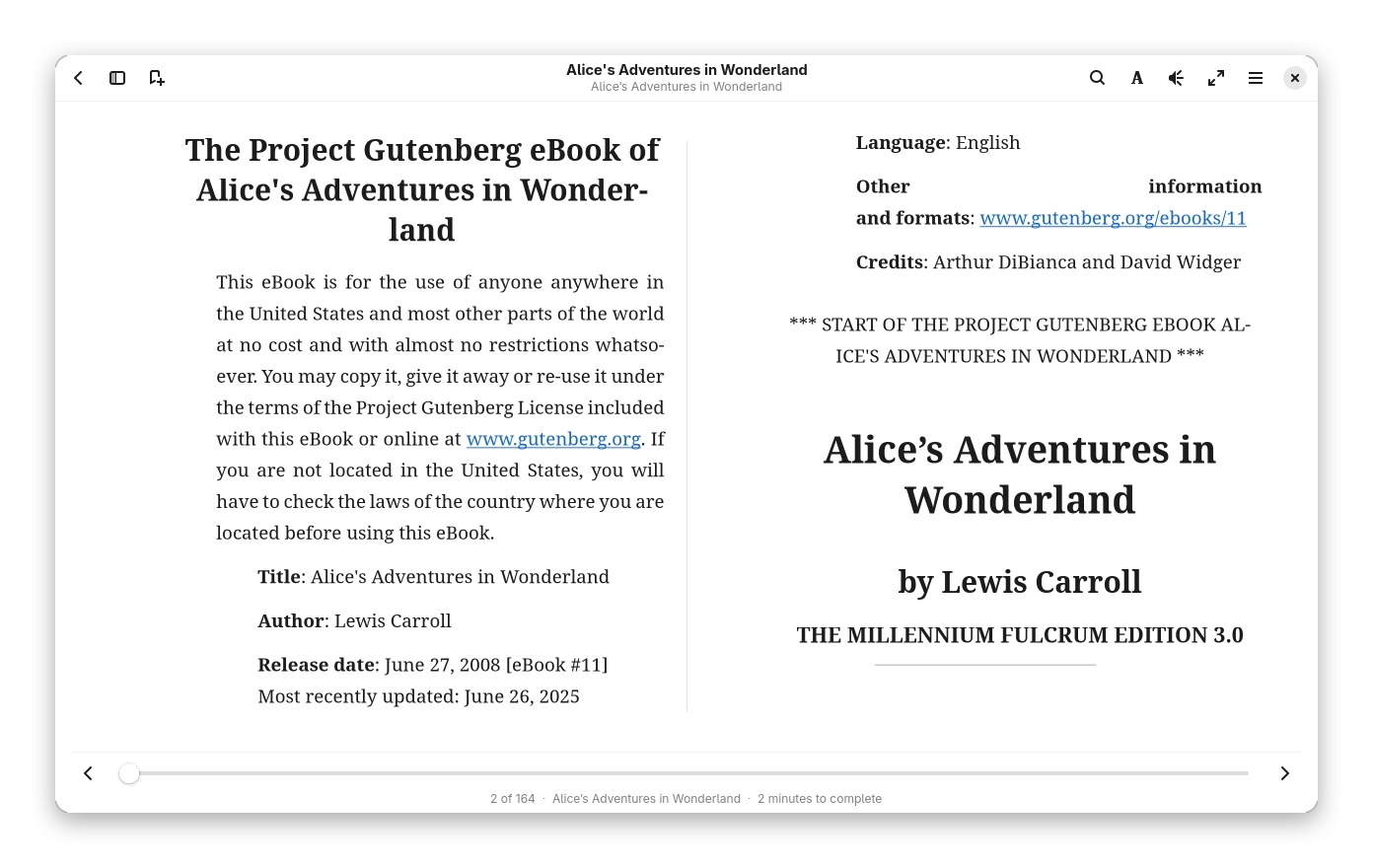
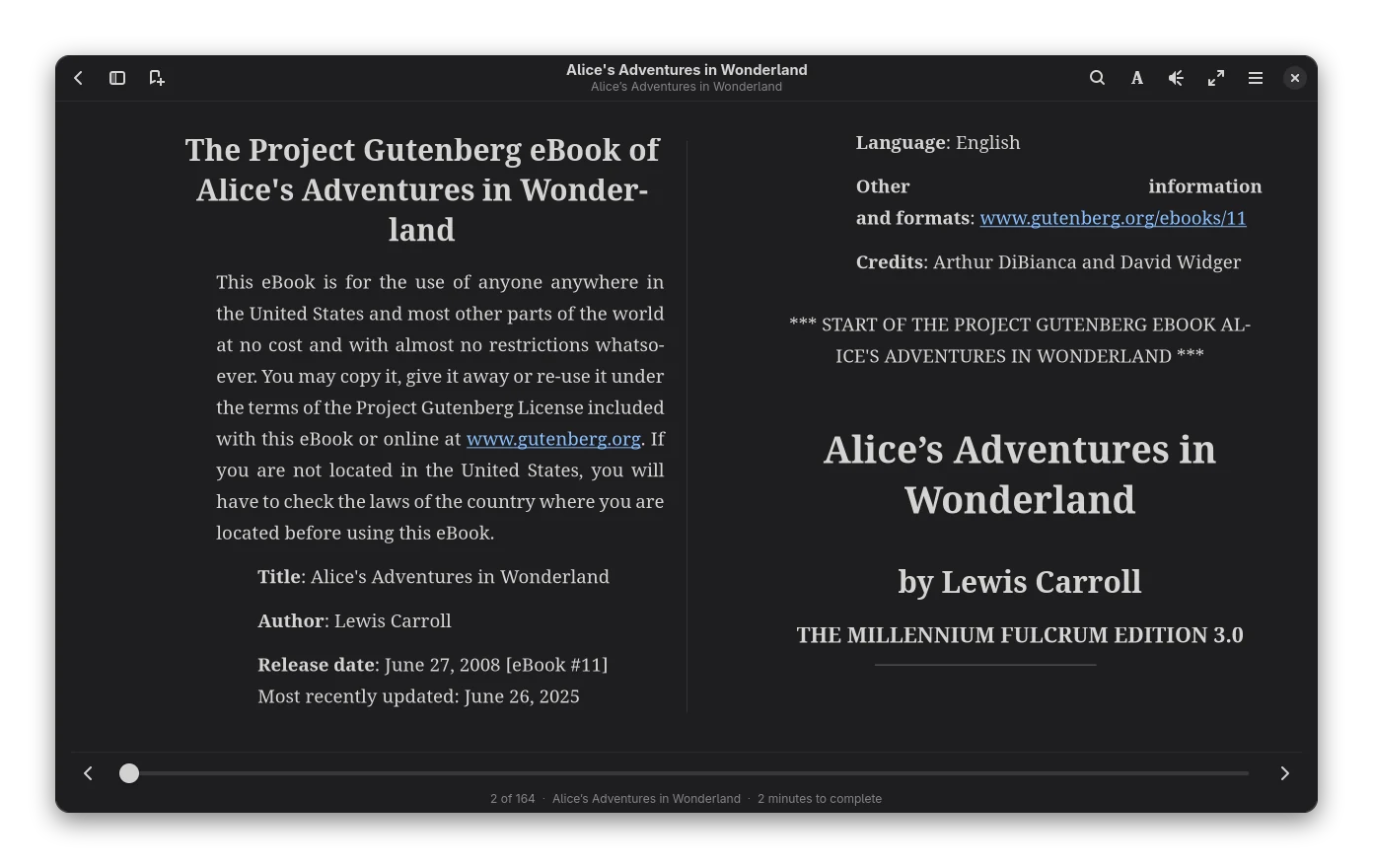
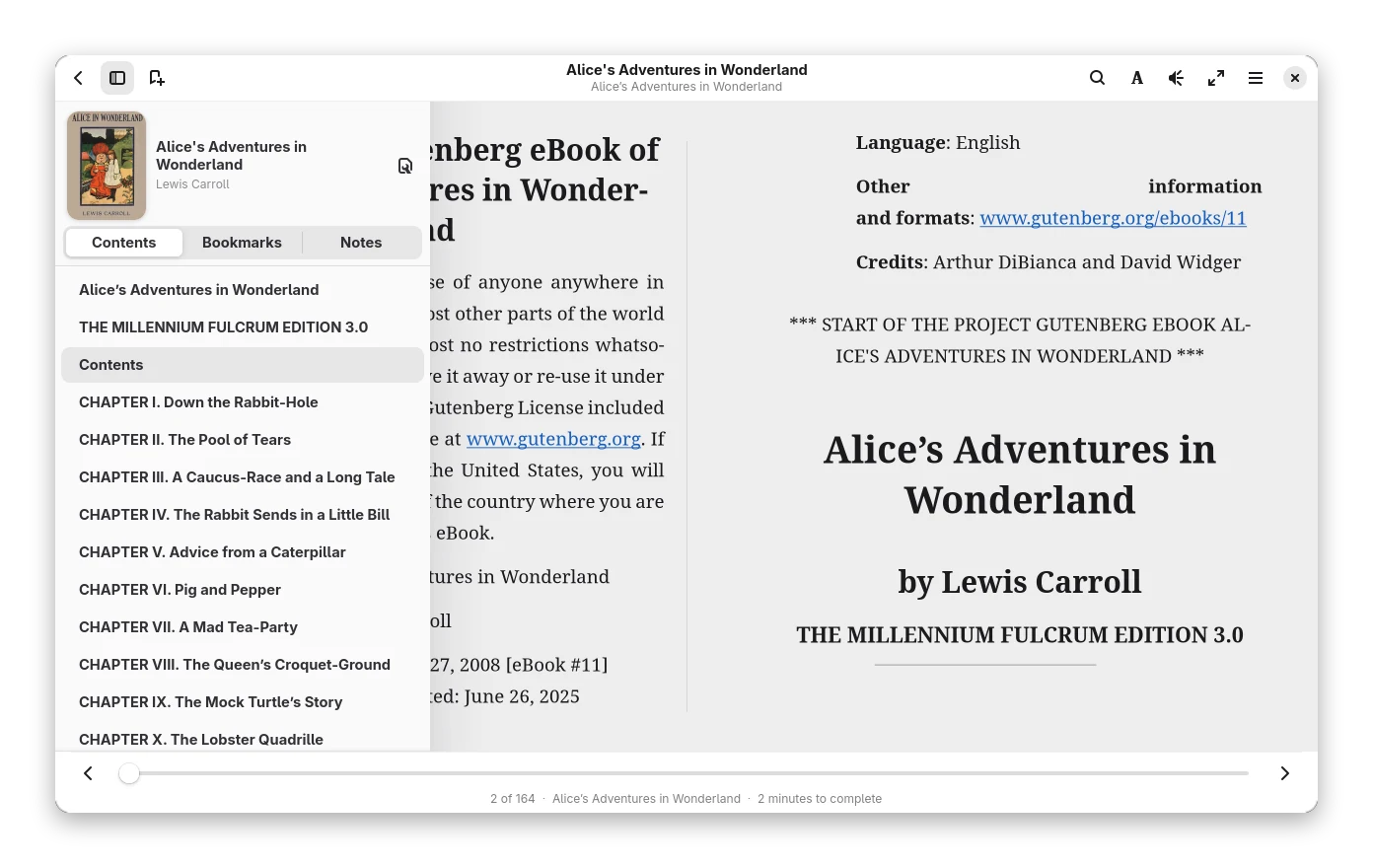
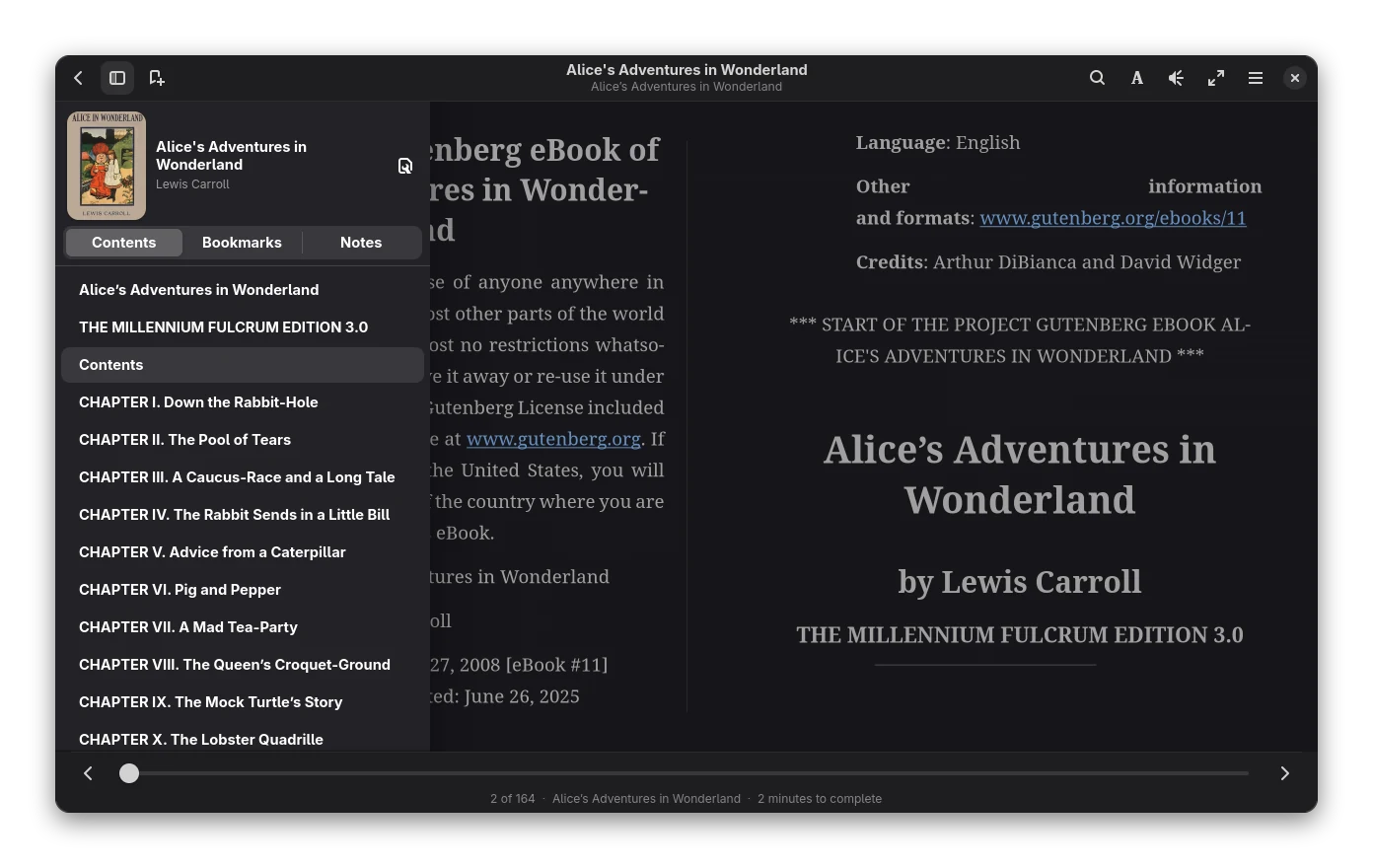
Real screenshots.
Pages and layout
- Two columns, single column or continuous scroll, with real line-based pagination.
- A progress slider for the whole book and, under it, the footer with the page, the chapter and the time left (you choose what it shows, see The footer).
- Turn pages with Left / Right, the mouse wheel, swipes or tap zones. Ctrl+Left / Ctrl+Right jump a chapter.
- Double-click the margin or press F11 for fullscreen. Pinch or Ctrl + wheel zooms.
- The sidebar (F9) has the book, its table of contents, bookmarks and notes (see The sidebar); full-book search is Ctrl+F. Links and footnotes have a Back button.
- Esc returns to the library. Ctrl+R reloads the book.
The reader menu
The main menu holds the theme swatches (with your own themes), zoom, Open Book, Reload, Go to, Layout, Speed Reading, Book Map, Footer Stats, Preferences and Keyboard Shortcuts. (Properties of the book is a button in the sidebar.) Everything about how the text looks is in the Text appearance button next to it (see Text appearance).
The sidebar
F9 (or the sidebar button at the top left) opens the sidebar over the page; F9, Esc or a click on the page puts it away again. It lies over the page, so the text does not move or lay itself out again, and it opens at once even in a book with thousands of contents entries and hundreds of highlights: only the lines you can see are built.
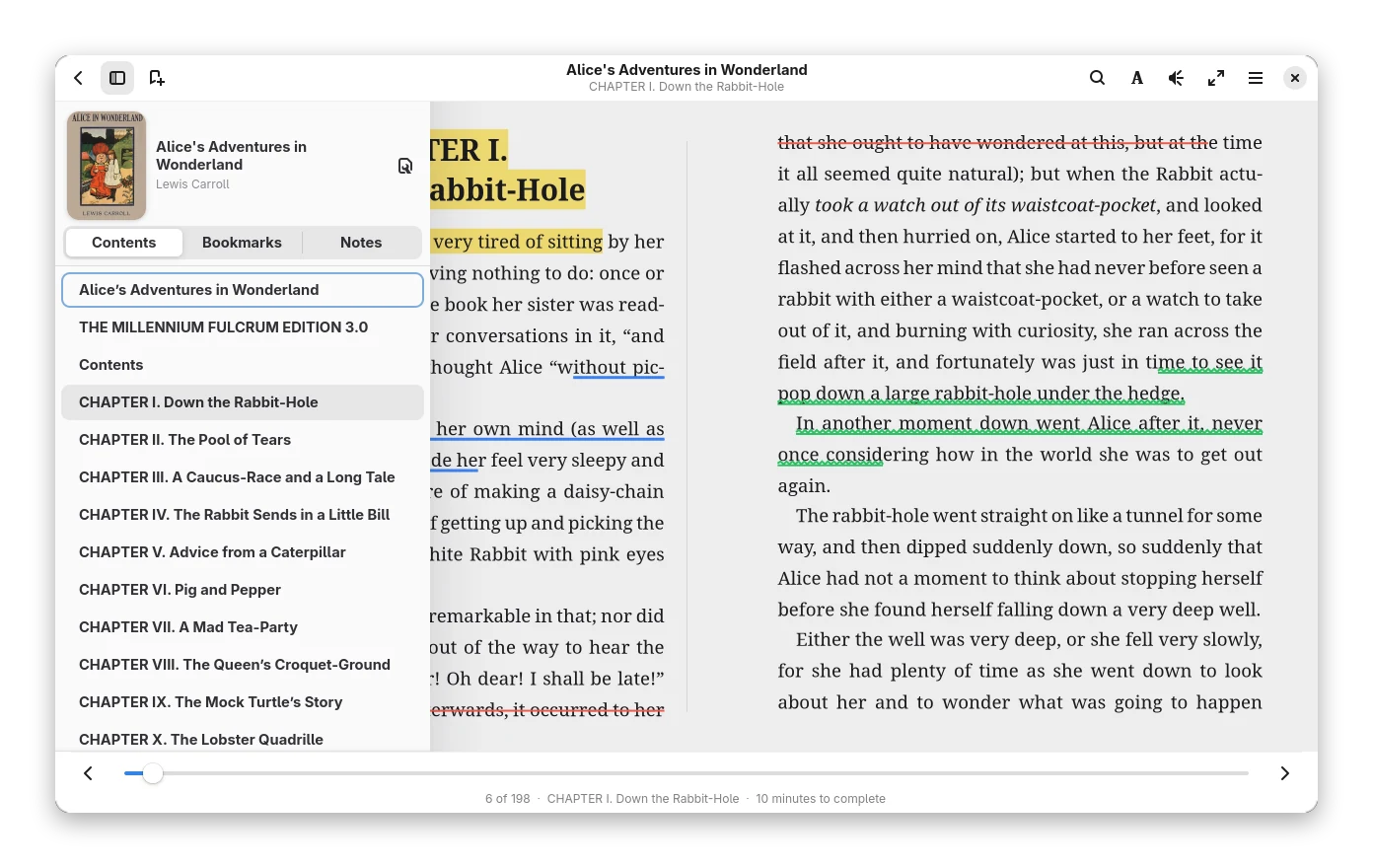
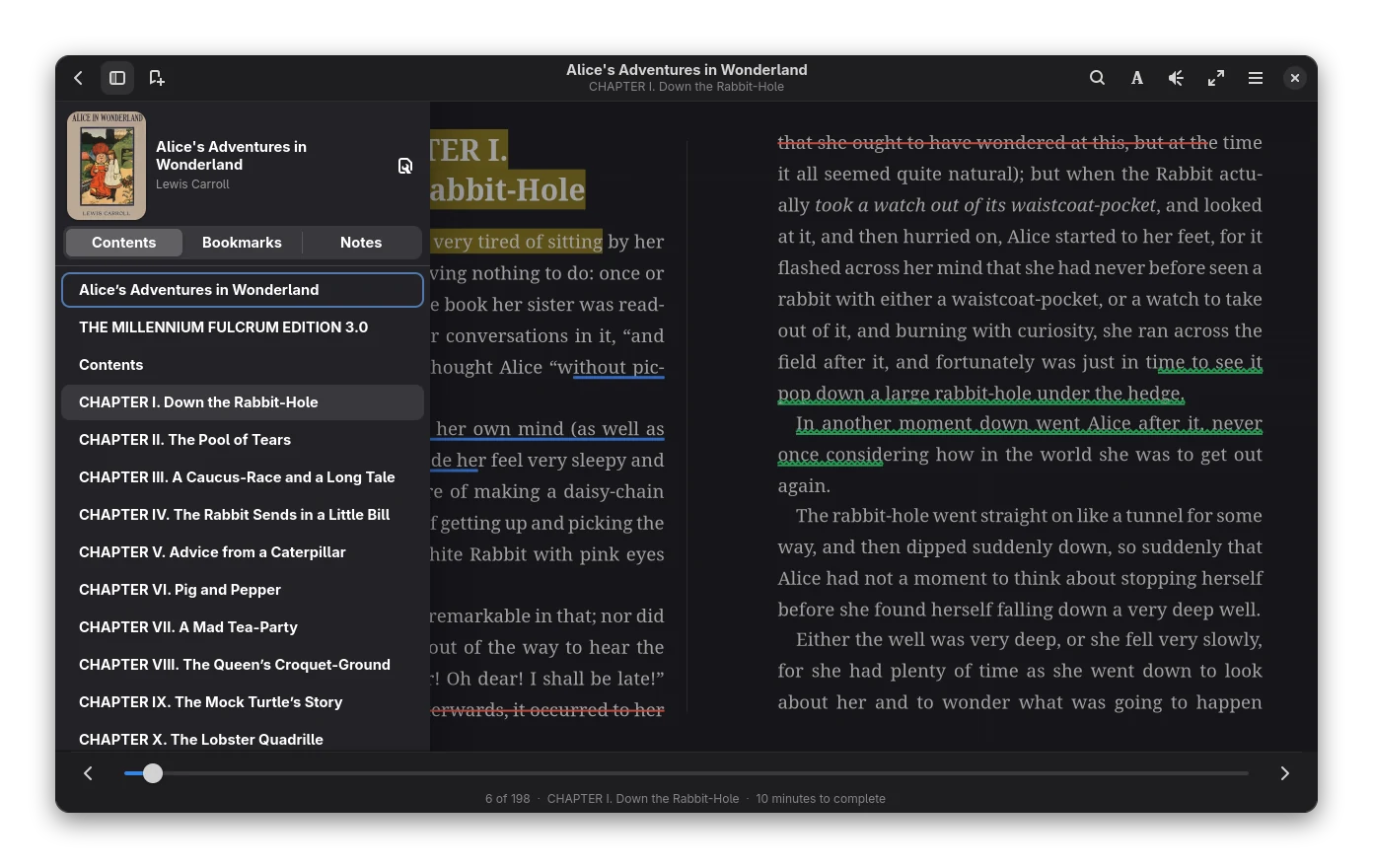
At the top is the book: a small cover, the title, the author and a Properties button (path, identifiers, size and so on). Under it the tabs Contents, Bookmarks and Notes switch the page; the list you are on takes the keyboard (arrow keys, Enter to go there).
- Contents: the chapters, indented by level; the chapter you are reading is marked and scrolled into view.
- Bookmarks: where each bookmark is, with its date and a button to remove it. Add one with Ctrl+B.
- Notes: every highlight of the book, grouped under its chapter, in the order of the book.
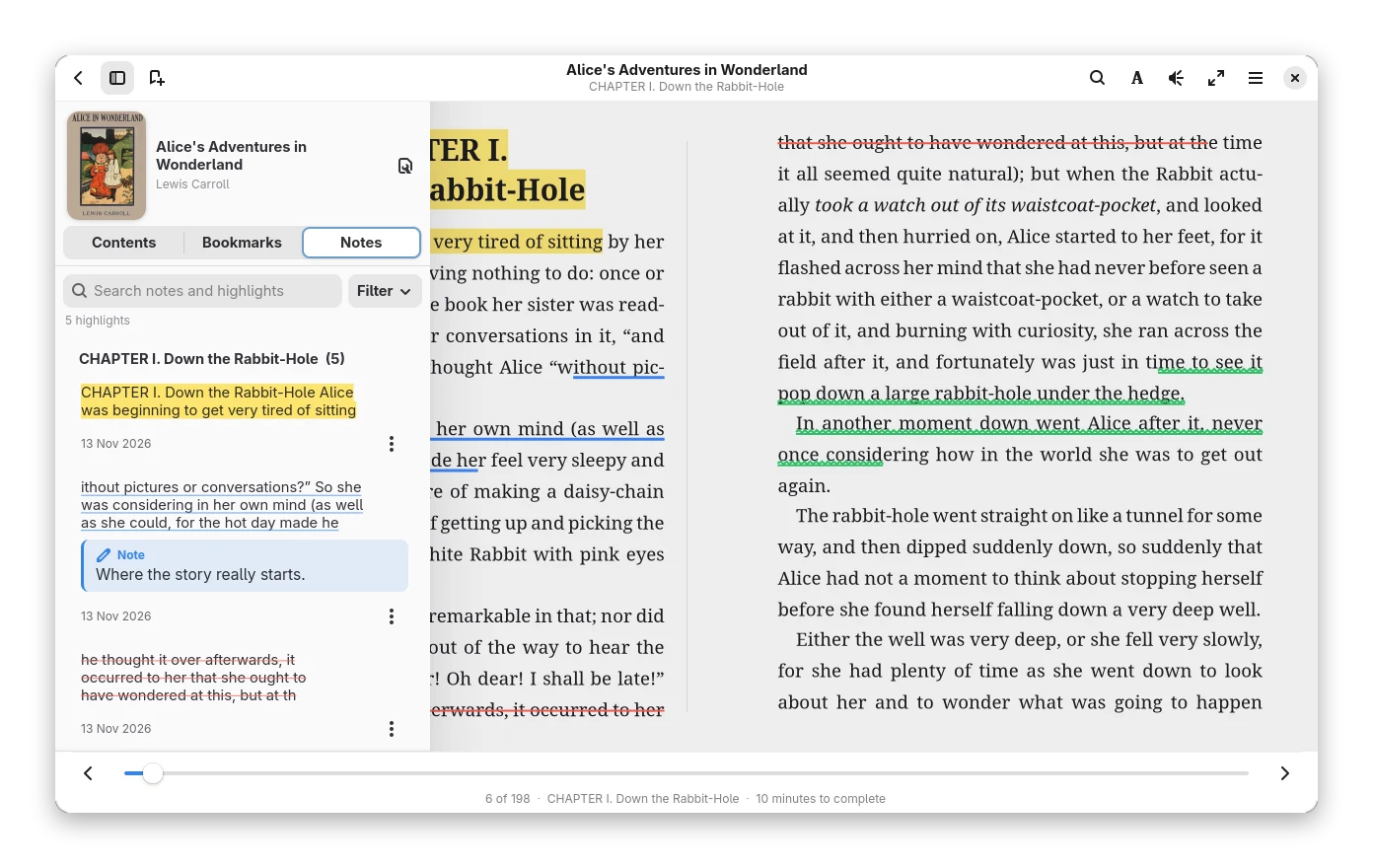
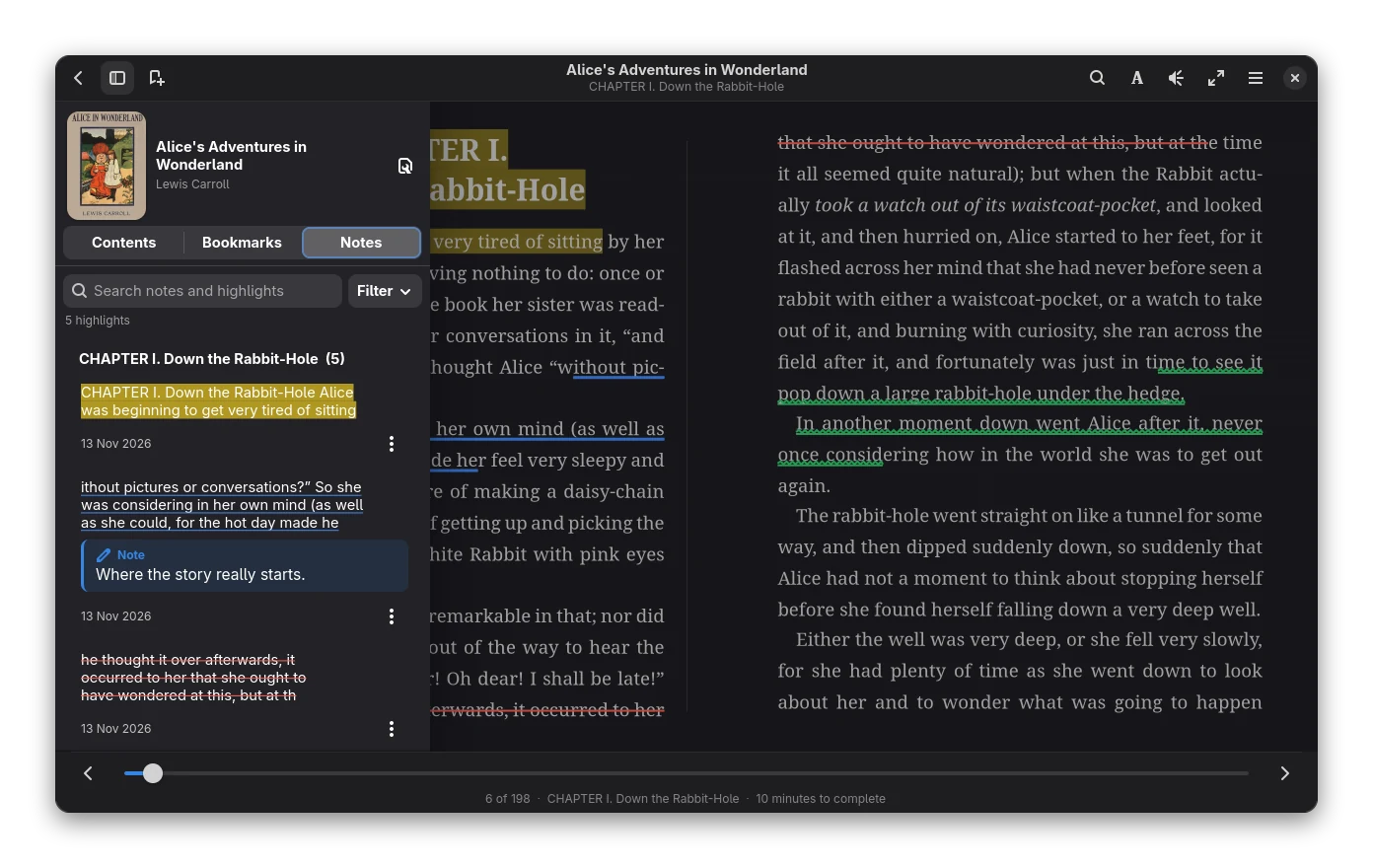
Each highlight shows its quote drawn the way it is on the page (background, underline, strikethrough or squiggly, in its colour), the note under it with a pencil, and the date. Click it to go there. The ⋮ button (or a right click, or Menu / Shift+F10 on the keyboard) opens a small menu: a row of icons for Edit note, Copy text and Delete, then the five colours and the four styles as round and "Aa" buttons, the current ones marked (arrow keys move between them). The sidebar always uses the colours of the app, light or dark as your desktop is, whatever reading theme the book has.
The search box at the top finds highlights by words of the quote, the note or the chapter (every word must occur). Filter narrows the list by colour, by style and to highlights with a note; the line under the box says "12 of 40 highlights" and Clear filters shows them all again.
Go to…
Ctrl+G (or Go to in the menu) asks where to go. Type:
| You type | Where it goes |
|---|---|
45 |
page 45 of the book (the page count of the current layout, which depends on the text size) |
iv or 45 in a book with printed page numbers |
that printed page (see below) |
37% |
37 % of the book |
loc 1200 or @1200 |
that location (a location is about 128 characters of text) |
ch 3 |
the third entry of the table of contents |
The line under the field says where it leads before you press Go, and why a number does not work.
Printed pages. Some EPUBs carry their paper page numbers (an EPUB page-list). Then the footer shows Page iv instead of "12 of 340", and Go to takes those labels. Books without a page-list keep the layout page count.
Back and forward
Following a link, choosing a table-of-contents entry, a search result, a bookmark or a highlight, dragging the slider or using Go to remembers where you were. Back (Alt+Left, or the button at the top left) returns there; Forward (Alt+Right) goes to where you came back from. A new jump forgets the forward list. Dragging the slider counts as one jump.
Images
Click a picture in the middle of the page to open it in the image viewer: the outer edges still turn pages. The viewer zooms with the buttons, + / -, Ctrl + wheel, a pinch or a double click (fit ↔ 100 %); 0 fits the window and 1 shows the actual size. Drag, scroll or use the arrow keys to pan a zoomed picture. Copy (Ctrl+C) puts the picture on the clipboard and Save (Ctrl+S) saves the original file of the book. Esc closes the viewer. Pictures in fixed-layout books and comics are not clickable (taps turn pages there); text-flow pictures inline in a line of text are not either.
Book map
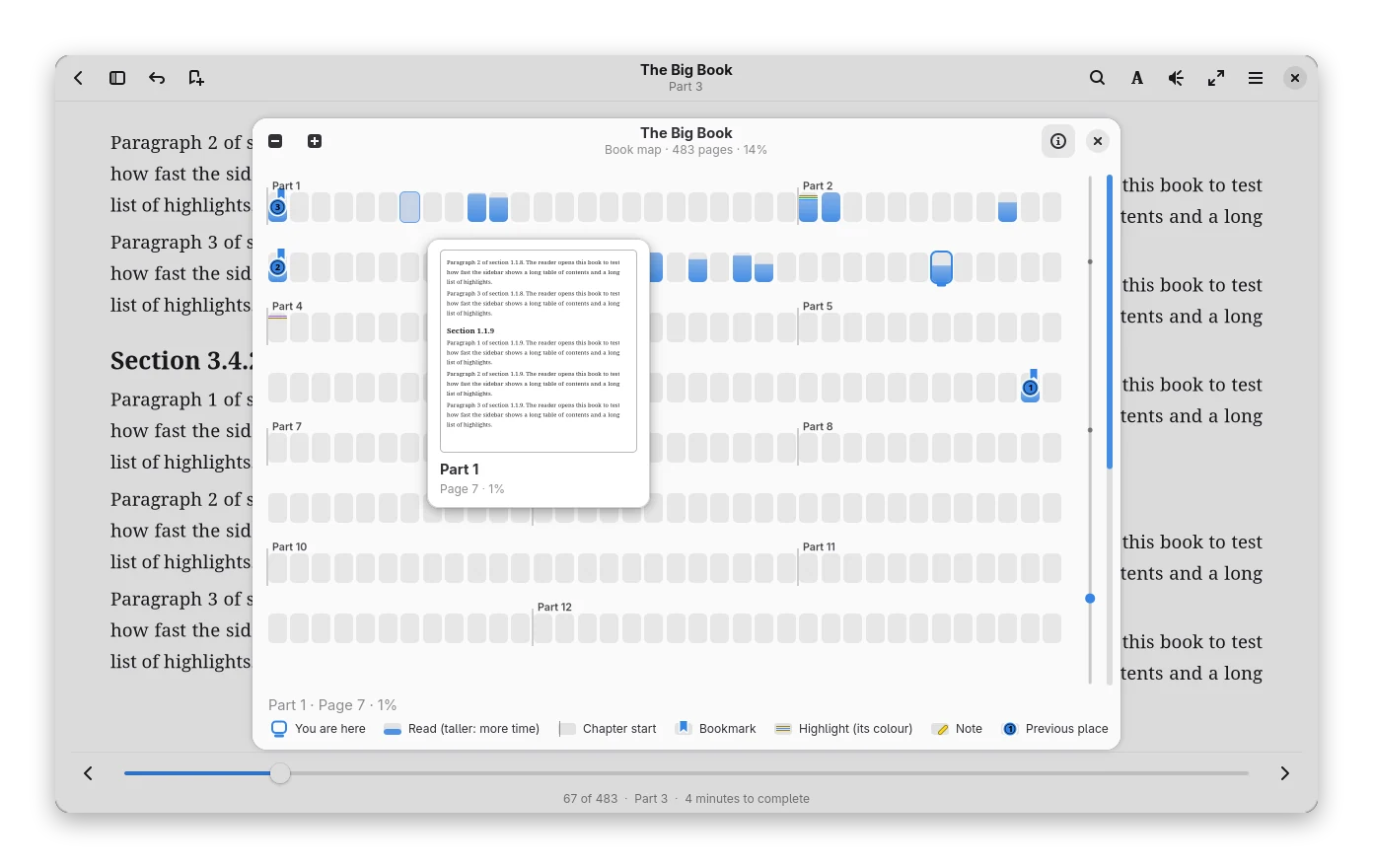
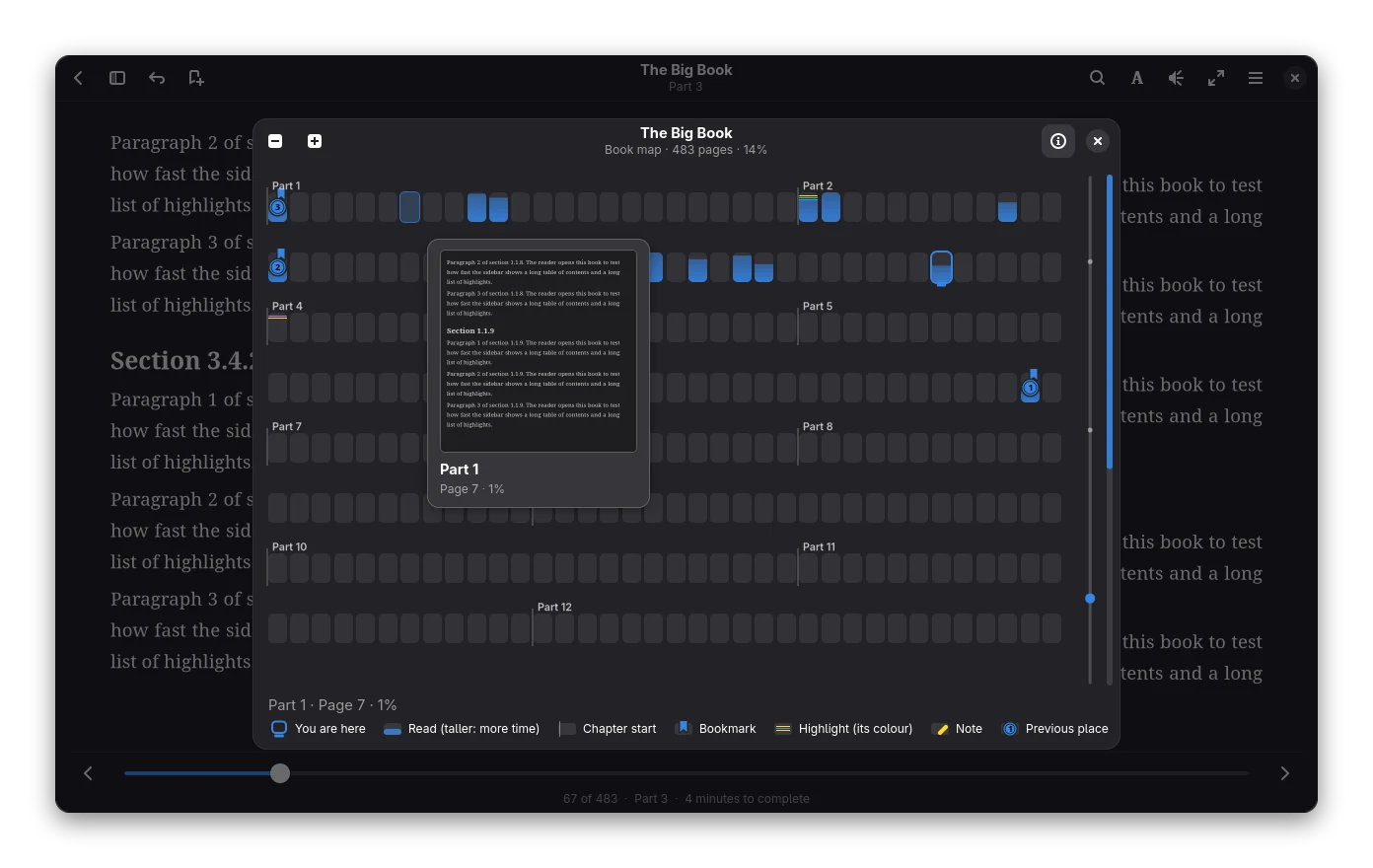
Book Map (M) shows every page of the book as a grid of small cells, in a window of its own. The page numbers are the printed ones when the book has a page-list, otherwise the pages of the current layout.
Real screenshots.
- Bars under the pages you have read: the taller the bar, the longer the page was on screen.
- A soft line marks where a chapter begins, with the chapter's title above it when single pages are shown. The page you are on has an accent outline and a small pill under it.
- Highlights show inside the page's block as a thin one-pixel line in their own colour (yellow, green, blue, red, purple). Several highlights on one page are separate lines, a pixel apart, in the order they come in the book, from edge to edge of the block; if they do not all fit the map adds "+N". A pencil in the highlight's colour under the block is a note (point at it to read the note in the card) and a flag is a bookmark. The numbered circles are the places you jumped from: 1 is where Back (Alt+Left) goes next, then 2, 3 …
- The legend at the bottom says what the marks mean; the button at the top right hides it.
- Point at a page, or press and drag through the whole book: a small, solid card follows the pointer (and stays inside the map) with a thumbnail of the page itself: one page, laid out exactly as the reader shows it, in your reading theme and with its highlights, then the chapter, the page and how far into the book it is. The pages around the pointer are made in the background when the map opens, so moving over them is instant; until a page is ready the nearest one that is stands in, dimmed. Thumbnails are kept in the cache folder (up to 64 MB), so the next time the map opens they are there at once. Point at a pencil to read its note in the card. Let go (or click, or press Enter) to go there.
- The mouse wheel scrolls the map, Ctrl + wheel changes how much of the book you see (whole book, sections, single pages); the two buttons at the top do the same. The dots on the right show the zoom level and the bar the part of the book in view. Left / Right / Up / Down, Page Up / Page Down, Home and End move the cursor. Esc closes the map.
The map, its preview card and the legend follow the application's light or dark style, whatever the reading theme of the book is. The jump can be undone with Back. Highlights are placed approximately inside their chapter. The time per page is
kept on this computer (dwell.json next to the settings) and is not shared.
Themes and your own themes
Themes: follow the system, light, sepia, dark and black are swatches at the top of the main menu. A + swatch next to them makes a custom theme: pick the text and page colour, see the preview (with a warning when the contrast is too low to read), name it and Save Theme. Your themes get their own swatch with a small pencil to edit or delete them; the editor also exports and imports themes as JSON. Themes are shared by all your books.
Themes and colours
Themes: follow the system, light, sepia, dark and black. In the reader menu the colours section offers three modes:
- Theme: the colours of the chosen theme.
- Original: the text and page colours the book itself asks for.
- Custom: pick your own text and page colours.
The editor's live preview has the same control (the palette button above the preview).
Text appearance
The Text appearance button (the "A" in the header) holds everything about how the text looks, in three parts:
- Text: font, paragraph spacing, optimal line breaking and the hyphenation language.
- Layout: columns (two, single, scroll), line spacing, margins, justification and hyphenation.
- Advanced and custom CSS (collapsed): overrides of line height, margins, font and justification, and your own style sheet that is applied after the book's.
The popover scrolls when the window is small. Every change is kept for the open book - there is nothing to save, and other books are not touched. New books start from your defaults:
- Use as default for new books makes the current look (including the tweaks) the starting point of books you have not changed yet.
- Reset this book to defaults forgets this book's own look.
(Older named reading profiles were replaced by this: a profile pinned to a book became that book's own look; the
others were saved to reading-profiles-backup.json next to the settings.)
Preferences → Use the book's own styling applies the book's CSS classes (italic, bold, underline, small caps, monospace, alignment, hidden text, first-line indents and paragraph spacing) on top of the plain structure.
The footer
Under the page the footer shows reading statistics. Right-click it, or choose Footer Stats in the main menu, to choose what it shows and in which order; the same settings are in Preferences → Reading → Footer Stats.
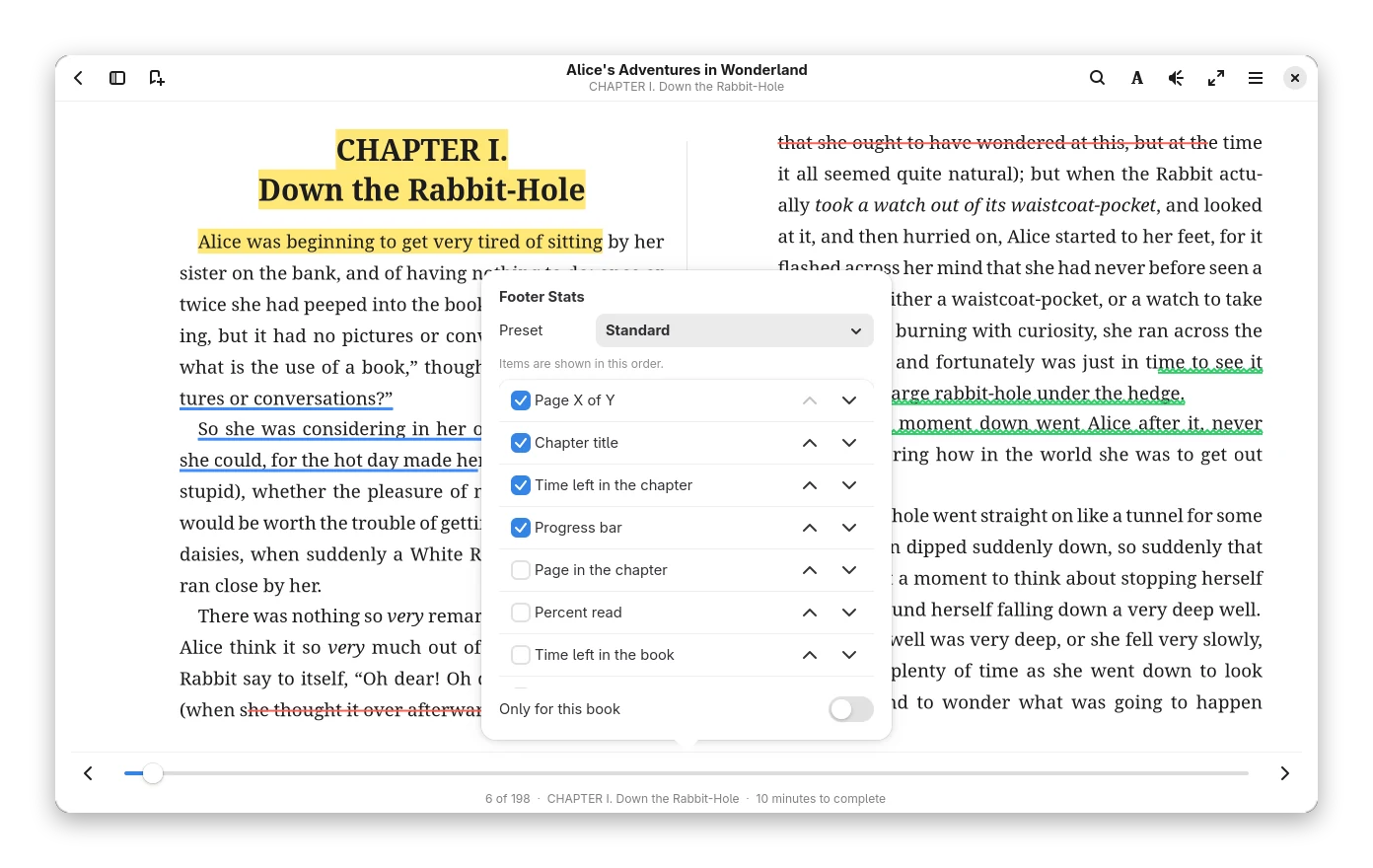
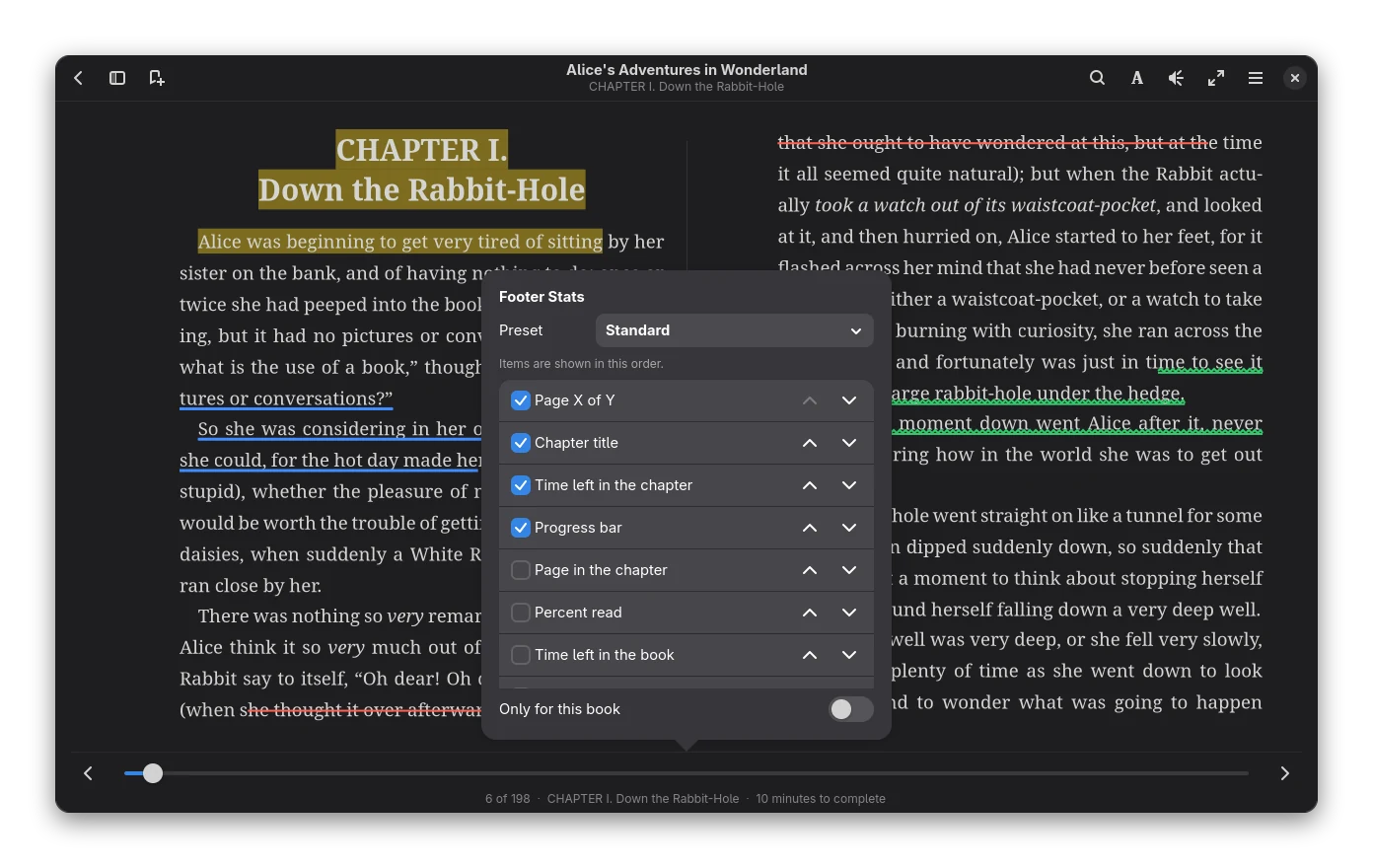
- Items: the page (12 of 340, or the printed page), the page in the chapter, the percent read, the time left in the chapter and in the book, your reading speed, the time of day, the battery (when the computer has one), the chapter title, the book title, the author, the progress bar, the chapter you are in, the time you have read in this session and today. Switch each on or off and move it up or down.
- Presets: Minimal (just the page), Standard (the page at the left, the chapter and the time left at the right, with the progress bar; this is how the footer always was) and Everything.
- Position: either the first item at the left and the rest at the right, or one line in the middle of the page: between the two columns of a two-column page, in the middle of the column of a single-column page.
- Separator, text size and opacity.
- Only for this book gives the open book a footer of its own; the others keep the common one.
Changes apply at once, in every open book, even while Preferences is open (the footer of a book with its own settings keeps them).
Times left use your own reading speed once the statistics know it (about 230 words a minute before that) and are estimates. Items that have nothing to say (no battery, no speed yet) are left out.
Selecting text
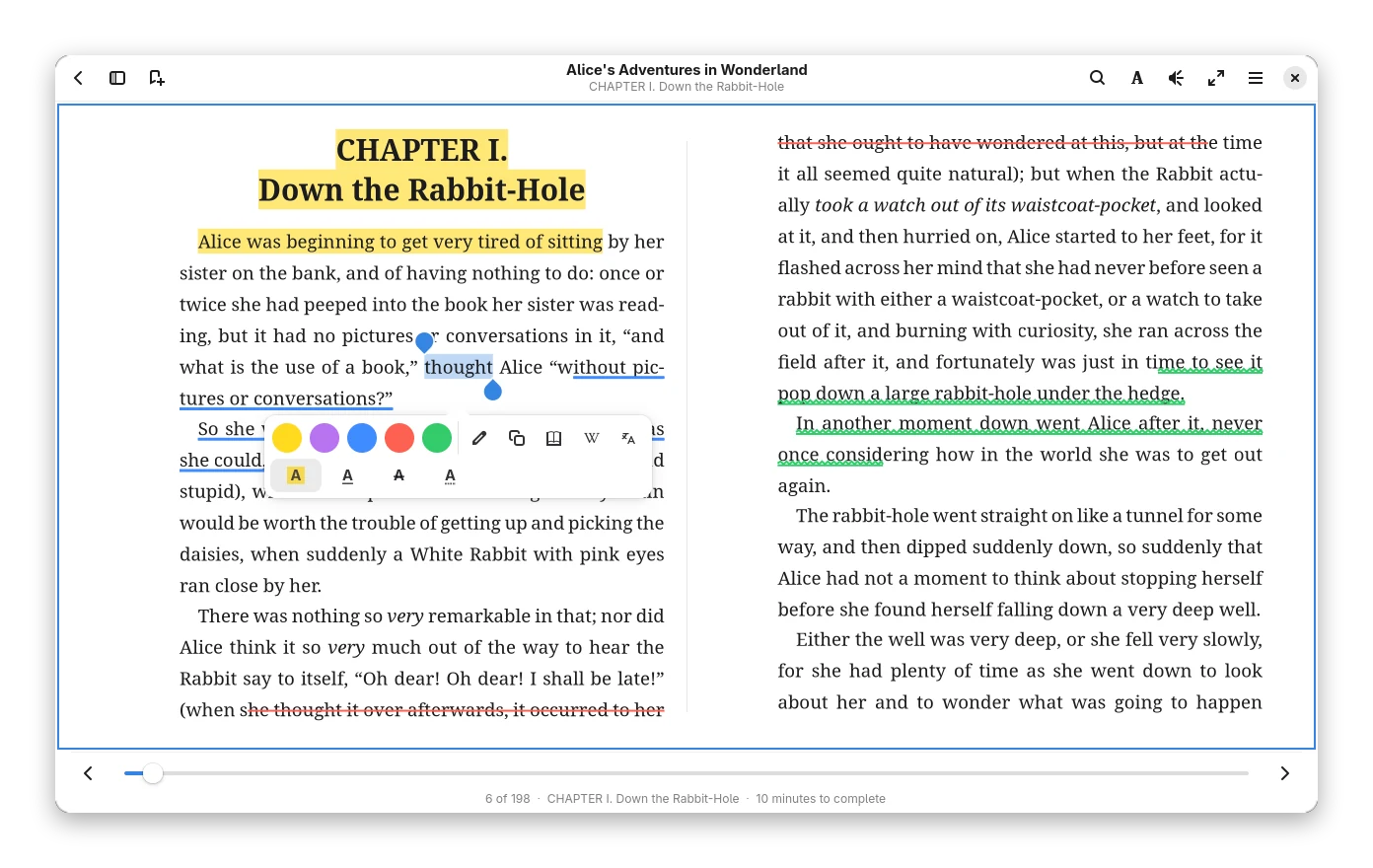
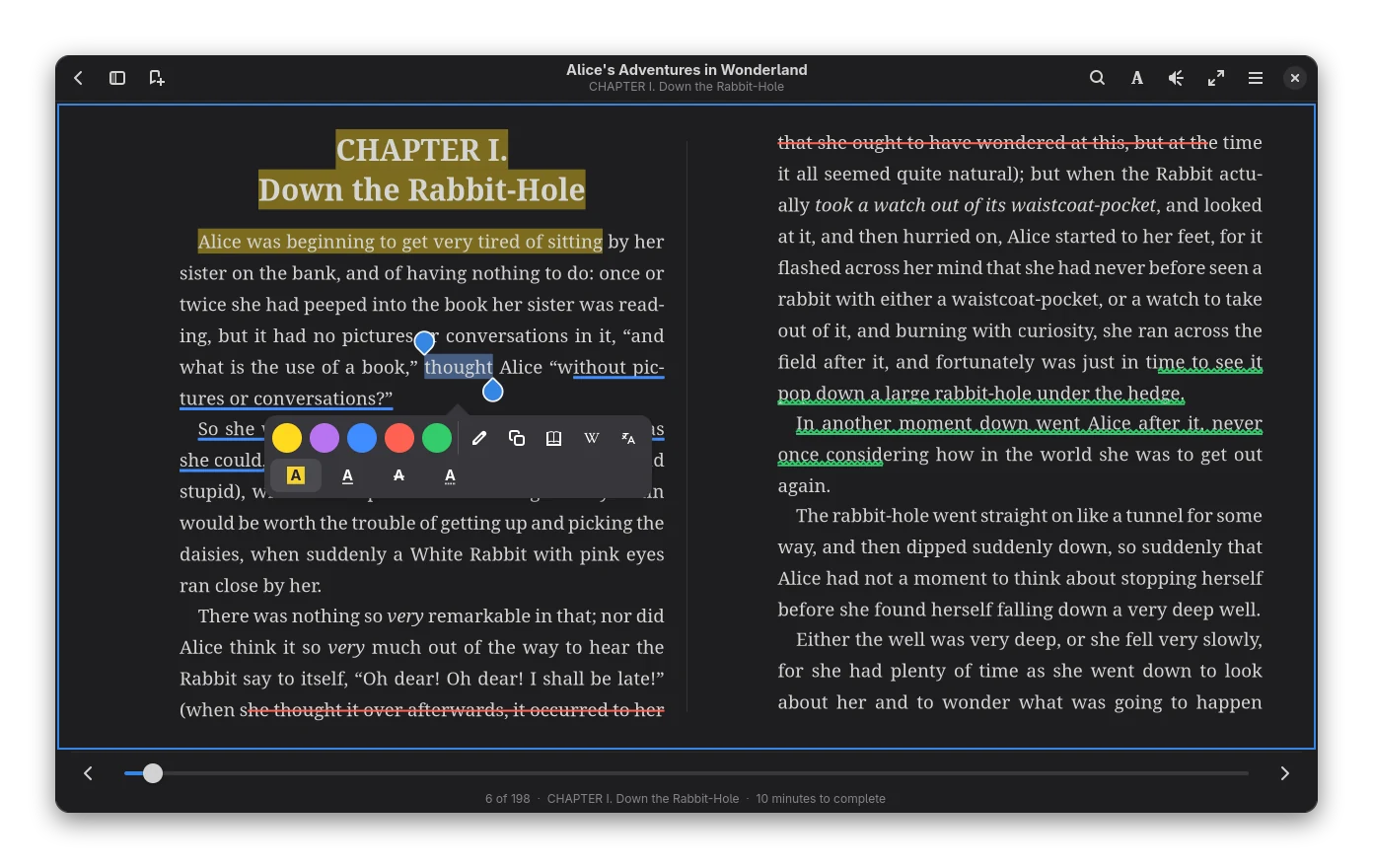
A double click, a long press with a finger or a drag with the mouse selects text. Two blue handles appear at its ends (like on a phone): drag the one at the start or the end to make the selection shorter or longer. With a finger the end snaps to whole words; with the mouse it moves by character, and holding Ctrl snaps to words. A handle dragged past the other end swaps them. The action buttons (colours, note, copy, dictionary, Wikipedia, translate) stay near the selection and come back when you let go; the handles disappear with the selection (Esc or a click on the page). Handles work in two columns and in vertical text; in e-ink mode they are black and nothing moves.
Typography
- Hyphenation in the language of the book (Preferences → Hyphenate words), for justified text without rivers.
- Optimal line breaking (Knuth-Plass, as in TeX) in justified text. Pango's own breaking is the fallback for right-to-left text, or when you switch optimal breaking off in Text appearance.
- Drop caps and floats from the book's CSS:
::first-letter { float: left }and floated images, with the text wrapping around them.
Footnotes
Following a link to a footnote or endnote shows the note in a small popup where you are, without its number and
back arrow, with a Go to Note button if you want to jump there. A link is treated as a note when its target is
marked as one in the book (epub:type="footnote", role="doc-endnote" and so on), is a list item or has an id such
as fn1, and the text is short. Links to chapters and headings are followed as before. Switch the popups off in
Preferences → Reading → Links.
Reader focus
While you read, the header and the bottom panel get out of the way: a few seconds after your last interaction they fade and only the page is left, and they come back as soon as you move the pointer, press a key or open a menu (they never fade while you use them, and not when the pointer rests on them or at the top or bottom edge). The page does not move when they come and go.
While read aloud or speed reading is playing this happens faster: 1.5 seconds after you let go of the mouse nothing is left but the page and the open card(s); the title and the status line go too. Move the pointer, press a key or press Esc and the bars are back, with the page number on the left and the chapter and the time to finish on the right. Paused, the reader behaves as it always does (the bars fade after 4 seconds and keep the title and the status line). With an e-ink display the bars stay.
Speed reading
Main menu → Speed Reading (or the command palette) reads on the page itself: the word to read has a broad highlight and the letter your eye should rest on a strong red one, and they move through the text by themselves; the page turns to keep the word in view and the next chapter follows the last one. A small card (at most about 360 × 120 px) floats over the page with play/pause, previous / next sentence, slower / faster (steps of 25 words per minute) and the progress of the chapter. Drag it by any part of its background to move it anywhere in the window (double-click puts it back; the place is kept as a share of the window size; the two cards never overlap, see Read aloud); the X in the top right corner (Close speed reading, or Esc while the card has the focus) stops speed reading and closes only this card. It starts on the page you have open, paused. Space starts and pauses, Left / Right step a word, Up / Down change the speed and Esc closes it. Commas, sentence ends, paragraph ends and long words take a little longer. The speed is remembered. Speed reading and read aloud are independent cards that can both be open: starting one pauses the other (it stays open, at its place). When you leave the book and come back (or restart Bookx) the card is where it was, at the same word and speed, paused; a card closed with the X stays closed.
Dictionaries and Wikipedia
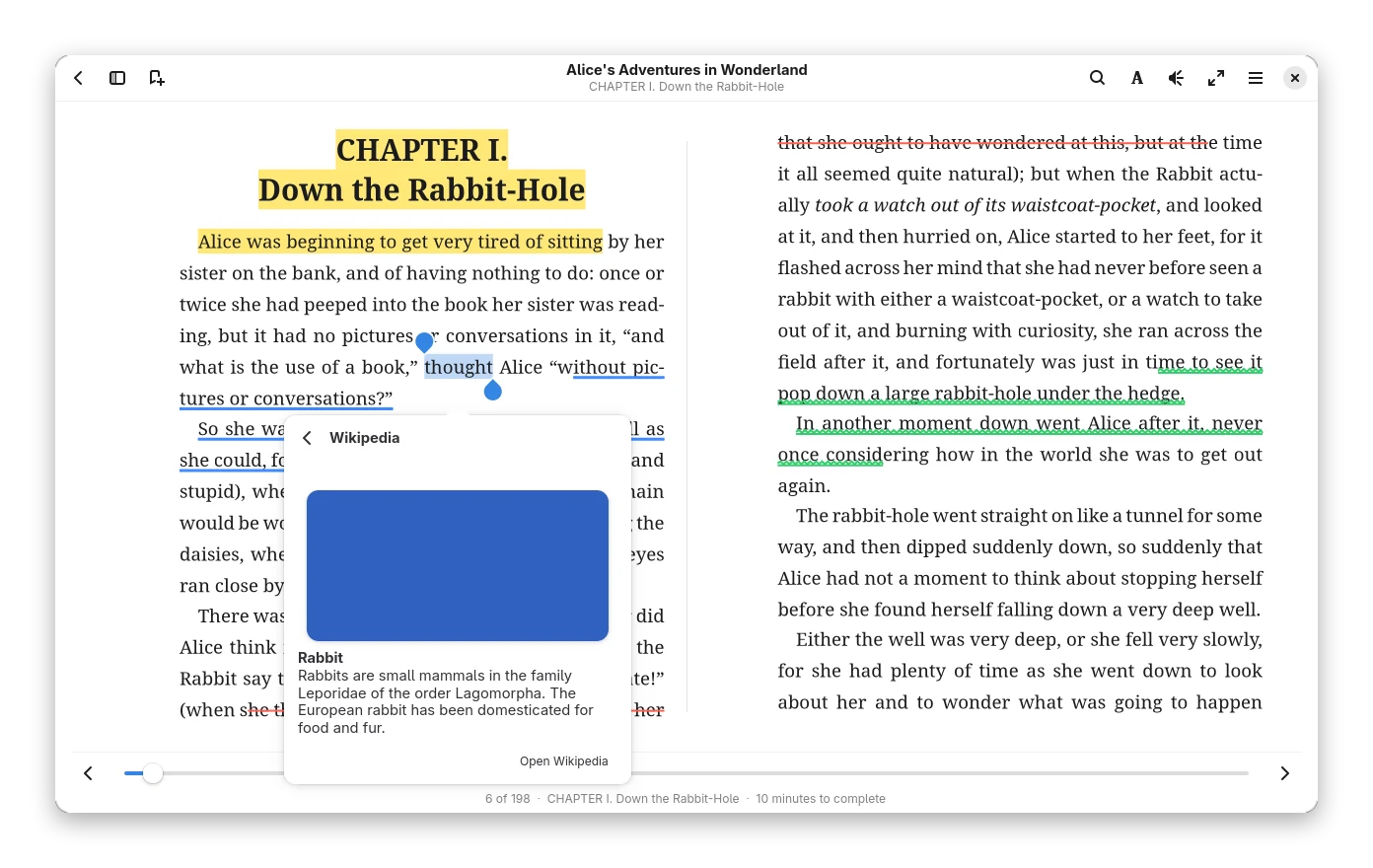
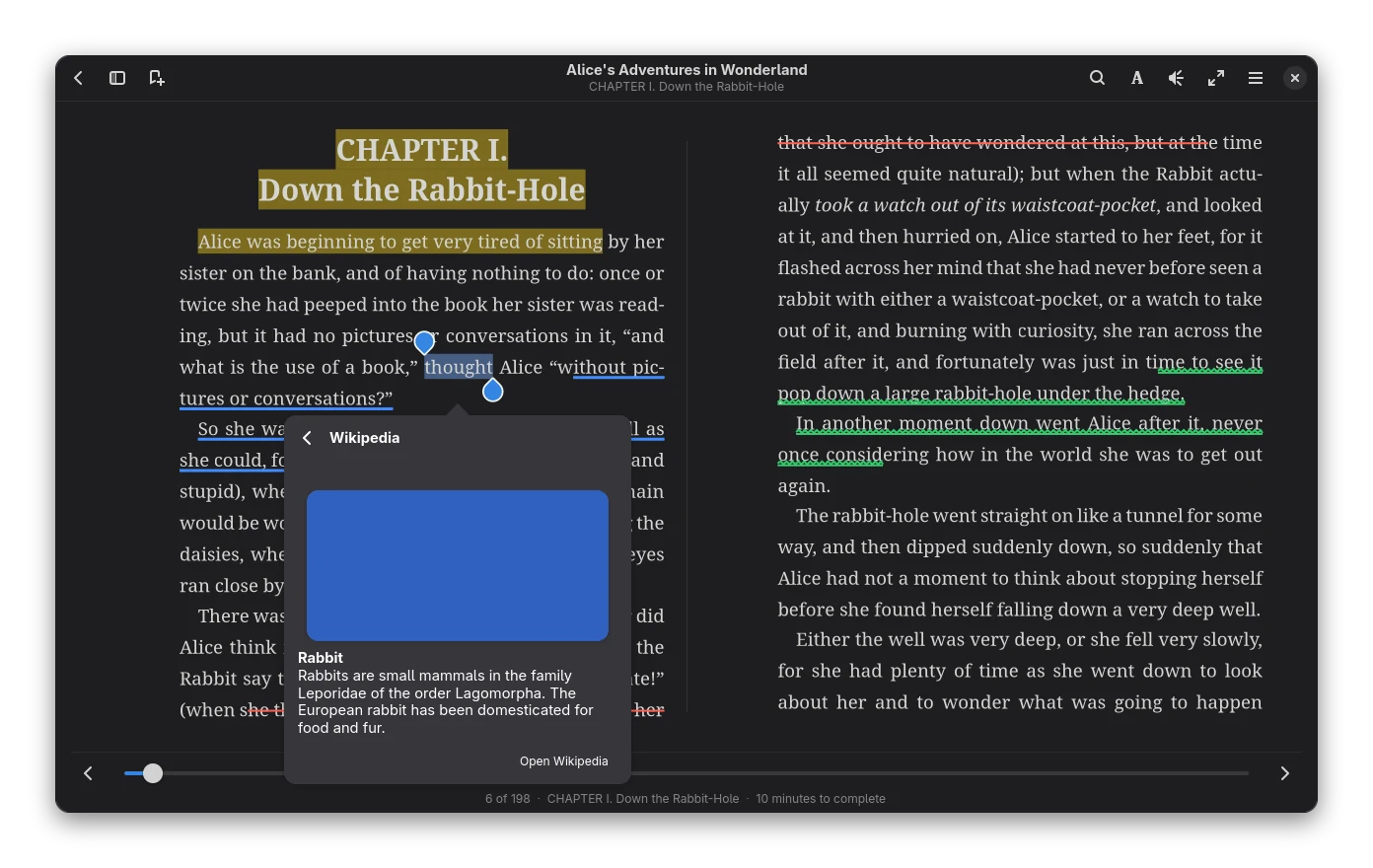
Double-click a word, or select text, to look it up.
- Dictionary: offline StarDict dictionaries. Put them in
~/.local/share/bookx/dictionaries/. - Wikipedia: an inline summary of the selection with the lead picture of the article above it, when it has
one. The picture is fetched after the text (a placeholder shows meanwhile), kept in a small cache folder (at most
24 MB, the oldest pictures go first) and shown from there when you are offline (
BOOKX_OFFLINE); a picture that cannot be loaded just leaves out its frame. - Translate: an inline translation with a language picker. Wikipedia and translation need network access.
Looked-up words are added to your vocabulary.
Annotations and highlights
Select text to highlight it. There are 5 colours and 4 styles (background, underline, strikethrough, squiggly). A highlight can carry a note, which is saved when you click away; you can also remove it. Add bookmarks with Ctrl+B. Highlights, notes and bookmarks are listed in the sidebar, where you can also search and filter them and change a highlight's note, colour or style.
Export them from the library (right-click → Export Annotations) to JSON, Markdown or plain text. Send to a device adds them to the file you send (switch off in the Device window if you do not want that).
Statistics and vocabulary
- Reading Statistics (main menu): time today, this week and this month, streaks, reading speed, a 7-day chart and your most-read books. It also holds your goals (minutes a day, books a year, with a progress bar each; 0 means no goal), a calendar of the year that shades the days you read, and a review of the year (time, days read, pages, books finished, longest streak, best day).
- Vocabulary (main menu): the words you looked up, reviewed as spaced-repetition flashcards.
Read aloud
The speaker button in the header reads the book sentence by sentence, highlighting the sentence. There are play, pause, stop and skip buttons, speed and pitch controls, a voice choice (voices of the book's language) and a sleep timer. It goes on with the next chapter, and starts at the selection or the top of the page.
The voice can be a natural one that runs on your computer (Kokoro, Piper), a voice server you run (XTTS v2, Fish Speech, anything OpenAI-compatible). Read aloud has a music-player style card with seek bar, speed and sleep timer. See Read aloud for setup, licences and limits.
E-ink mode and touch
Preferences has settings for tablets and e-ink screens:
- Touch: swipe to turn pages, long-press to select a word, configurable tap zones (edges, thirds, left-handed, wide, off) and large touch controls.
- E-ink mode: pure black on white, no animations, bars that stay, wide tap zones.
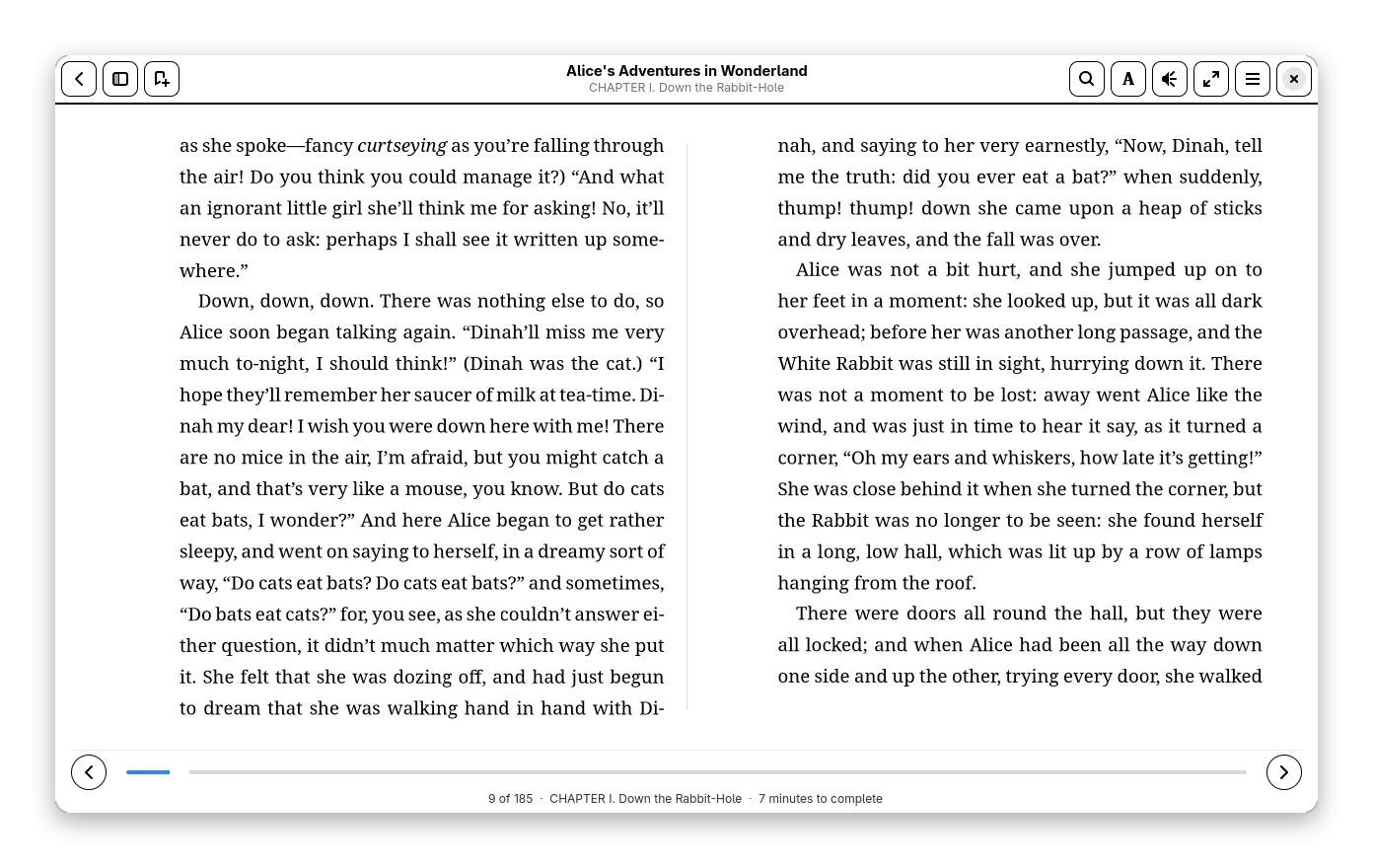
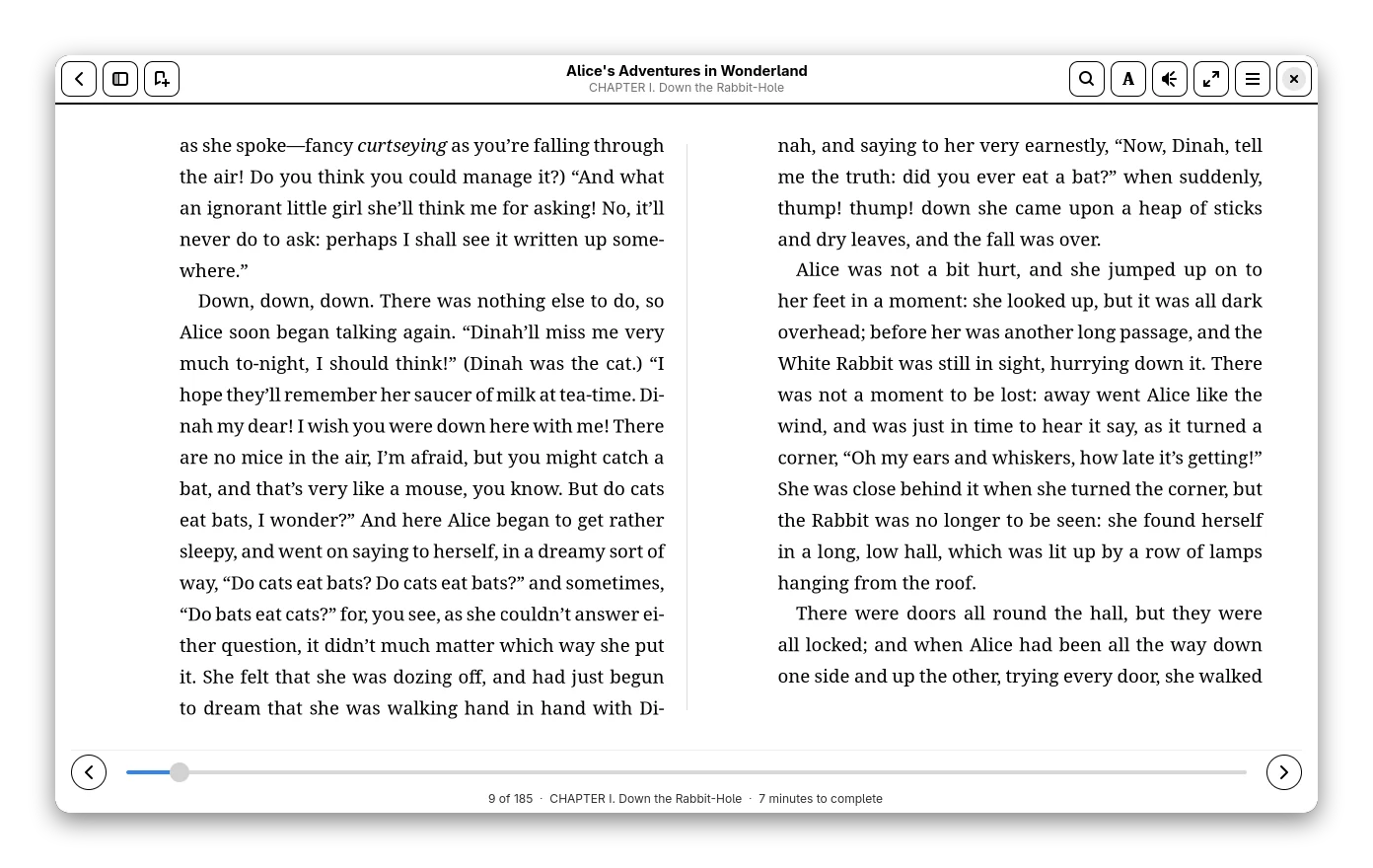 E-ink mode, captured on a normal screen: the colours show how it looks, not how an e-ink panel renders it.
Fixed layout and right-to-left text
- Fixed-layout EPUB (pre-paginated): one page at a time, pictures scaled to fit the screen.
- Right-to-left text is laid out with Pango's own line breaking instead of the optimal breaker. In a book whose
spine says
page-progression-direction="rtl"the whole reader is mirrored: the left arrow key, a tap on the left edge and a swipe to the right turn forward, the footer (arrows, progress bar and labels) runs from right to left with the Next arrow on the left, and the contents sidebar opens on the right.
PDF
A PDF opens as pages, the way it was made. Next to the PDF the library keeps a reflowed EPUB of its text, which is what search, the library index and Convert To use.
- Layout: continuous scrolling or one page at a time (View menu, the eye button). Zoom with Ctrl+plus, Ctrl+minus, Ctrl+scroll or a pinch; Fit width, Fit page and 100 % are in the same menu, Ctrl+0 fits the width.
- Crop margins cuts the white edges (it looks at a sample of pages). Dark pages inverts the colours for night reading or an e-ink screen with a dark theme.
- Sidebar (F9): page thumbnails, the PDF's own contents (bookmarks), your bookmarks and your notes. The footer has a
slider and a page box that takes a number or a page label (
iv,A-3). Ctrl+G jumps to it. - Links inside the PDF jump there (the Back button returns); links to web addresses open in your browser.
- Search (Ctrl+F) lists every match with its page and shows it highlighted on the page.
- Select text by dragging (double click: word, triple click: line; selection stays on one page). The popover has the same colours, note, copy, dictionary, Wikipedia and translate as in the book reader. Highlights and notes belong to the page and are included in Export Annotations. Underline, strikethrough and squiggly styles work too.
- Password-protected PDFs ask for the password when opened.
- Your position and progress are remembered; the library shows the reading progress.
- Reflow as text (experimental) in the same menu opens the reflowed EPUB in the book reader: two columns are read
one after the other, running headers, footers and page numbers are dropped, hyphenated words are joined. Tables,
formulas, footnotes and images are not reconstructed. Switch the default in
pdf.json("pages": false) to open PDFs as reflowed text.
Limits
Scanned PDFs show their pages but have no text to select, search or reflow (no OCR yet). A selection cannot span two pages. Vertical and right-to-left PDF text is shown correctly but may select in a different order. Forms, comments and other PDF annotations are not drawn or edited. Writing a PDF (EPUB to PDF) is not available.
Vertical writing
Japanese and Chinese books that are set in vertical lines open the way they were made: the lines run from top to bottom
and the columns follow each other from right to left (writing-mode: vertical-rl) or, for some Chinese and Mongolian
books, from left to right (vertical-lr). The book decides, there is nothing to switch on.
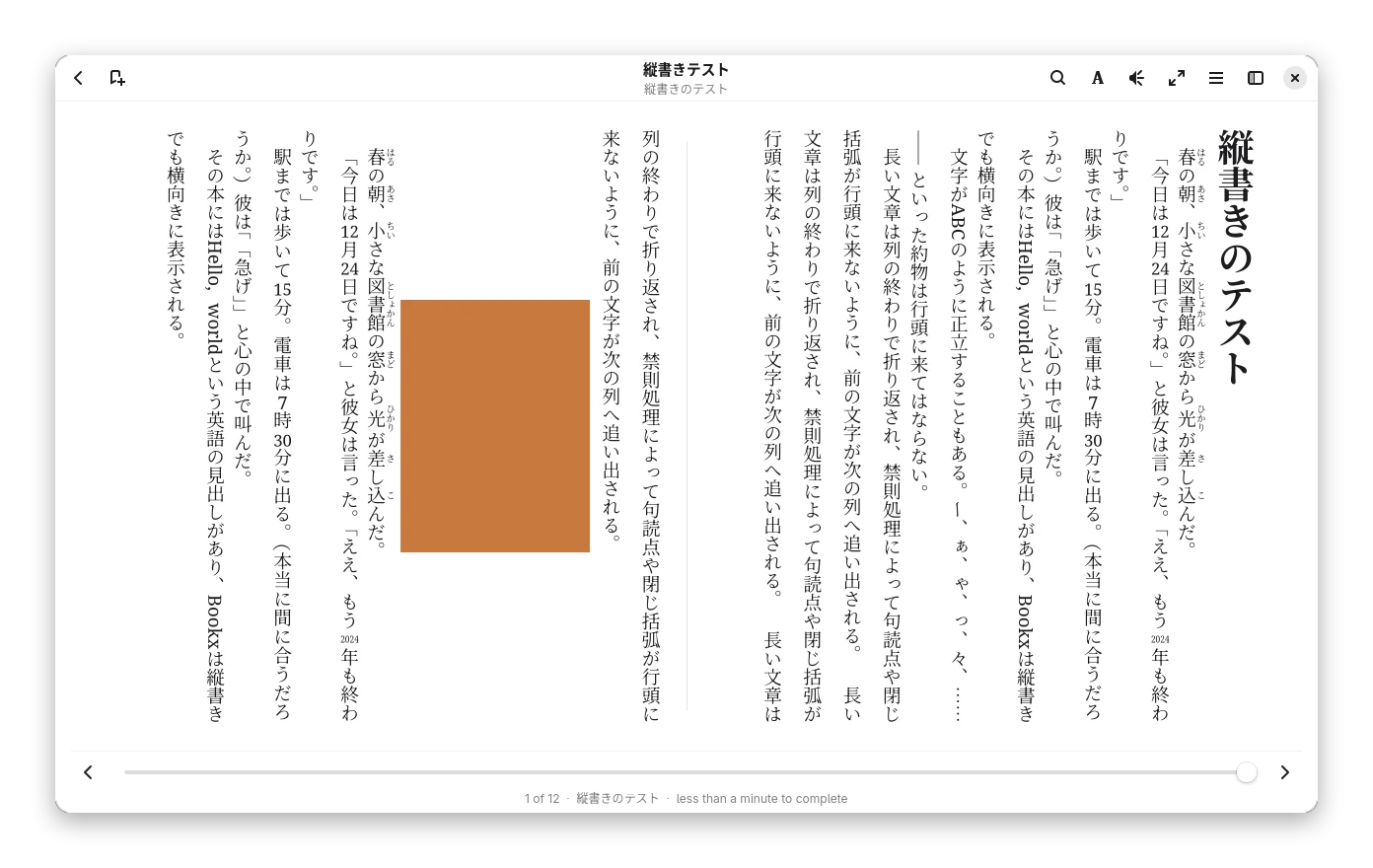
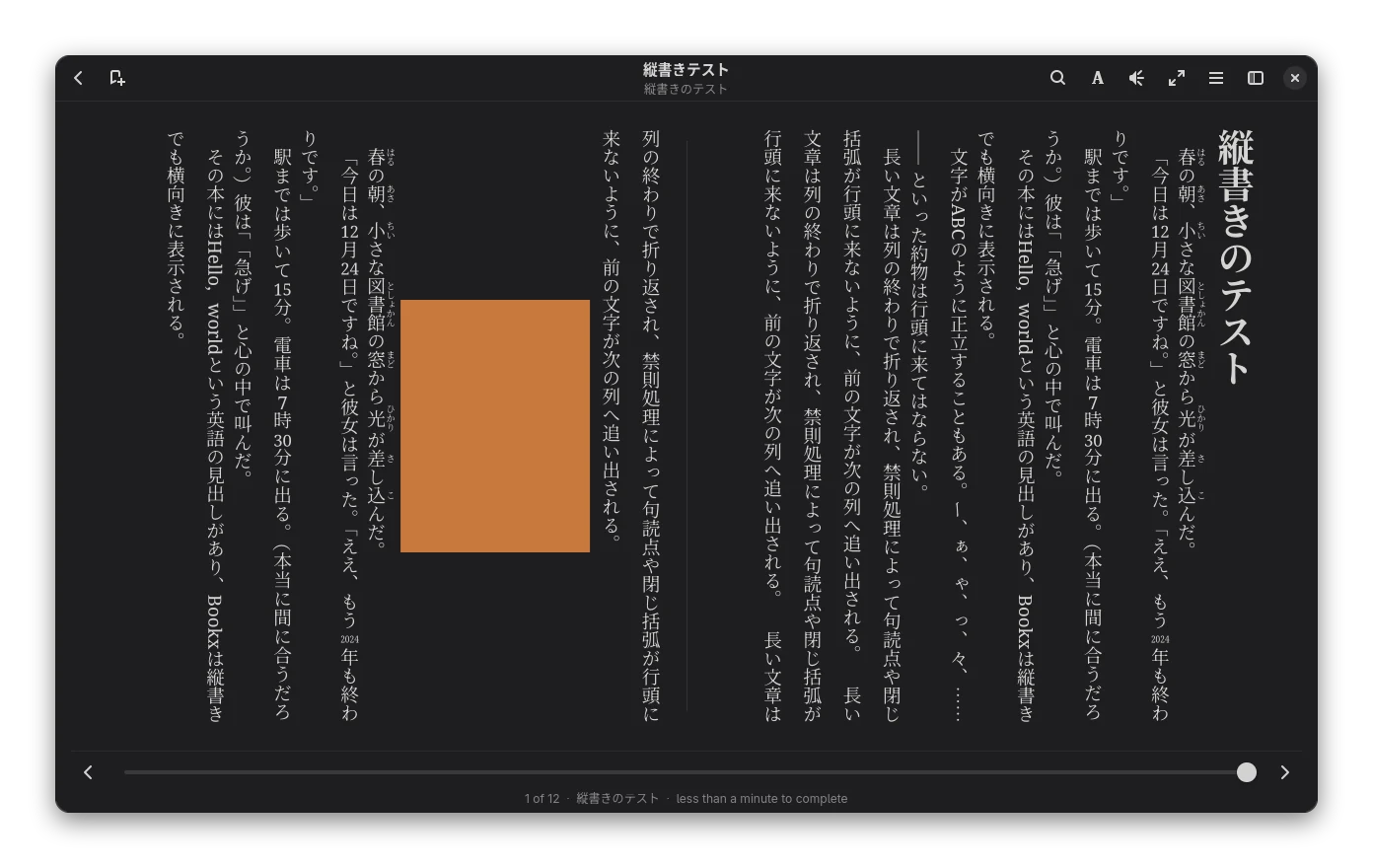 Natsume Soseki, "Wagahai wa neko de aru" (public domain, Aozora Bunko), in the two-page layout.
- Pages. A page holds as many columns as fit its width. In a book whose spine says
page-progression-direction="rtl"(all Japanese vertical books should) the first page of a two-page spread is the right-hand one, the Left arrow key, a tap on the left edge and a swipe to the right turn forward, as for Arabic. The single-page layout and the scrolling layout work too; scrolling moves sideways, the mouse wheel and Page Down move on in the book. - Characters. Ideographs and kana stand upright, Latin letters and digits are turned a quarter turn
(
text-orientation: mixed, the default), or all stand upright (upright) or all turn (sideways). Punctuation uses the vertical forms of the font: brackets turn,。and、move to the upper right, the long vowel markーstands up. - Digits side by side. Where the book asks for it (
text-combine-upright,-epub-text-combine) two to four digits such as12月24日are set horizontally in one character cell (tate-chu-yoko). - Furigana.
<ruby>annotations are drawn to the right of their base text in vertical lines and above it in horizontal ones. A long annotation spreads its base so that it never runs into the characters beside it. The annotation is not part of the text you select, search or read aloud. To hide the furigana, putrt { display: none }into the custom style sheet in Text appearance → Advanced and custom CSS. - Line breaking. Lines are broken by the rules of Japanese typesetting (kinsoku): a line never starts with a
closing bracket, a comma, a full stop,
ーor a small kana, never ends with an opening bracket, and――and……are not split. Two punctuation marks in a row (」「,。」) are squeezed to half a character where the font allows it. - Selecting and highlighting work as in horizontal books: drag along a column and on into the next one, search, highlight, take notes, read aloud. A double click selects the text between two punctuation marks (Japanese has no spaces between words). Highlights and search matches are painted column by column. With the keyboard, Shift+Down and Shift+Up move by character and Shift+Left and Shift+Right by sentence.
- Screen readers get the text in reading order, without the furigana.
A vertical book needs a font with Japanese or Chinese glyphs on your system (for example Noto Serif CJK or Noto Sans CJK, IPAex Mincho, Source Han). Without one the characters show as empty boxes. If you turn Publisher styles off, a vertical book stays vertical (the direction of the lines is not a matter of style), but loses its indents and its digit combining.
Limitations
- Vertical text: punctuation that hangs outside the line end (burasage) and
line-break,word-breakandtext-emphasis(emphasis dots) are not supported; the justified lines are spread evenly instead. A chapter is laid out in one writing mode (the one of itshtmlorbody); a horizontal block inside a vertical chapter is laid out vertically too. Floated pictures do not float in vertical text, they stand in the flow. Code backgrounds and quote bars are drawn for horizontal text only. - Fixed layout: no two-page spreads and no absolutely positioned text.
- The reader draws its own text, so the book's CSS is applied only as far as listed under the book's own styling. The page itself is not exposed to screen readers yet.
- Read aloud works on Linux only; natural voices need
espeak-ngand a command-line audio player. - Touch gestures and e-ink mode have been tested with simulated input, not on a real touch or e-ink screen.
- There is no cloud sync of reading progress; the only sync is KOSync, which you switch on yourself.