Editing
The editor is for fixing and polishing EPUB files. Open it from the library with right-click → Edit Book (or the details panel). Each book opens in its own window.
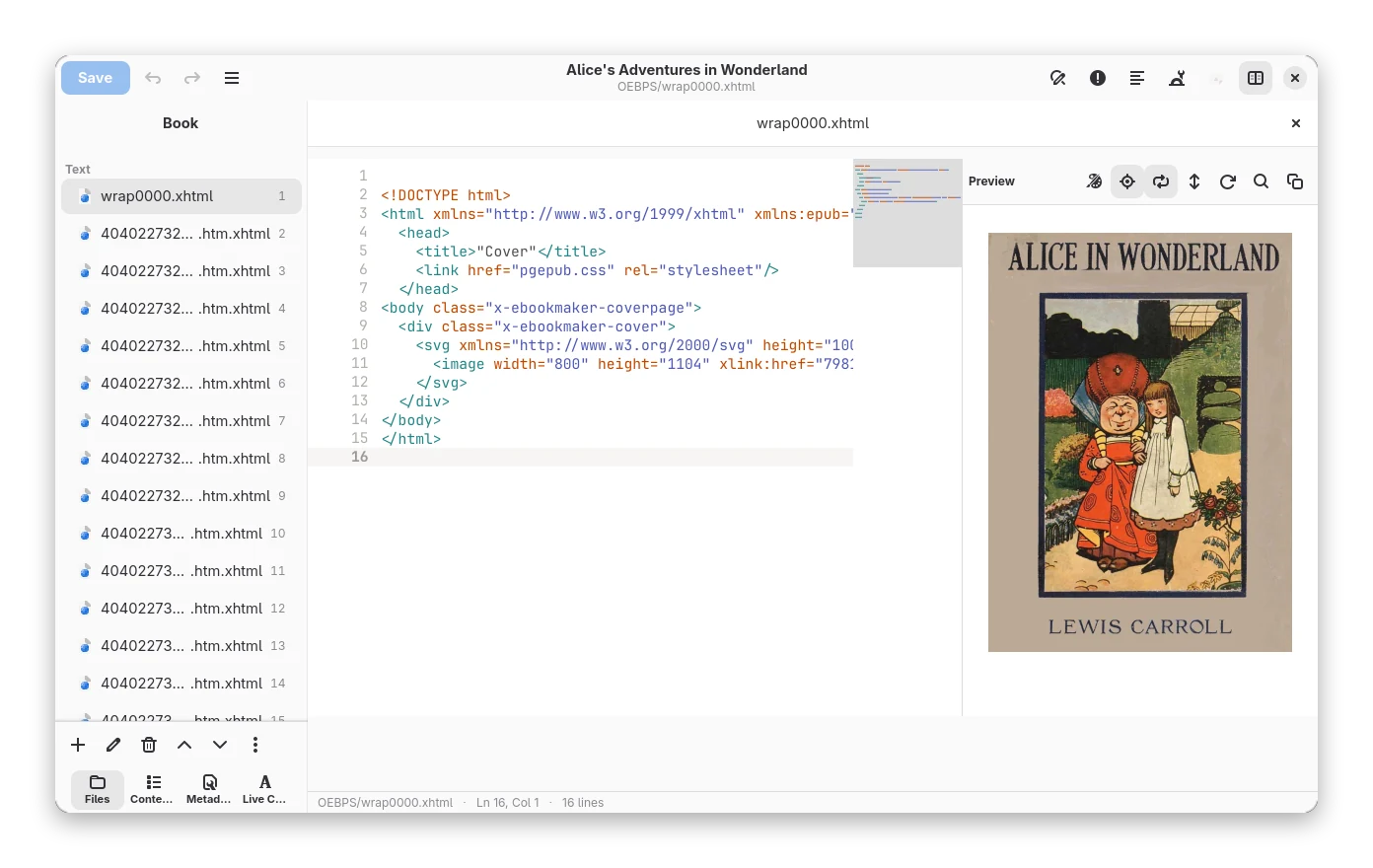
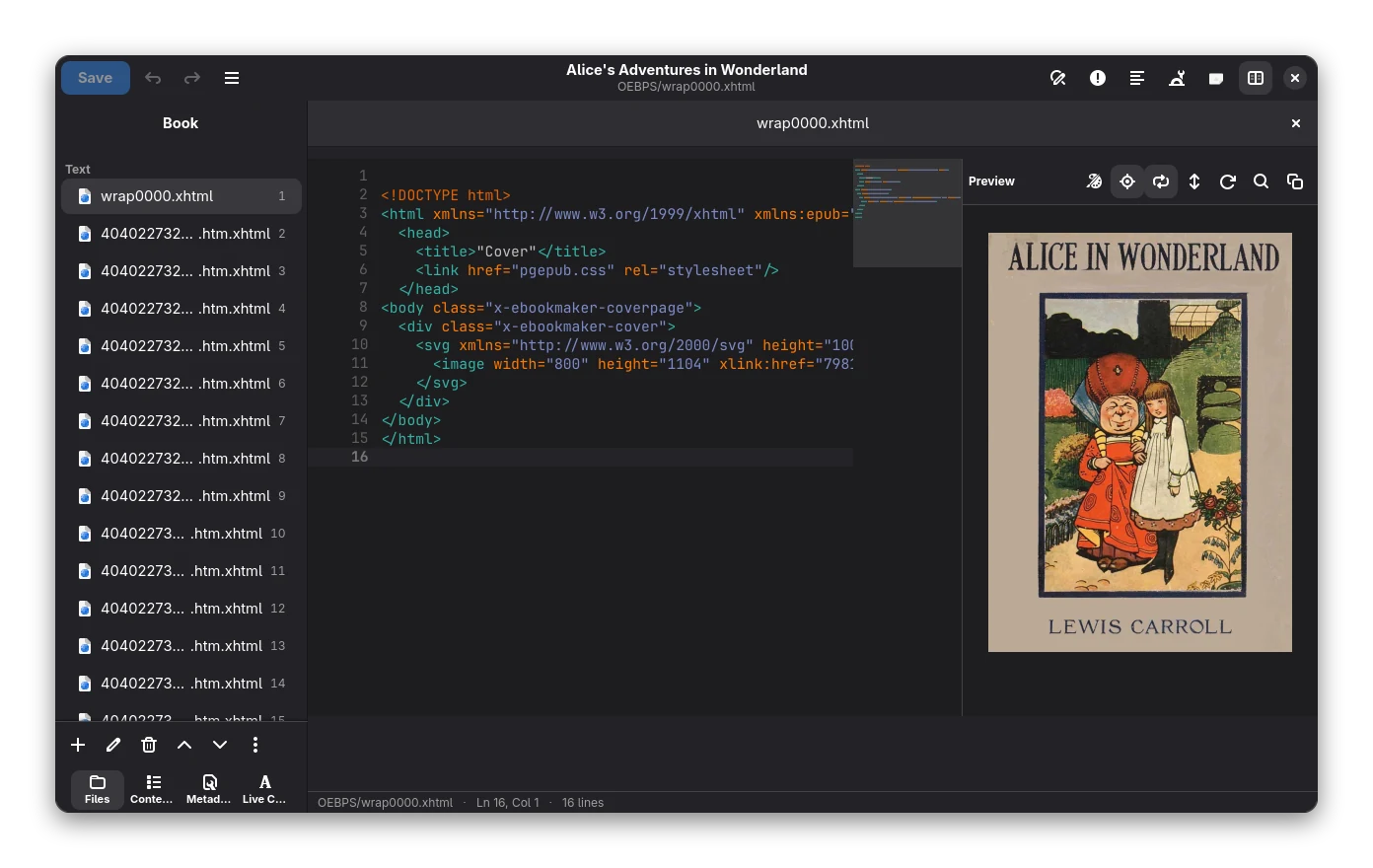 Real screenshot.
Overview
The window has a file list on the left, a code editor in the middle and a live preview on the right. The preview is drawn by the same engine as the reader, so what you see is what the reader shows.
- The code editor handles XHTML, CSS, OPF and NCX with syntax highlighting, line numbers and undo/redo. A one-click button reformats XML. See The code view below.
- Save with Ctrl+S. The book is saved back into the library.
- Metadata and Cover editing is in the editor too, and any image can be used as the cover.
The code view
The code view is built on GtkSourceView, the editing widget of GNOME's own editors.
Real screenshot.
- Highlighting for XHTML, XML, OPF, NCX, CSS (and SVG, JavaScript and Markdown files). The colours follow the app: light, dark, and a black-on-white scheme in e-ink mode.
- Line numbers, a highlight on the current line, bracket matching, automatic indent, Tab to indent, and Home / End that go to the first character of the line first. Tab inserts two spaces.
- Tag pair highlight: with the caret inside a tag, that tag and its partner (
<p>…</p>) are highlighted. - Minimap at the right edge shows the whole file; click it to jump. Switch it off with the Markup menu → Show Minimap. The choice is remembered.
- Show Hidden Characters (Markup menu) draws spaces, tabs and line breaks, and marks no-break spaces, zero-width characters, soft hyphens and other characters that are easy to miss in yellow. When the caret is on one, the status line names it.
Marks column
The narrow column left of the line numbers shows, per line:
| Mark | Meaning |
|---|---|
| Green bar | the line is new since the last checkpoint (or since you opened the editor when there is none) |
| Blue bar | the line was changed since then |
| Red tick | lines were deleted just above |
| Red, amber or blue icon | a finding of the last book check (F7) is on this line |
| Red number | how many words on the line are possibly misspelled |
Hover a mark for the text of the finding. Findings follow the text as you edit, but they are not re-checked until you run the check again.
Spelling in the text
Possibly misspelled words in XHTML files are underlined in red while you type, using the same Hunspell dictionary as
Tools → Check Spelling (the book's language; none is bundled). Right-click a word for Replace with,
Ignore (until the editor closes) and Add to Dictionary (kept in spelling-words.txt next to the settings).
Files bigger than about 700 kB are not checked while typing.
Completion
Completion pops up while you type, or press Ctrl+Space.
- after
<: tag names; inside a tag: attribute names for that tag (picking one adds=""and puts the caret inside); - in
href,src,posterand CSSurl(): the files of the book, with the relative path worked out for you; after#(orfile.xhtml#): the ids in that file, including ones you typed and have not saved; - in
class="…": the classes your stylesheets define; in a CSS rule: property names; - in text: words from the open file and snippets whose trigger matches.
Snippets
A snippet is a short word that expands into text with tab stops. Type the word and press Tab. Tab moves to the next
stop, ${1:text} stops hold a default, and the caret ends where $0 is. Built in: p (paragraph), h (heading),
img, link, sec (a section with epub:type), fn (footnote reference), aside (footnote) and, in stylesheets,
rule. Markup menu → Manage Snippets adds your own (trigger, files it applies to, text). A snippet of yours with
the same trigger replaces a built-in one. They are stored as snippets.json next to the settings.
Files and tabs
Files are grouped by type, with reading-order numbers.
- Select several with Ctrl/Shift-click.
- Rename with F2. Every
href,src, CSSurl()and#fragmentthat points at the file is repaired; other files with similar names are left alone. - Delete with Del. Reorder the spine by moving files up or down.
- From the
⋯menu or a right-click: New File (templates, optional stylesheet links, Ctrl+N), Merge Selected, Bulk Rename, Link Stylesheets and Export Selected. - Files you open get tabs. Ctrl+W closes one, Ctrl+Alt+Down / Ctrl+Alt+Up step through the reading order.
- Quick open with Ctrl+P.
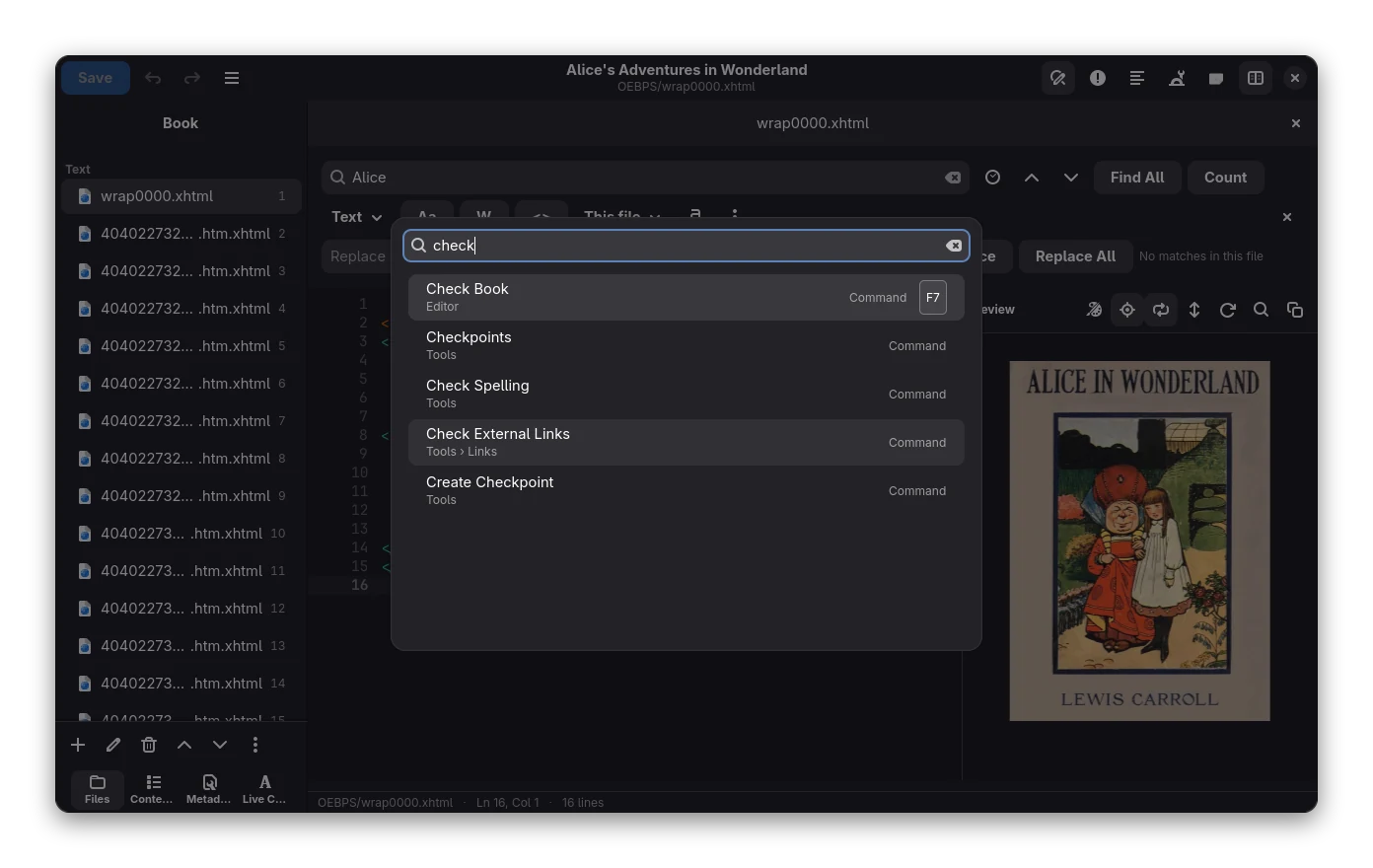
- The command palette (Ctrl+Shift+P) lists the editor's commands (save, find, check, go to line …), every item of the Tools, Markup and Files menus and the files of the book. Type a few letters and press Enter.
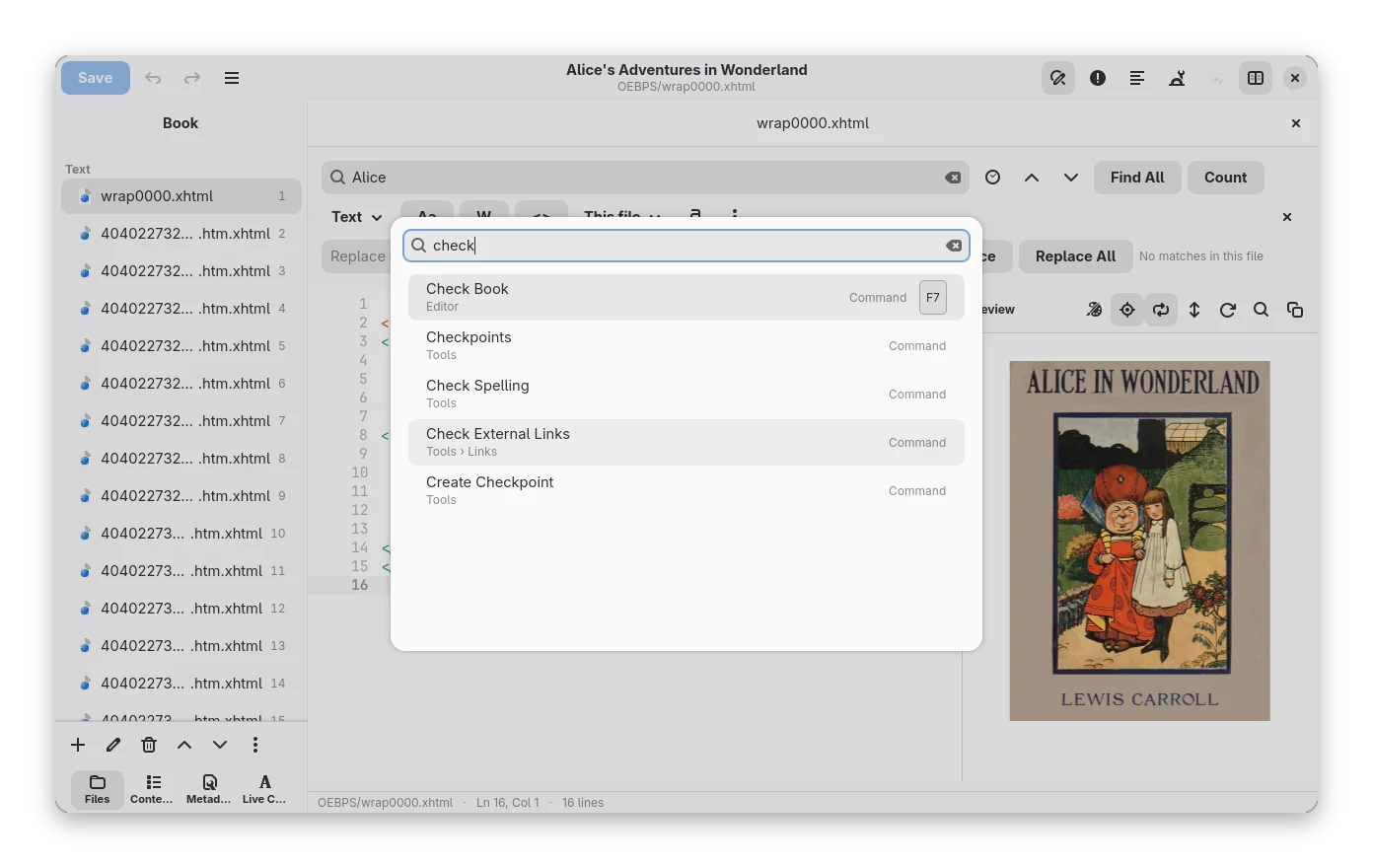
Every change that touches the whole book first takes a checkpoint named "Before: …".
Search and replace
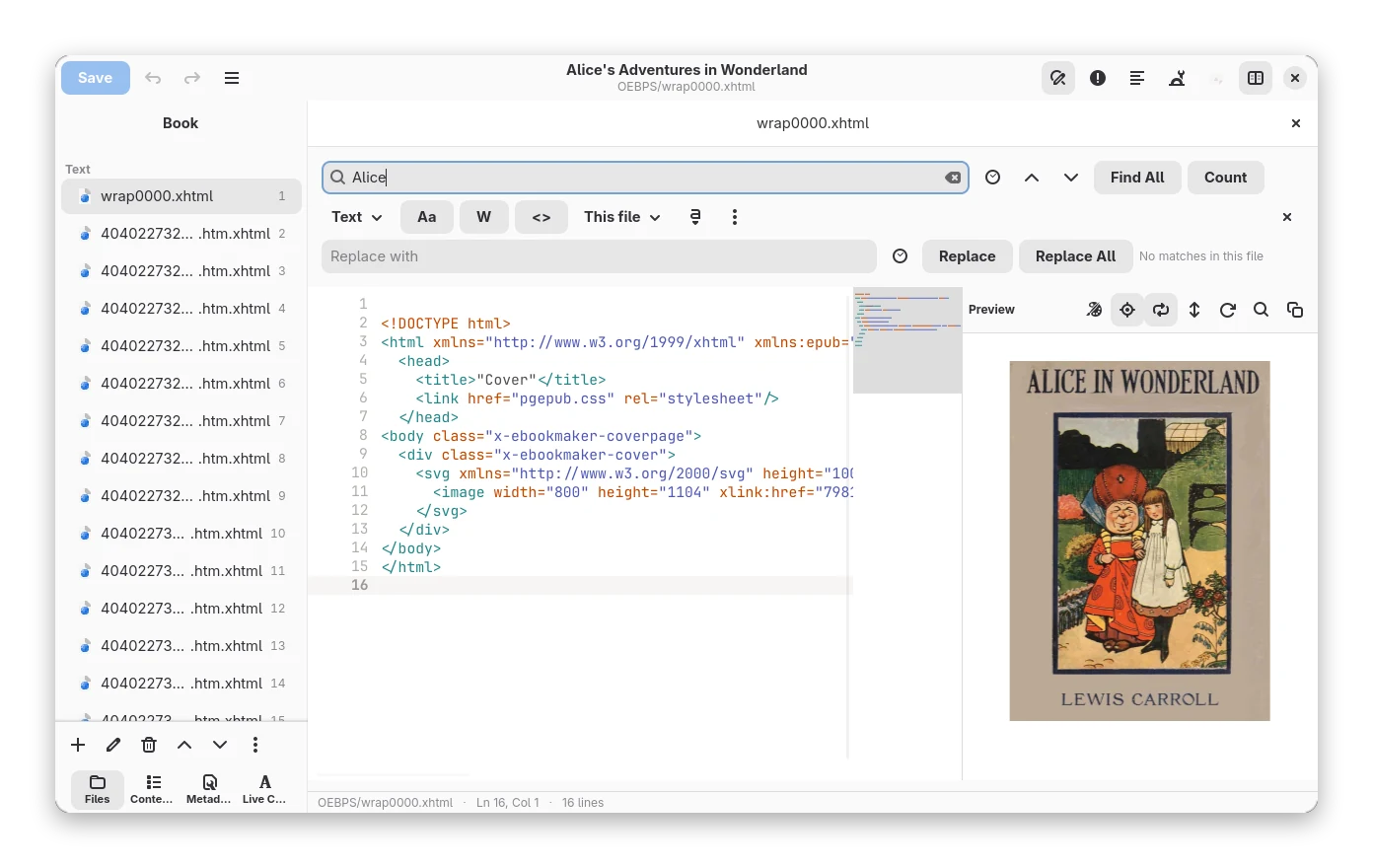
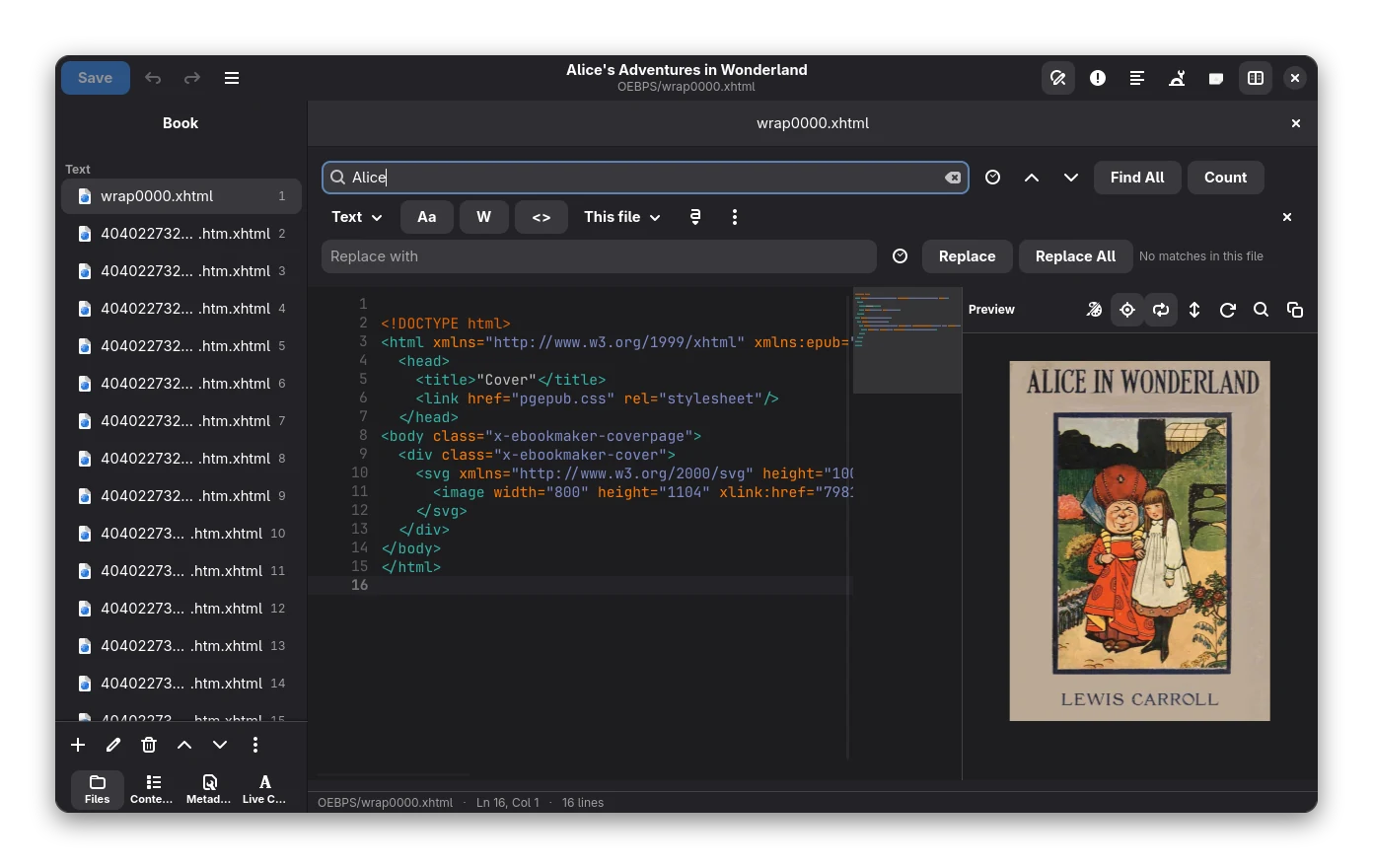
Ctrl+H or Ctrl+F opens find and replace.
 Real screenshot.
- Modes: text, regular expression (look-around,
\1back-references), function mode (a script decides each replacement), and tag search (elements and attributes). Searching ignoring HTML markup finds a phrase that is split by<i>or<b>. - Scopes: this file, text files, style files, all files, selected files, open files, or marked text.
- All matches in the open file are highlighted in the text as you type, with a live "n of m in this file" count (also in the minimap). Find All lists the matches of every file in the scope, Count counts them all.
- Saved searches, search history, and the full description of every mode: see Search and replace.
- Go to line (Ctrl+L) and Mark selected text (Ctrl+Shift+M).
Tag actions
The <> button opens the Markup menu:
| Action | Shortcut |
|---|---|
| Select to the matching tag | Ctrl+Alt+K |
| Jump to the matching tag | Ctrl+Alt+J |
| Close the open tag | Ctrl+Alt+. |
| Wrap the selection in a tag | Ctrl+Alt+W |
| Remove the surrounding tag | Ctrl+Alt+U |
| Rename a tag | Ctrl+Alt+R |
| Toggle a comment | Ctrl+/ |
| Change a block to a paragraph / heading 1-6 | Ctrl+0 … Ctrl+6 |
| Change case | menu only |
Table of contents
The contents editor renames, indents, reorders and links entries, and writes both toc.ncx and nav.xhtml.
Selecting an entry opens its file at the anchor. Generate builds a contents from the headings (levels 1-6), from
the links of a contents page, or one entry per file, replacing the current one or adding to it.
Checking the book
Press F7 or use the check button. The Problems panel opens at the bottom of the editor: a list grouped by
file, with a red, amber or blue icon per problem, the line and column, the check id (such as OPF-003) and count
badges for errors, warnings and notes.
- Click a problem to read what it means, why it matters and how to fix it, in plain language.
- Double-click it, or press Enter, to open the place in the editor.
- F8 and Shift+F8 go to the next and the previous problem (Tools → Next Problem / Previous Problem).
- Fix repairs the problem in its file; Fix all of this kind repairs every problem of that kind in the book. Both take a checkpoint first ("Before: Fix …"), so Tools → Restore Checkpoint undoes them, and the list is checked again afterwards. Problems that cannot be repaired automatically show no Fix button.
- Ignore this kind hides every problem of that kind in this book. The button with the crossed eye in the panel's header lists the ignored kinds and shows them again. Problems with the markup or the package itself cannot be ignored.
- Also check accessibility adds hints such as skipped heading levels, missing roles, missing accessibility metadata and SVG pictures without a title.
- After you edit a file, its entries are dimmed until you check again. Checking again keeps the selected problem selected.
What each Fix does:
| Problem | Fix |
|---|---|
File not in the manifest (OPF-003) |
adds it to the manifest |
Manifest entry without a file (RSC-001) |
removes the entry |
Markup not well-formed (RSC-016), no namespace (HTM-901) |
repairs the markup / adds the namespace |
Repeated ids (HTM-905, OPF-906) |
gives them new names |
Image without alt (HTM-907) |
marks it as decorative |
Broken link that differs only in case or folder (RSC-007, BKX-022) |
rewrites the link |
Unsafe file name (PKG-009, PKG-010) |
renames the file; links follow |
Empty file, unused file, leftover bookmarks file (BKX-001, BKX-024, BKX-026) |
deletes the file |
Text not in UTF-8 (BKX-002, BKX-003) |
converts the file to UTF-8 |
Named or broken character references (BKX-004, BKX-005, BKX-006) |
numeric references, &, or the entity's text |
Invalid id (BKX-008) |
renames the id; links to it follow |
Text directly in <body> (BKX-009) |
wraps it in <p> |
CMYK JPEG (BKX-016) |
converts it to RGB |
Link with a space or backslash (BKX-019) |
writes the character in its safe form |
Page not in the reading order (BKX-025) |
adds it at the end |
More than one cover (BKX-028) |
keeps the first |
Missing metadata, identifier or version (OPF-9xx, OPF-048, OPF-030, OPF-001) |
adds or repairs it |
Missing ARIA roles or accessibility metadata (ACC-902, ACC-903, ACC-904) |
adds them |
The check combines the quick checks of the editor with an EPUB validator and extra checks for things e-readers trip over: empty files, encodings, entities, ids, CSS declarations, fonts that cannot be read or may not be embedded, damaged or CMYK images, links to folders or with wrong case, unused files and more.
Spelling in the text
Possibly misspelled words in XHTML files are underlined in red while you type, using the same Hunspell dictionary as
Tools → Check Spelling (the book's language; none is bundled). Right-click a word for Replace with,
Ignore (until the editor closes) and Add to Dictionary (kept in spelling-words.txt next to the settings).
Files bigger than about 700 kB are not checked while typing.
Completion
Completion pops up while you type, or press Ctrl+Space.
- after
<: tag names; inside a tag: attribute names for that tag (picking one adds=""and puts the caret inside); - in
href,src,posterand CSSurl(): the files of the book, with the relative path worked out for you; after#(orfile.xhtml#): the ids in that file, including ones you typed and have not saved; - in
class="…": the classes your stylesheets define; in a CSS rule: property names; - in text: words from the open file and snippets whose trigger matches.
Snippets
A snippet is a short word that expands into text with tab stops. Type the word and press Tab. Tab moves to the next
stop, ${1:text} stops hold a default, and the caret ends where $0 is. Built in: p (paragraph), h (heading),
img, link, sec (a section with epub:type), fn (footnote reference), aside (footnote) and, in stylesheets,
rule. Markup menu → Manage Snippets adds your own (trigger, files it applies to, text). A snippet of yours with
the same trigger replaces a built-in one. They are stored as snippets.json next to the settings.
Files and tabs
Files are grouped by type, with reading-order numbers.
- Select several with Ctrl/Shift-click.
- Rename with F2. Every
href,src, CSSurl()and#fragmentthat points at the file is repaired; other files with similar names are left alone. - Delete with Del. Reorder the spine by moving files up or down.
- From the
⋯menu or a right-click: New File (templates, optional stylesheet links, Ctrl+N), Merge Selected, Bulk Rename, Link Stylesheets and Export Selected. - Files you open get tabs. Ctrl+W closes one, Ctrl+Alt+Down / Ctrl+Alt+Up step through the reading order.
- Quick open with Ctrl+P.
- The command palette (Ctrl+Shift+P) lists the editor's commands (save, find, check, go to line …), every item of the Tools, Markup and Files menus and the files of the book. Type a few letters and press Enter.
Every change that touches the whole book first takes a checkpoint named "Before: …".
Search and replace
Ctrl+H or Ctrl+F opens find and replace.
Real screenshot.
- Modes: text, regular expression (look-around,
\1back-references), function mode (a script decides each replacement), and tag search (elements and attributes). Searching ignoring HTML markup finds a phrase that is split by<i>or<b>. - Scopes: this file, text files, style files, all files, selected files, open files, or marked text.
- All matches in the open file are highlighted in the text as you type, with a live "n of m in this file" count (also in the minimap). Find All lists the matches of every file in the scope, Count counts them all.
- Saved searches, search history, and the full description of every mode: see Search and replace.
- Go to line (Ctrl+L) and Mark selected text (Ctrl+Shift+M).
Tag actions
The <> button opens the Markup menu:
| Action | Shortcut |
|---|---|
| Select to the matching tag | Ctrl+Alt+K |
| Jump to the matching tag | Ctrl+Alt+J |
| Close the open tag | Ctrl+Alt+. |
| Wrap the selection in a tag | Ctrl+Alt+W |
| Remove the surrounding tag | Ctrl+Alt+U |
| Rename a tag | Ctrl+Alt+R |
| Toggle a comment | Ctrl+/ |
| Change a block to a paragraph / heading 1-6 | Ctrl+0 … Ctrl+6 |
| Change case | menu only |
Table of contents
The contents editor renames, indents, reorders and links entries, and writes both toc.ncx and nav.xhtml.
Selecting an entry opens its file at the anchor. Generate builds a contents from the headings (levels 1-6), from
the links of a contents page, or one entry per file, replacing the current one or adding to it.
To point an entry at an exact place, select it and press the Point the entry at a place you click in the preview
button in the Contents toolbar, then click where it should lead in the preview. A green line shows the place under
the pointer. Bookx adds an id to the element if it has none and sets the entry to file#id.
Checking the book
Press F7 or use the check button. The checker reports XML errors, missing and unmanifested files, duplicate ids,
spine problems, broken links and anchors, and missing metadata. It also runs an EPUB validator with 87 rules, using
ids such as [OPF-003]. Results are listed; click one to go there.
Spelling
While you type, misspelled words are underlined (see The code view). Tools → Check Spelling
opens a panel at the right of the editor with every misspelled word of the whole book, its language and how often it
occurs. Bookx uses the Hunspell dictionaries installed on your system (for example from hunspell-en), plus the ones
you import. None are bundled.
- Select a word to see its next occurrence selected in the editor, with suggestions below the list. Press Enter (or double-click) to jump there and put the focus in the editor.
- Change All replaces every occurrence in the book with the suggestion you picked or the word you typed. A checkpoint is taken first, so you can go back.
- Ignore hides the word until the editor closes; Ignore in Book remembers it for this book.
- Add to Dictionary puts the word into one of your dictionaries (Personal or one you made). Words are plain text files
in the settings folder (
spelling-words.txtandspelling-dictionaries/). - The toggle with the list icon shows all words with their counts, not only the misspelled ones; the filter field narrows the list. Refresh checks again after you edited the book.
- Text marked with
langorxml:langis checked with the dictionary of that language, soen-GBanden-UStext each get their own. A language without a dictionary is left unchecked and named in the panel. - Ctrl+F8 / Ctrl+Shift+F8 jump to the next / previous misspelled word, continuing in the next file at the end of a file.
- A file can be left out: menu Exclude This File from Spell Check, or put the comment
<!-- bookx-no-spell-check -->in it. Excluded Files lists them.
The panel menu has Spelling Dictionaries: it lists the installed dictionaries, imports a Hunspell .dic/.aff pair
or a LibreOffice extension (.oxt) into your own folder (UTF-8 dictionaries only), and manages your word lists (create,
switch on or off, remove words, delete).
Grammar checking is not planned: it needs large models and works well for English only.
Reports
Tools → Reports (Ctrl+Shift+R) opens a window with one tab each for Files (folder, name, size, type, words), Words (word, language, count), Images (size, times used, resolution), Style rules (matches), Style classes (used, unused, not defined), Characters (code point, Unicode name, count) and Links (internal, external, broken). Click a column title to sort, type in the filter field to narrow the rows. Double-click a row (or press Enter) to go to its place in the editor; Next Place / Go to Target visit the other places. Delete Selected (Files) and Delete Unused (Images) change the book, with a checkpoint. The save button exports the rows shown as CSV. Tabs are built when you first open them; Refresh rebuilds them after edits.
Special characters
Markup menu → Insert Special Character (Ctrl+Alt+I) shows every Unicode character by block, with a search by name
or code (acute, U+00E9), your favourites (right-click a character to add, remove or move it) and the characters
you used last. Click inserts the character at the caret, or into the find and replace field when that has the focus, and
closes the window; ++ctrl+click++ inserts and keeps it open. &, < and > are inserted as entities.
Type a hex code and press Alt+X to turn it into the character (00e9 or U+2014). With Convert Typed
Entities switched on (off by default), typing ; after é or é replaces it by the character; &,
<, >, " and ' are never converted, and only about thirty common names are known.
Preview
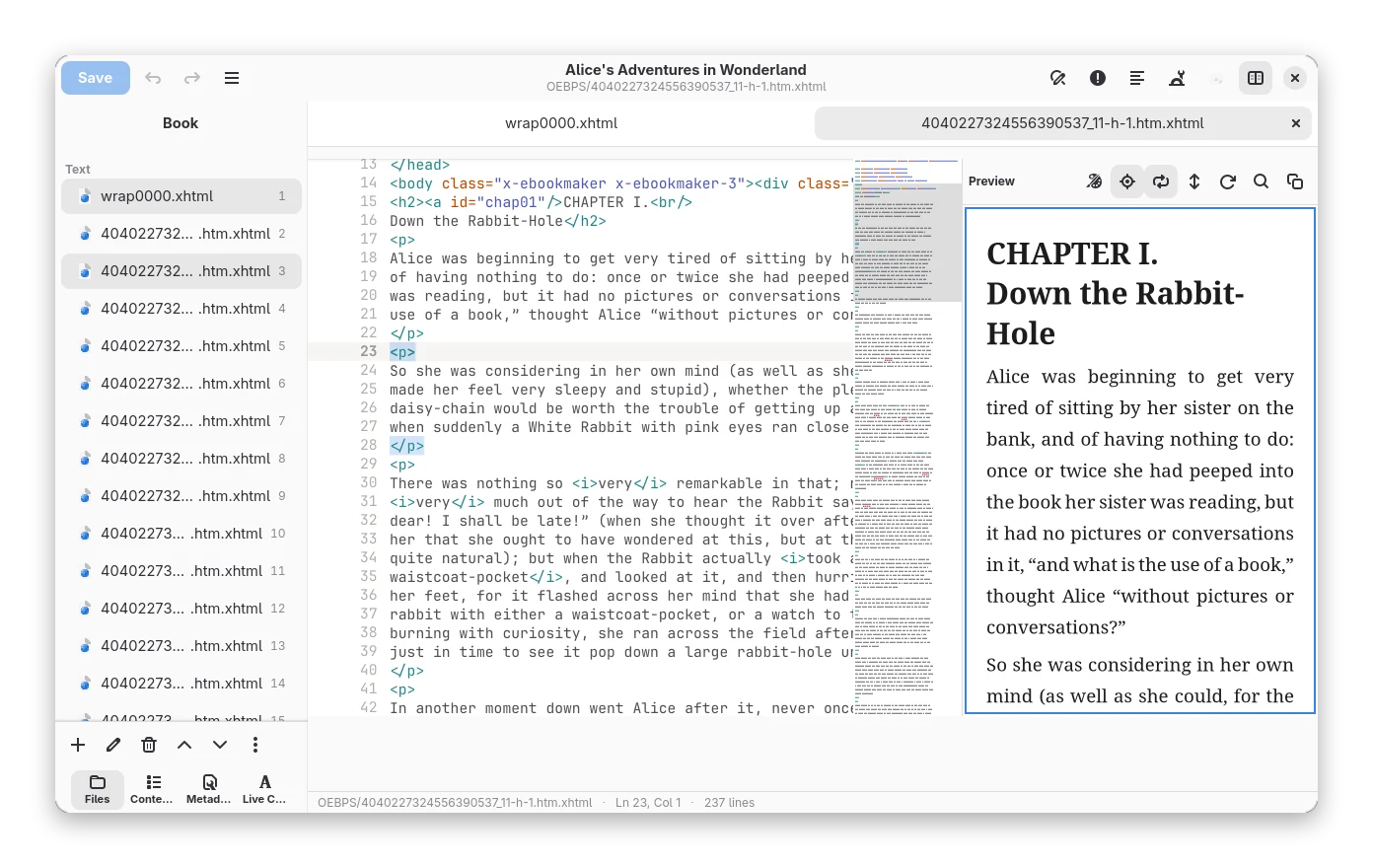
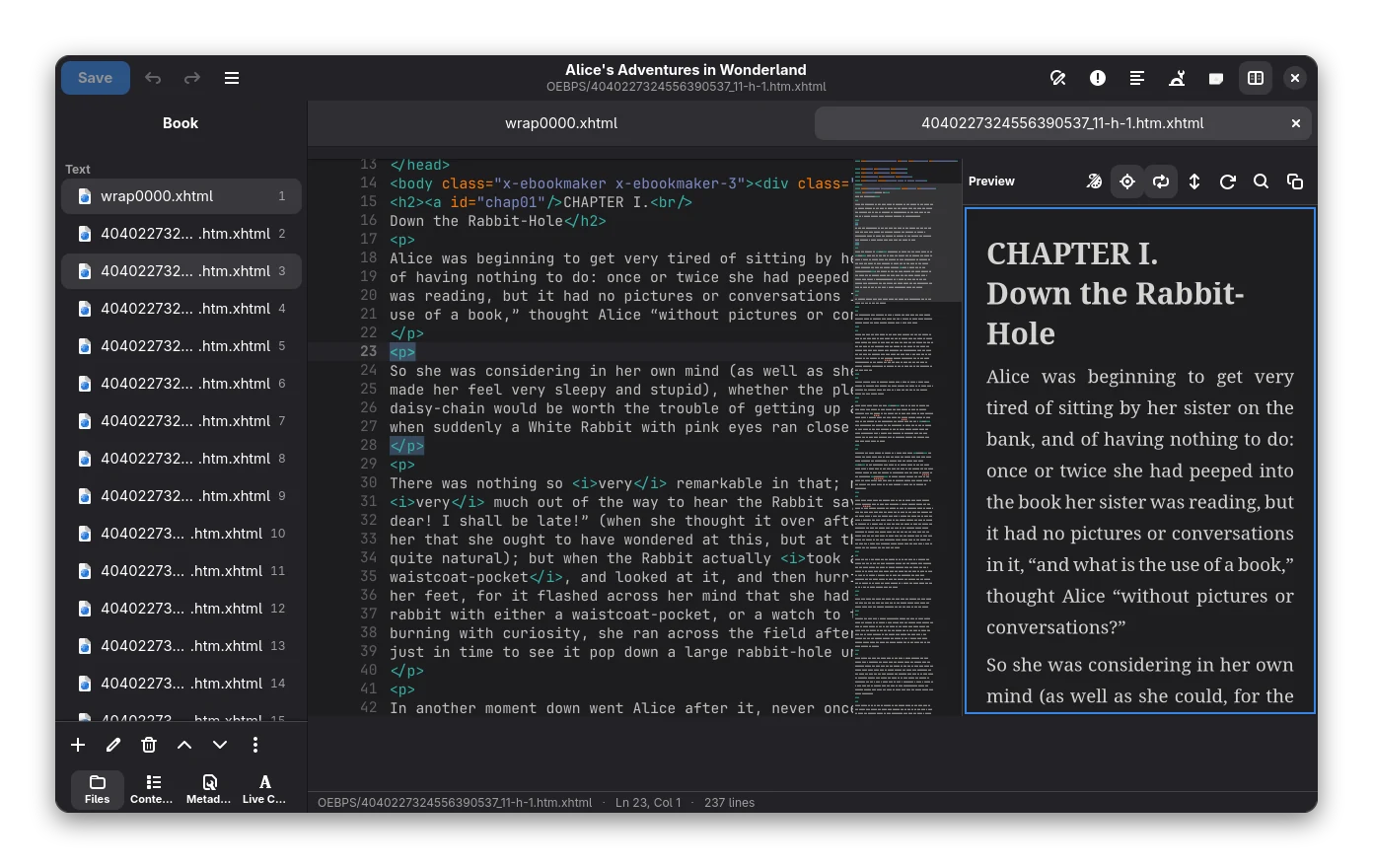
The pane on the right shows the open chapter and follows what you do in the code.
| Control | What it does |
|---|---|
| Follow the cursor | the preview scrolls to the element at the cursor (on by default) |
| Scrolling the code | the preview scrolls to show the same part of the page, also with the mouse wheel, the scrollbar and Page Up/Down |
| Sync scrolling both ways | off by default: scrolling the preview then scrolls the code too; the setting is remembered |
| Click in the preview | puts the cursor at that element in the code |
| Click a link of the book | opens the linked file in the editor and the preview |
| Reload automatically | redraws the preview while you type; switch it off for big files and refresh with F5 |
| Refresh (F5) | redraws the preview from the text now |
| Find in the preview | searches the shown text |
| Copy (Ctrl+Alt+C) | copies the text you selected in the preview |
The link between code and preview is made by comparing the text of both, so a block that the preview generates itself (a list marker, say) has no place in the code, and clicking it does nothing. Between two places that are known, the scroll position is interpolated, so the panes also agree inside a long paragraph or next to such blocks. A cursor move (typing, arrow keys, a click) wins for a moment over scrolling, so the preview does not jump away from the element you are working on. Nothing is synced while the preview is hidden. On vertical pages the preview follows the cursor but shows no green line.
Splitting a file
Three ways, all in the Markup menu. Every split takes a checkpoint first; links, anchors, the spine and the contents are repaired.
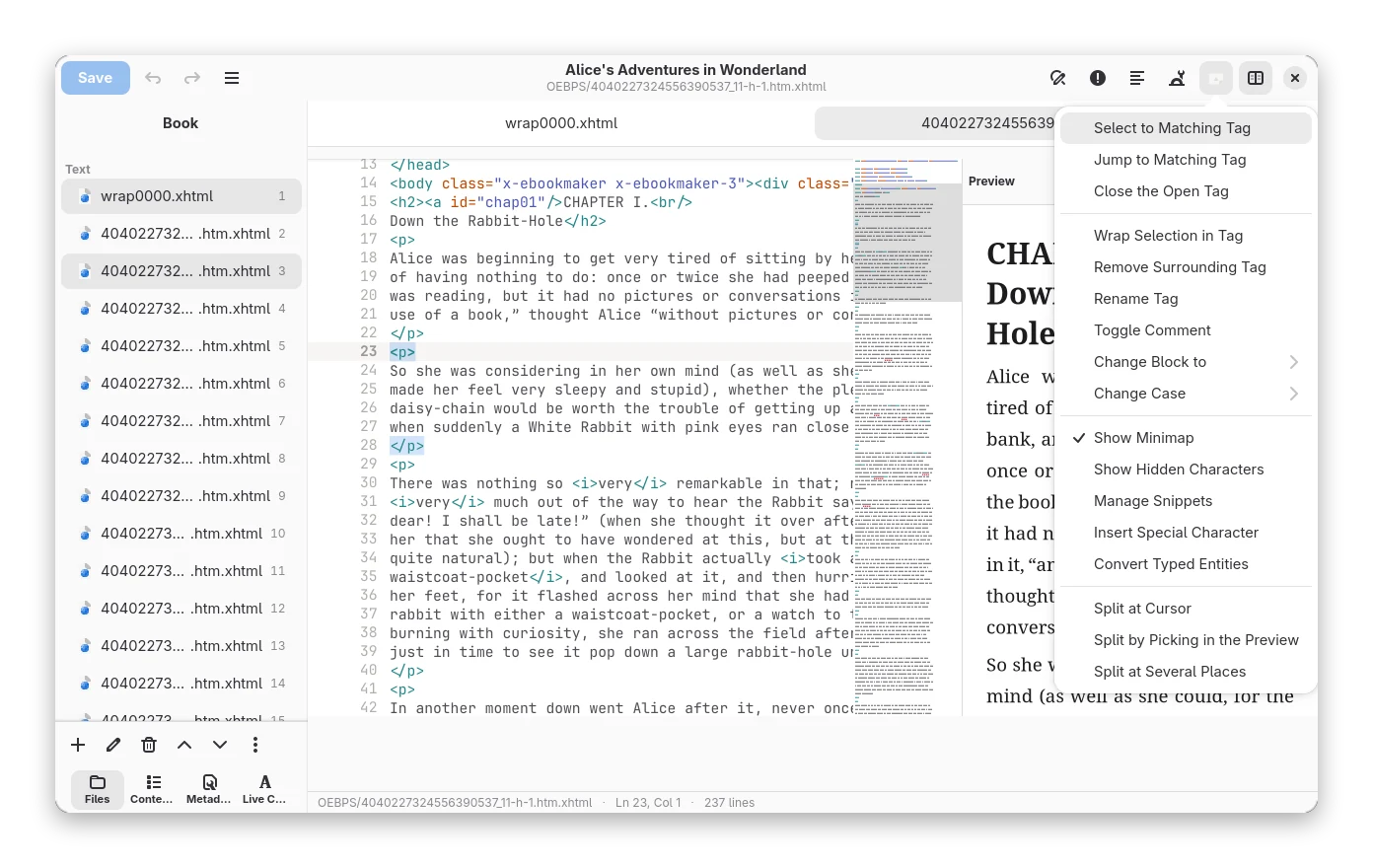
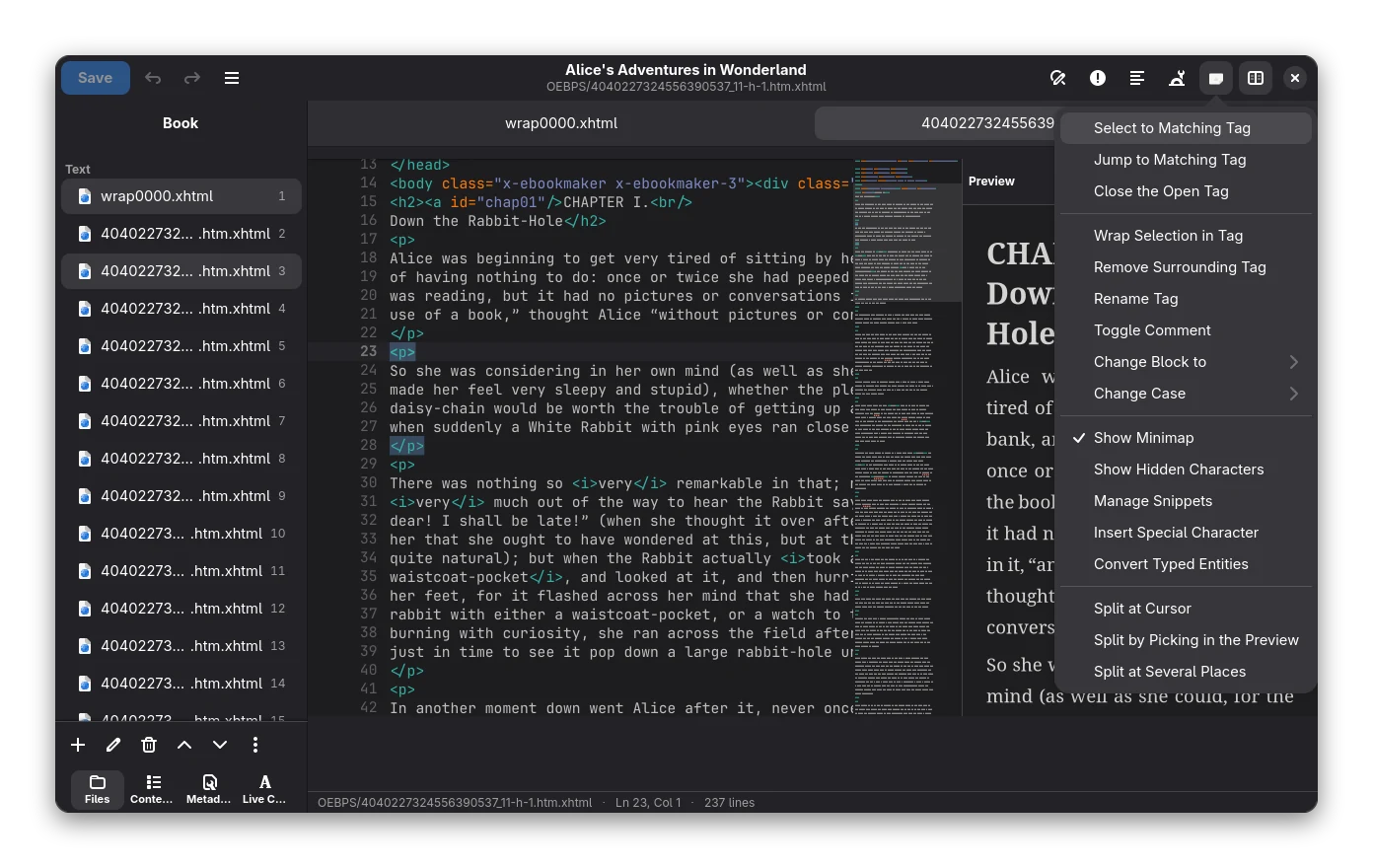
- Split at Cursor cuts the file where the cursor is. A cursor right after a start tag cuts in front of the element, so no empty paragraph is left behind. A cursor in the middle of a paragraph splits the paragraph, closing and reopening the tags around it.
- Split by Picking in the Preview: click the place in the preview where the new file should begin.
- Split at Several Places opens a dialog: at headings down to a level, at every element with a class, at
page breaks (CSS
page-break-before/after), or at the elements a small XPath-like selector picks (//div[@class='part'],//section/h2,h2.title). The dialog lists the files that would result, with their first heading, before you split.
Only well-formed XHTML can be split.
Compare and checkpoints
Every tool takes a snapshot of the book first. Tools → Checkpoints lists them with time, size and file count; there you can create a named checkpoint, rename one, keep it when old ones are pruned, delete it, Compare it with the book or Revert the book to it (the state before the revert is kept too).
The comparison opens in the middle of the editor: two columns with line numbers, only the differences and a few lines around them (the others are folded), changed lines tinted with the changed words marked. The colours work in dark mode; with the e-ink theme changes are shown by weight and strike-through instead. Both columns scroll together.
- the file list at the top chooses which changed text file to show; the arrows step through the changes
- Beautify pretty-prints the markup first, so formatting changes are not shown (line numbers then refer to the pretty-printed text)
- the spin button sets the lines of context; the search box finds text in the differences
- double-click a line to go to it in the code
- Tools → Compare with Another Book compares the open book with another EPUB file; use it to compare with the original of a book you converted
Bookx does not keep the original file of an imported book, so the library has no compare with the original entry; keep the original and compare with it as above.
Live CSS
The Live CSS tab in the sidebar shows the styles for the element at the cursor: the rules that match, strongest
first, with the file and line each is written at (click it to jump there), the rules of its parents that it inherits,
and the resulting value of each property. A declaration that another rule overrides is struck through. It reads the
book's stylesheets and <style> blocks; the reader's own defaults are not included, sizes in em are not converted,
and it is read only: edit the stylesheet itself.
Tools menu
The first entries run at once; the grouped entries open a dialog that shows what will change (press Preview: the tool runs on a copy and lists the files with the lines before and after) and runs on a checkpoint, so one undo brings the old state back.
Text
| Entry | What it does |
|---|---|
| Smarten Punctuation | curly quotes, dashes and ellipses in the text of the pages; the double quotes follow the language rules you choose (English “ ”, German „ “, French « », Swedish ” ”); Straighten undoes it; for the open page or all pages. Code, pre, scripts, styles and attributes are never touched |
| Fix HTML | repairs pages that are not well-formed XHTML (open page or all pages). If the quick repair cannot fix a page, it is rebuilt with an HTML5 parser, the way a browser reads it; the switch uses that parser always |
| Beautify | tidies the layout of pages, stylesheets and package files. Only the white space between block tags changes, so pages look the same |
Styles
| Entry | What it does |
|---|---|
| Transform Styles | a rule builder: If a property has a value, change it (color is red → green), Set a property everywhere, Remove a property (margin* works), Remove a property when it has a value, Multiply all font sizes, Make a font family italic, Rename a font family, Change one colour into another. Rules apply in order to stylesheets, <style> blocks and style attributes. Save a list of rules under a name and load it later (also in other books) |
| Remove Unused CSS Rules | deletes the rules that match nothing in the book (@font-face and other @-rules stay) |
| Filter Style Information | removes the ticked properties (with how often they are used) everywhere |
Media and fonts
| Entry | What it does |
|---|---|
| Delete Unused Media | lists images, fonts, audio and video that nothing uses, with sizes; the cover is never listed |
| Embed Referenced Fonts | finds the fonts the pages ask for but the book does not carry among the fonts installed on this computer and embeds them. A font whose licence forbids embedding cannot be ticked; fonts that do not say are marked with a warning. Optionally keeps only the characters the book uses |
| Download External Resources | copies images, stylesheets and media that pages load from the web into the book. Needs a network connection; check the licences |
Structure and accessibility
| Entry | What it does |
|---|---|
| Set Semantics | says which page is the cover, title page, table of contents, foreword, dedication, index and so on (guide and, in EPUB 3, landmarks) |
| Accessibility | three tabs: the book’s Language; Image descriptions (a text per image, Decorative for images a screen reader should skip, one text for every use of an image); Accessibility metadata (summary, access modes, features, hazards, conformance; EPUB 3) |
Links
| Entry | What it does |
|---|---|
| Check External Links | visits every web address the book links to, one request every moment, in the background; broken ones are listed in the results panel with their page. Nothing is changed. Does not run when the network is switched off |
| Repair Broken Links | fixes links to files or anchors that moved or differ in capital letters; the rest is listed |
| Move Files to a Folder | moves the selected files into a folder of the book and updates every link |
Other entries
| Entry | What it does |
|---|---|
| Fix Problems Automatically | repairs what the checker can fix automatically |
| Upgrade to EPUB 3 | converts an EPUB 2 book |
| Insert / Remove Contents Page | adds or removes a contents page in the book |
| Improve Accessibility | improves accessibility metadata and markup |
| Compress Images | shrinks images |
| Shrink Embedded Fonts | subsets embedded fonts |
| Arrange Files in Folders | sorts files into folders by type |
| Split File at Chapter Headings | splits the open chapter; links, contents and manifest are repaired |
| Merge with Next File | merges the open chapter with the next one |
| Next / Previous Problem | goes through the Problems panel (F8 / Shift+F8) |
| Check Spelling | the spelling panel, see Spelling |
| Reports | the reports window, see Reports |
| name (plugin) | transforms from plugins |
| Checkpoints / Create / Restore / Compare Checkpoint | see Compare and checkpoints |
| Compare with Another Book | see above |
File list extras
- Order and groups. Pages are listed in reading order, then stylesheets, images, fonts and package files, each alphabetically. A number shows the place in the reading order.
- Hover a file for its path, size, type and what is special about it. Icons mark the package document, the contents (NCX or navigation document), the cover, the title page, files not listed in the package, pages outside the reading order, pages listed twice and pages that are not part of the main reading order.
- Reorder by dragging. Drag a page row onto another: a line shows whether it lands above or below. The buttons below the list still move a page one place.
- Files menu (⋯ or right-click). Select all text files, stylesheets, images or fonts, or none. Use as Cover Image, Cover Page, Title Page or Table of Contents. Toggle Not in Main Reading Order. Change Extension. Move to Folder. Replace with File (links follow when you change the name). Open With opens the file in another program and offers to update the book when you save it there. Browse Images shows thumbnails with their sizes and which are unused. Show Full Paths.
- Your own templates. Put
.xhtml,.htmlor.cssfiles in theeditor-templatesfolder of Bookx’s configuration folder; they appear in New File ({title}in the text is replaced by the name you type).
Book menu
The ☰ button at the left of the header bar.
| Entry | Shortcut | What it does |
|---|---|---|
| Save a Copy | Ctrl+Alt+S | writes the book as it is now to a file; the library is not changed |
| Save a Copy and Edit It | Ctrl+Alt+Shift+S | the same, adds the copy to the library and continues editing the copy |
| Open Another Book | Ctrl+O | shows another book of the library in this window |
| Open an Unzipped Folder | opens a folder with an unzipped EPUB as a book (added to the library) | |
| New Book | a book with one empty chapter | |
| Import HTML, DOCX or Text as a New Book | adds the file to the library and opens it | |
| Revert to Before the Last Change / Revert to After | Ctrl+Alt+Z / Ctrl+Alt+Shift+Z | walks back and forth over the checkpoints (a new change ends the redo list) |
| Close Other Tabs / Close Tabs to the Right | Ctrl+Shift+W / Alt+Shift+W | also in the context menu of a tab |
| Wrap Long Lines | wraps long lines in the code view | |
| Reopen Tabs and Cursors Next Time | open tabs, the selected tab and the caret of each file are remembered per book | |
| Help on Editing | F1 | opens this page |
Opening a book in the editor from a terminal: bookx --edit book.epub OEBPS/ch1.xhtml --select-text "some words" or
bookx-cli edit book.epub OEBPS/ch1.xhtml --select-text "some words". The file is added to the library if it is not
there; the named files open in tabs and the text is selected in the last one.
Limitations
- The editor works on EPUB. Other formats are converted to EPUB first.
- Fonts are searched in the system font folders and
~/.local/share/fonts; font files over 12 MB are skipped. - Link checking and downloading use plain web requests, one at a time; some sites refuse them.
- Check Spelling and the underlines in the code view need system Hunspell dictionaries; none are bundled.
- The EPUB validator is Bookx's own rule set, in pure Rust. It is compared with the
epubverivalidator in tests, but it is not the reference EPUBCheck and can be stricter.