Accessibility
Bookx is a GTK 4 / libadwaita app, so it follows the desktop's accessibility settings: the screen reader (Orca), high contrast, reduced motion, large text and the keyboard. This page says what works and what does not yet.
Screen reader
- Every button, switch, slider, drop-down and entry has a name that Orca reads. Icon-only buttons have a tooltip, which is also their name.
- The page you are reading is exposed as text. The reading area is a document with the text of the visible page (paragraphs separated by line breaks). Orca can read it by word, sentence, line and paragraph, and it is updated when you turn the page, change the size of the window or the font. When you select text with the keyboard, the selection is announced and reported to the screen reader.
- With Orca, use Page Down / Page Up (or Space) to turn the page. Orca's browse mode takes the arrow keys for its own caret: Down / Up read the next / previous line of the page, and the caret can move through the page text. Orca+toggle (the "focus mode" command) hands the arrow keys back to Bookx.
- The page text is only what is on screen. Orca does not read ahead into the next page; turn the page, then use your screen reader's read-all command or line navigation.
- Pictures are not described (the alternative text of images is not read yet).
- The entries of the menus that GTK draws as popovers (the right-click menu of a book, the main menu) had no names in the accessibility tree in our automated test with GTK 4.24; whether Orca still reads them from their labels was not checked.
Reading and selecting with the keyboard only
You never need the mouse:
| To | Press |
|---|---|
| Open a book | Ctrl+K, type its title, Enter |
| Turn the page | Right / Left, Page Down / Page Up, Space |
| Next / previous chapter | Ctrl+Right / Ctrl+Left |
| Select text | Shift+Right / Shift+Left (character), Ctrl+Shift+Right / Ctrl+Shift+Left (word), Shift+Down / Shift+Up (sentence), starting at the top of the page |
| Open the actions for the selection | Enter |
| Look it up | D (dictionary), W (Wikipedia), T (translate) |
| Highlight | H |
| Add a note | N, type, then Ctrl+Enter to save |
| Copy | Ctrl+C |
| Clear the selection | Esc (a second Esc goes back to the library) |
The reading area shows a visible focus ring when you use the keyboard.
Command palette
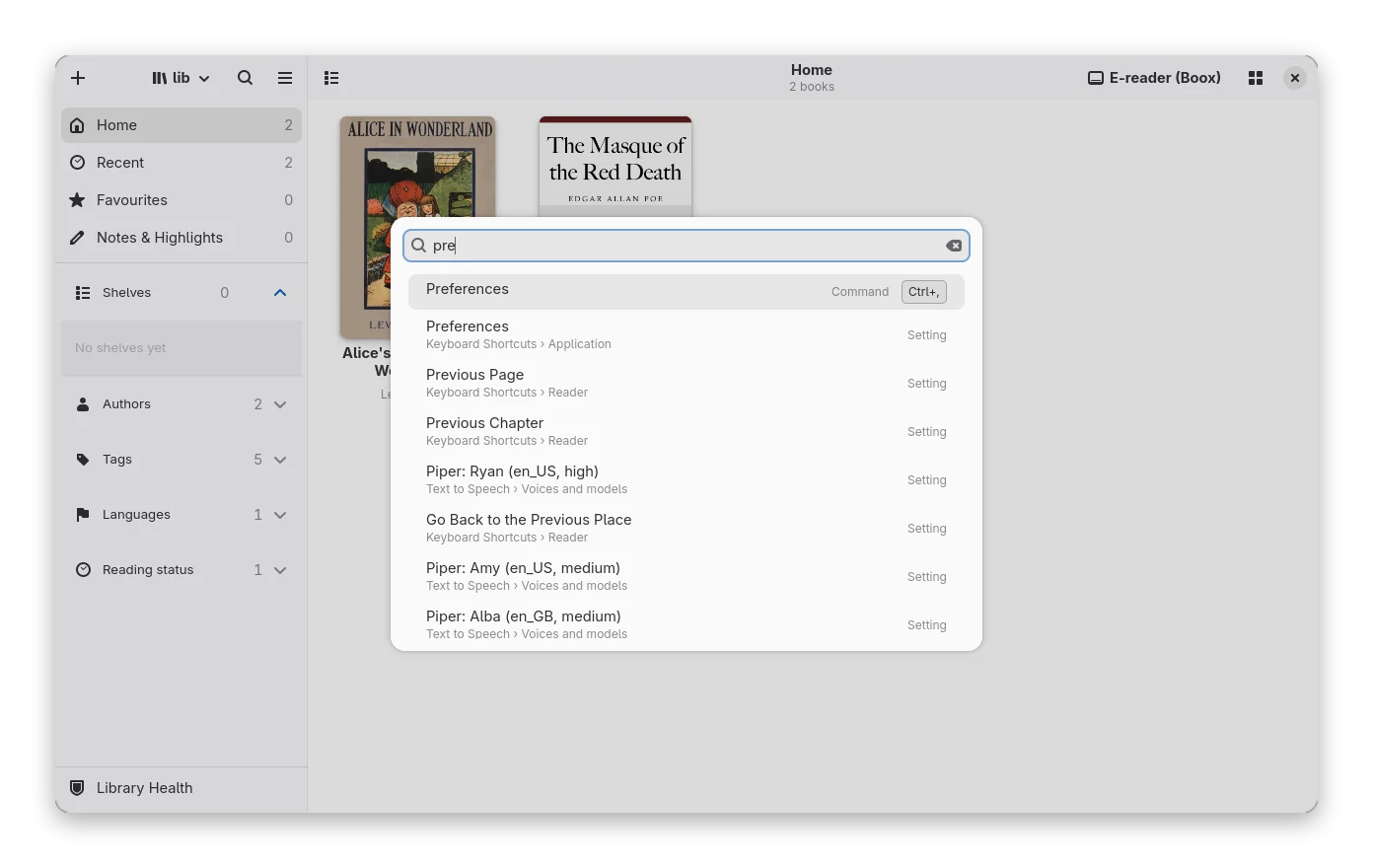
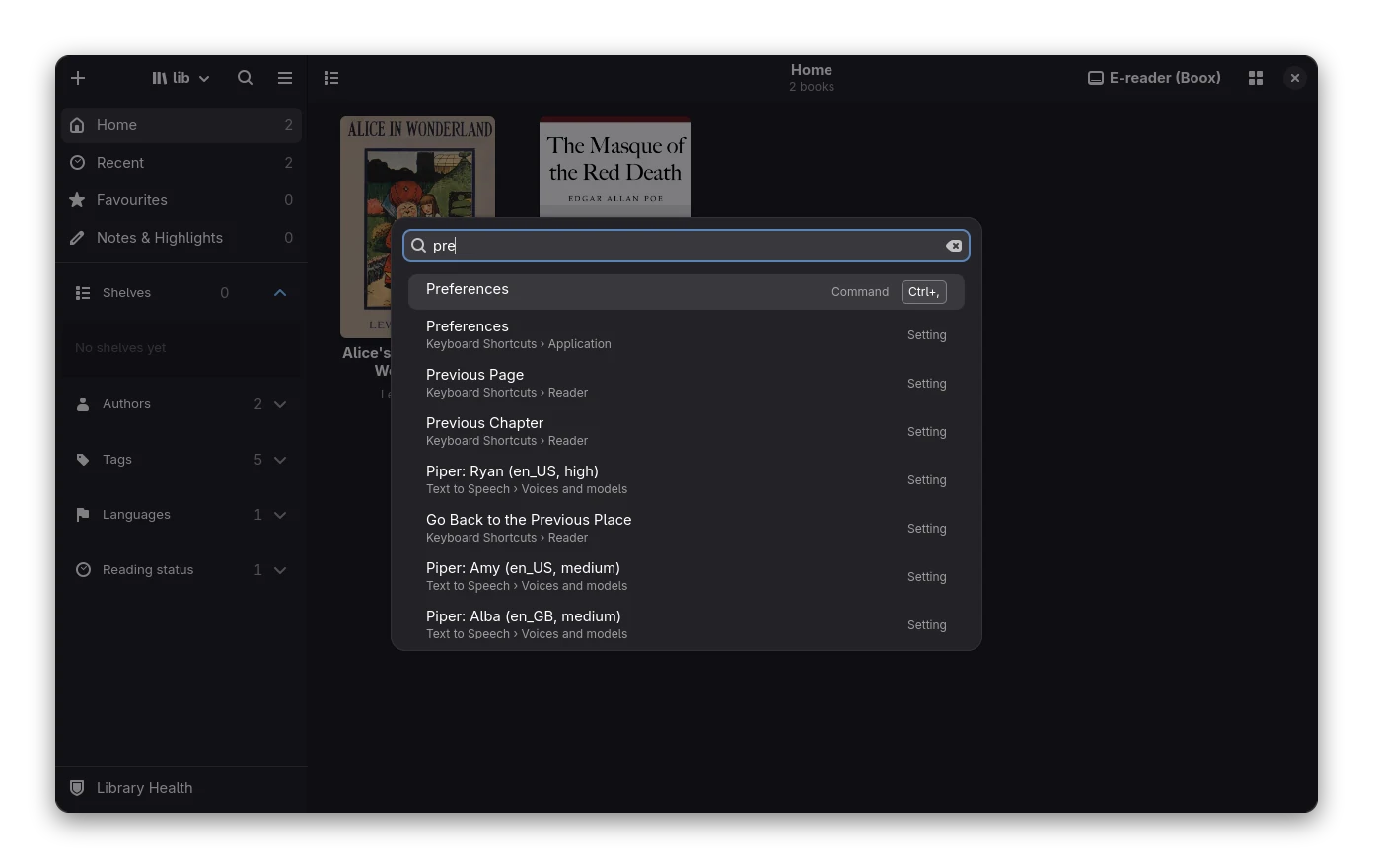
Ctrl+K or Ctrl+Shift+P in the library and in the reader (in the book editor only Ctrl+Shift+P) opens the command palette:
- type a few letters of a command, a book (title or author) or a setting; the best match is on top;
- Up / Down (or Ctrl+N / Ctrl+P) move, Enter runs, Esc closes;
- commands show their shortcut; the reader has its own commands (next page, contents, theme, layout, fullscreen …);
- with nothing typed it lists the commands and your recently read books.
Search in Preferences
Preferences (Ctrl+,) has a list of sections (General, Library, Reading, Devices and Sharing, E-mail, Sync, Extensions, Patches) and the settings of the chosen one next to it; see Preferences. Press Ctrl+F in the dialog and type to filter the settings of all sections (the list shows the sections that match). The command palette also finds settings, by their name, their description and their section, and opens Preferences on that row.
Contrast, motion and size
- High contrast. When your desktop asks for high contrast, the reader draws black on white (or white on black in a dark style) with no grey text. A book's own colours are kept only if you chose Original in the colour menu.
- Reduced motion. The animations of the interface (sliding panels, fading bars) follow GNOME's Settings → Accessibility → Enable Animations. Bookx draws no animations of its own while you read; the page turns at once.
- Text size. Ctrl++ / Ctrl+- change the size of the book text; the interface follows the desktop's text scaling.
Right-to-left books
Arabic and Hebrew text is laid out right to left. When the book says its pages turn right to left, the keys, swipes and tap zones are mirrored: Left goes forward. The arrow buttons in the bottom bar keep their normal meaning (previous on the left). Vertical writing (Japanese, Chinese) is not supported yet.
Known limits
- Orca 51 was run against Bookx in an automated session (it finds the reading area, reads lines when its caret moves, and Page Down turns the page); nobody has done a long listening session, and other screen readers (NVDA, VoiceOver) are not tested.
- Selection is by character, word and sentence; there is no caret that moves through the page text.
- The text of fixed-layout books (pictures of pages) and comics is not readable by a screen reader.
- Links inside the page text cannot be followed with the keyboard yet (they have no focus); the contents list and the search are reachable with Tab.