Devices and sharing
Hardware tested so far
Only one reader has been tried: a Kobo Libra Colour, firmware 4.46.23852 (USB, read-only checks and a send into a scratch folder). Everything else on this page (other Kobo models, Kindle, PocketBook, Boox, phones, cloud folders) has been tested against simulated devices only. Keep a copy of anything important on the device before you send to it.
The Device button
While a Kobo, Kindle, other e-reader or a phone is connected, a Device button with the device's name appears in the library's header bar (it is hidden when nothing is connected). It opens the Device window. The book's right-click menu has one device entry, Send to Device: it opens the Device window with the books you selected already in its Books to send list. It is always there; without a device it is greyed out, with the hint “No device connected”.
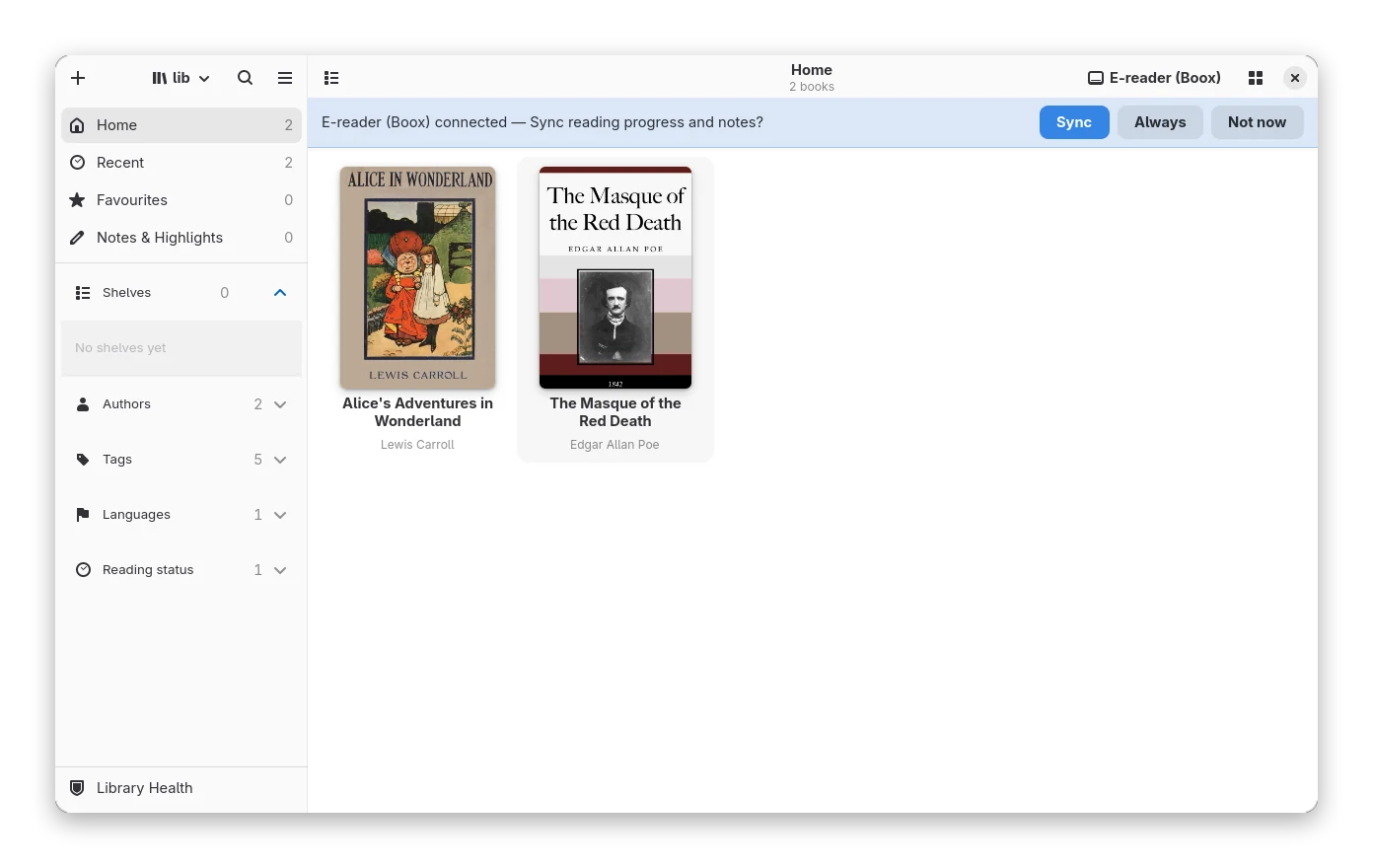
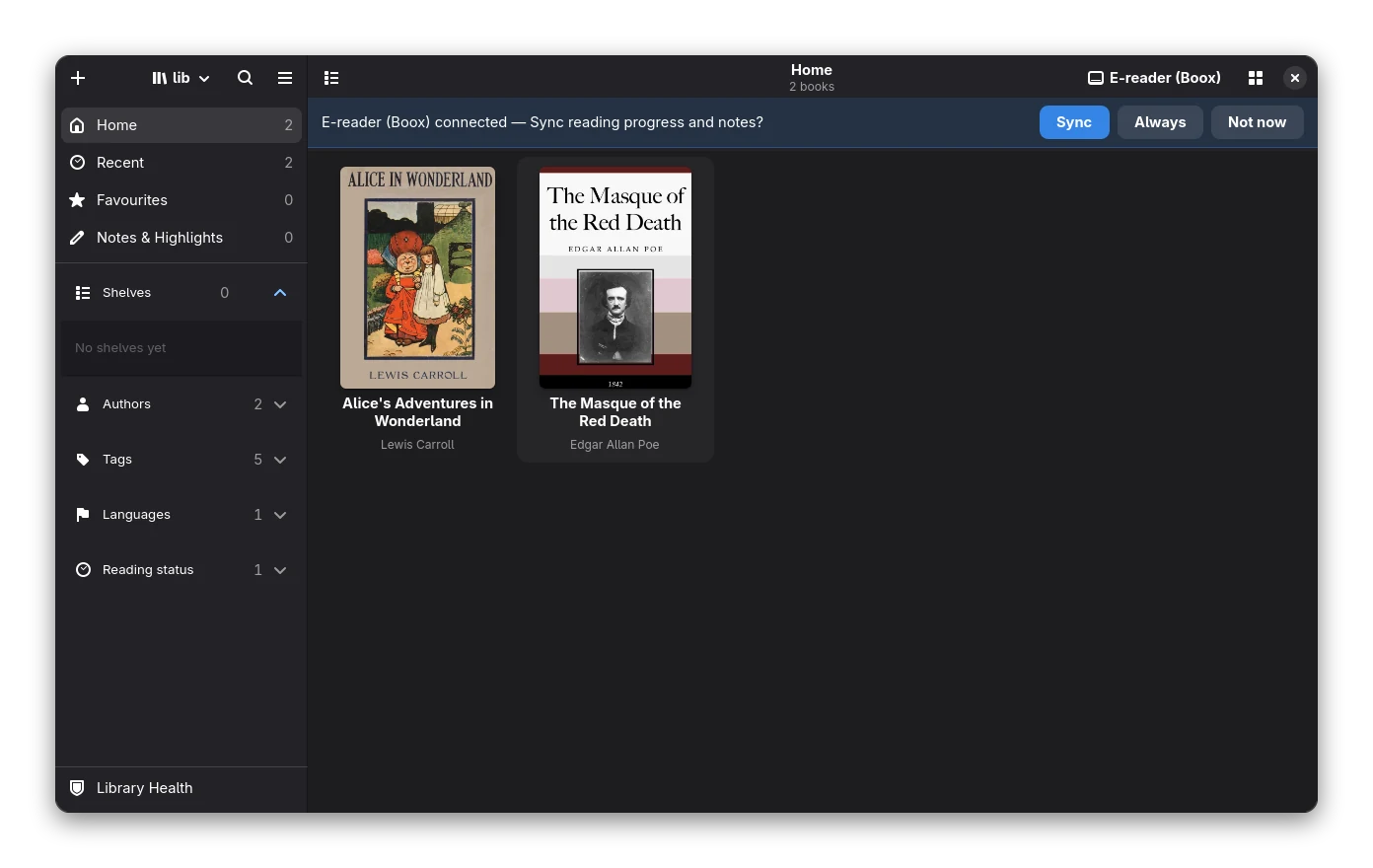 The Device button and the connect banner.
When a device connects, a banner asks “Kobo Libra connected — Sync reading progress and notes?” with three answers:
- Sync shows what will happen, then syncs.
- Always turns on automatic sync (see below) and syncs now.
- Not now hides the banner until the device is connected again.
Syncing progress, highlights and notes
Syncing is always progressive and keeps all information:
- Reading progress only ever moves forward. A book finished on one side is finished on both. If the device is behind the library, the device keeps its own progress and you are told.
- Highlights and notes are united: one that exists on one side only is added to the other, one that exists on both is not duplicated, and when only one side has a note on it the note is kept.
- Nothing is ever deleted or lowered because the other side does not have it.
- If both sides have the same highlight with different notes, nothing is overwritten: the summary lists the conflict (the highlight with both notes) and says that Bookx keeps its note and the device keeps its own.
- If the device is ahead but your library copy was read more than a day more recently, Bookx assumes you started the book again and leaves the progress alone, and says so.
Before anything happens a summary shows what goes where, with counts.
Highlights from the device are placed in the book by searching for their text; one that cannot be found stays on the device and is reported in the summary. Highlights go to the device as a KOReader notes file next to the book, and only when the device copy has none: a notes file that is already there is never touched. The summary says how many highlights stay in Bookx for that reason. Reading progress is never written to the device.
Preferences → Devices and Sharing (and the Device window) has Sync automatically when a device connects, off by default. With it on, syncing starts as soon as a device appears, without asking, and a message tells you what was done.
Send to device
Select books in the library, right-click → Send to Device (or open the Device window with the Device button). The Books to send list shows exactly what will happen to each book, before anything is copied:
- the format it will have on the device and whether it is converted: EPUB → KEPUB (converted), EPUB (sent as is), EPUB → AZW3 (converted);
- + 3 notes added as a last section when the book has highlights, notes or bookmarks (see below);
- its size, and a warning when the book file is missing, is bigger than the free space, or is already on the device (sending would add a second copy).
Each row has a check box at the far left. Untick a book to leave it out; a book with a warning starts unticked. Click anywhere on a row or tile to tick it, Shift-click ticks a range, Select All and None are at the top. Send N books sends only the ticked ones, with the very format decisions the list shows. If a conversion fails, the next format the device opens is tried.
Your notes go along. A book that has highlights, notes or bookmarks is sent with them: the copy on the device gets an extra “My notes” section at the end (readable in any e-reader app), and for EPUB and KEPUB readers a KOReader notes file is written next to it, so KOReader lists them too (as bookmarks and notes; KOReader keeps jump targets at chapter level, so they jump to the start of the chapter). Your library copy is not changed. Switch Add my notes to the copy sent to the device off (Device window or Preferences → Devices and Sharing) to send books without them.
This is one-way, library → device. The merge in both directions is the sync that runs when a device connects (above); sending never reads anything back.
The Device window
Open it with the Device button in the header bar, or menu → Device:
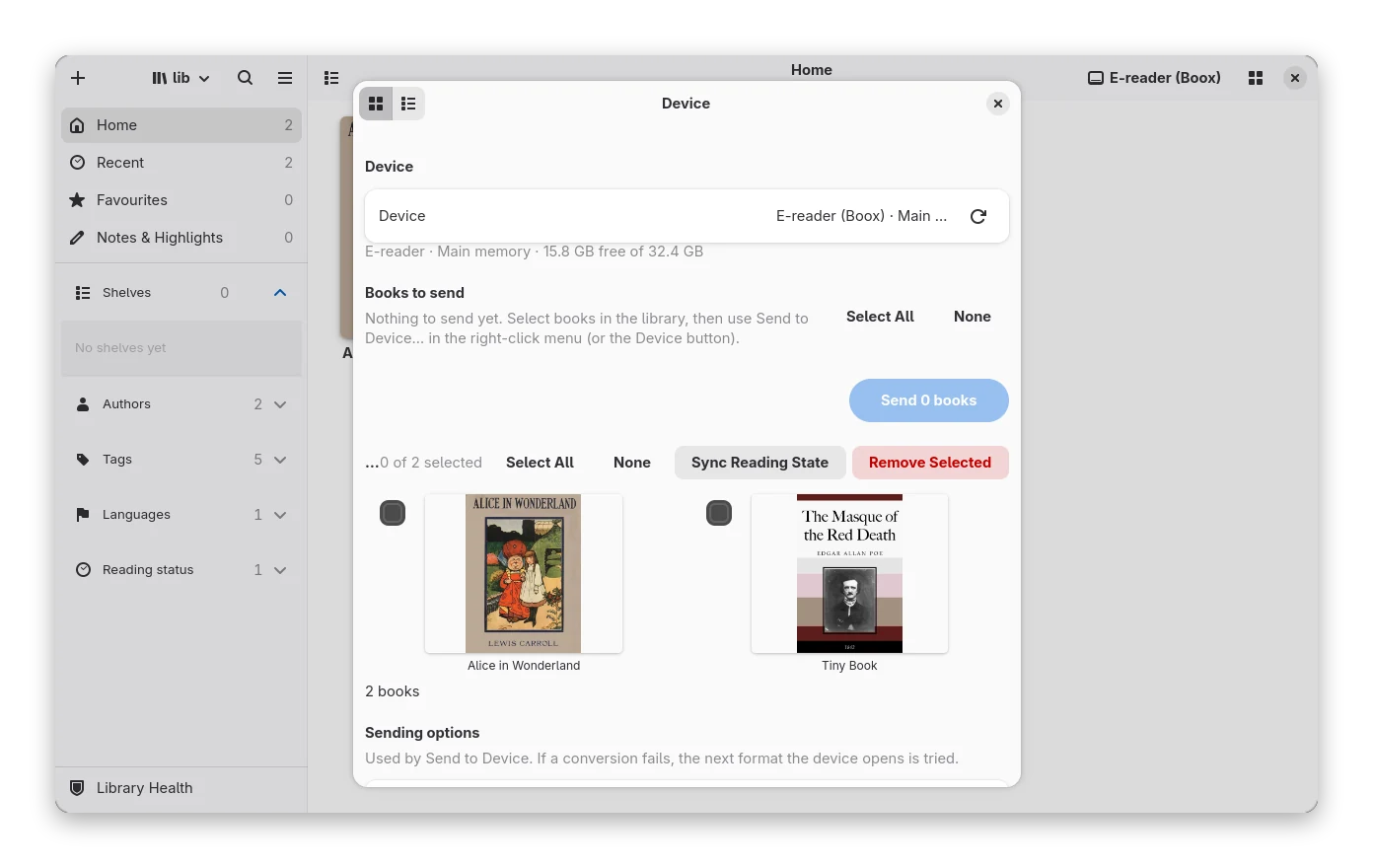
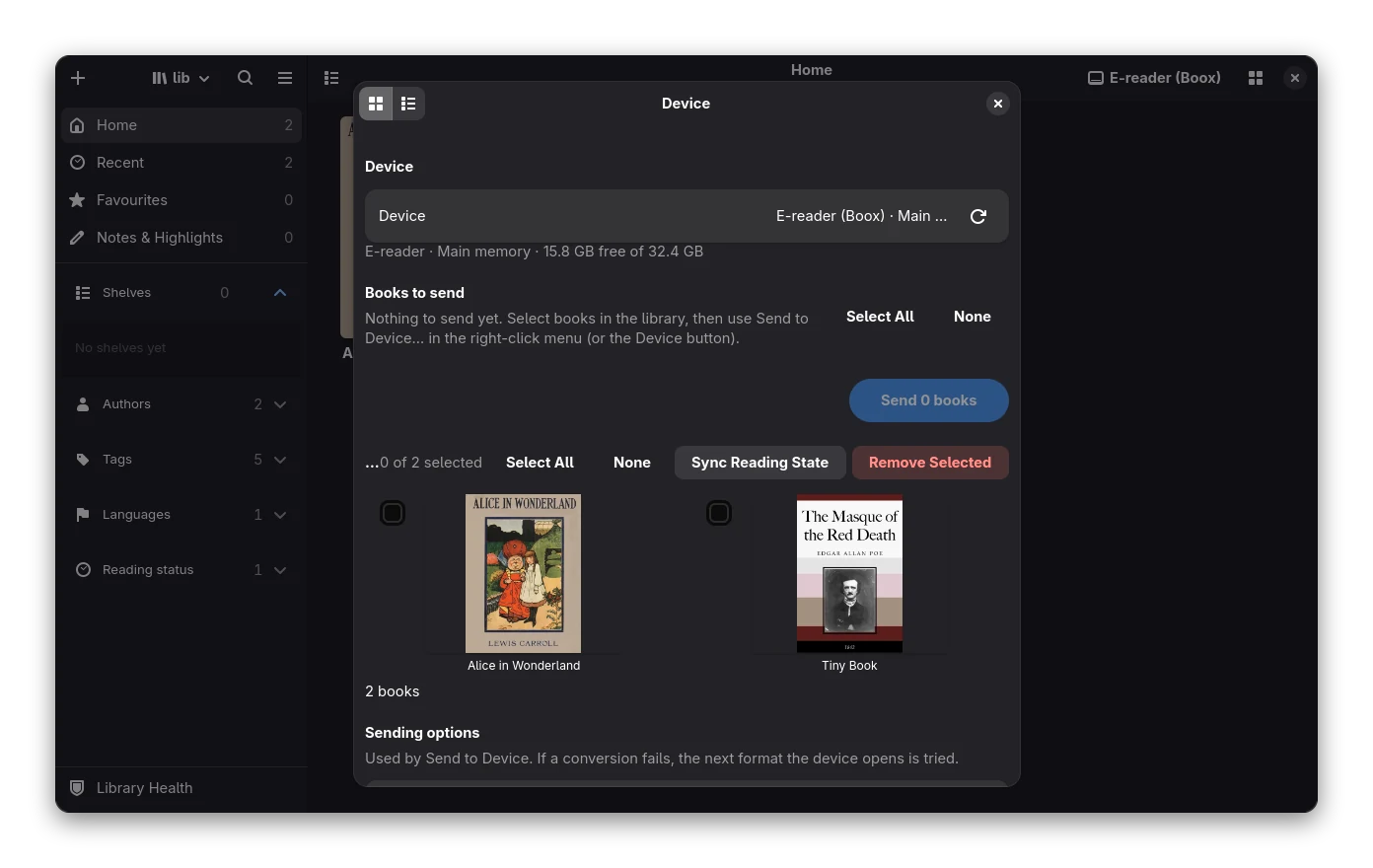 The Device window, with a simulated e-reader.
- the books on the device with their covers, as a grid or a list (the choice is remembered). Covers are taken from the book files (EPUB and KEPUB; other formats show a coloured placeholder) and cached, so the next visit is fast;
- free space, with main memory told apart from an SD card;
- the Books to send list (above) and a Send N books button; remove books from the device with the check boxes of Books on the device, which work like the ones above (tiles: click anywhere, check box top-left; list: check box far left, covers in a fixed slot so everything lines up);
- the format to send. If a conversion fails, the next format the device opens is tried;
- a save-path template such as
{author}/{series}/{title}; - for Kobo, an optional shelf for sent books. The Kobo database is backed up before it is changed;
- Add my notes to the copy sent to the device and Sync automatically when a device connects (the “?” next to it explains it);
- Sync Reading State: shows the summary above, then merges progress, highlights and notes. Matching is by title.
Check a mounted device from the terminal with bookx-cli device-check <mount> (add --all to check every book on
it, not only the folder Bookx sends to). The check never writes to the device. See Command line.
Kobo: what is known to work
Verified on a Kobo Libra Colour (firmware 4.46.23852, library database schema version 176):
- The Kobo is recognised, with its model, firmware version and free space. Bookx reads the library database from a copy, so looking at the device does not change any file on it.
- Books converted to KEPUB and sent from Bookx arrive complete (checked byte for byte), with a valid structure (Kobo spans, unique ids, the text unchanged) and a file name the Kobo's FAT file system accepts. With notes the “My notes” section and the KOReader sidecar are written next to the book.
- Reading progress, finished books and last-read dates are read from KOReader's sidecar files (
<book>.sdr), and from the Kobo database for books the Kobo itself imported. Highlights and notes in KOReader sidecars can be read.
Limits you should know:
- The Kobo only lists books it has imported after you eject it. Books copied into the root of the device and read in KOReader (the usual Calibre set-up) may never be in the Kobo's own database; then their progress comes from the KOReader files only.
- The Kobo also lists every file under
.adds(KOReader's own files) in its database; Bookx ignores those. - Putting sent books on a Kobo shelf changes the Kobo database. It was only tried on a copy of a real database, not on the device itself, and it is not known whether the Kobo keeps a shelf entry for a book it has not imported yet. The option is off unless you give a shelf name.
- Whether the Kobo then imports and displays a sent KEPUB (cover, reading-time line) has not been checked on the device yet.
Phones (MTP)
An Android phone mounted through your desktop (GNOME Files, gvfs) appears as a device, under
/run/user/<uid>/gvfs/mtp:…. Limits: free space is often unknown, a locked phone shows nothing, and there is no
Kobo database handling.
Cloud folders (WebDAV)
The Device window has a Cloud folder (WebDAV) section: enter the URL, user name and password and the folder behaves like a device. Sending never overwrites an existing file. The password is kept in the system keyring. To keep backups in a WebDAV folder, see Backup and restore.
Which sync do I need?
There are several different things that are easy to mix up:
| Sync when a device connects | KOReader progress sync (server) | Bookx as a KOSync client | Notes sent with a book | Import Highlights | |
|---|---|---|---|---|---|
| Where | Device window, Preferences → Devices and Sharing | Share Library | Preferences → Sync | Device window, Send to Device | Main menu |
| How it connects | USB cable (or a phone mounted in Files) | Wi-Fi, KOReader to Bookx's built-in server | Wi-Fi, Bookx's reader to any KOSync server | USB, when you send a book | a file or folder you pick |
| Direction | both ways: device ↔ library (a merge) | KOReader ↔ KOReader, Bookx only stores the position | Bookx reader ↔ server ↔ KOReader | one way: library → device | one way: file → library |
| What moves | reading progress, highlights and notes | reading position only | reading position only | your highlights and notes, as a “My notes” section and a KOReader notes file | highlights and notes (Kindle, KOReader, Kobo, calibre) |
| Needs KOReader? | No on a Kobo (its own reading state is read); a Kindle's own state cannot be read, only KOReader's files | Yes, on every device that should use it | On the other devices, yes (or any app that speaks KOSync) | No for the section; the notes file is for KOReader | No |
| Rules | progress only moves forward, notes are united, nothing is deleted | the last position a device stored | asks before moving you forward, never moves you back silently | your library copy is never changed | only adds; no duplicates; your notes are never overwritten |
Sync when a device connects (cable): Bookx reads the progress and the highlights and notes the device keeps, from
the Kobo's own database or from KOReader's .sdr files if KOReader is installed on it, and merges them with the
library. Without any readable state nothing happens. Reading progress is never written to the device.
KOReader progress sync (Wi-Fi): Bookx's built-in server also speaks KOReader's Progress sync protocol. In Share Library, switch it on; the window shows the address to type into KOReader (with a copy button). In KOReader open Tools → Progress sync → Custom sync server, enter that address, then Register with a user name and password of your choice (these are separate from the Share password; Bookx keeps them only to tell KOReader accounts apart). After that the reading position follows you between your KOReader devices (Kobo, Kindle, Android, PocketBook). It is independent of the USB sync and of the Device window, it carries the position only, and Bookx does not copy it into the progress shown in your library. Anyone who can reach the port can register such an account, so only use it on a network you trust.
Bookx as a KOSync client (Wi-Fi): the other direction: Bookx’s own reader keeps its position on a KOSync server
(this one, sync.koreader.rocks or a self-hosted one) and asks “Continue from Kobo Libra at 63%?” when you open a
book that was read further elsewhere. See Sync your reading position.
Import Highlights brings the highlights from a Kindle’s My Clippings.txt, KOReader’s notes, a Kobo database or
calibre into the library; see Highlights and notes.
E-mail and Kindle
Fill in Preferences → E-mail (mail server, port, encryption STARTTLS or TLS, user name, password, your address and the address to send to, for example your Send-to-Kindle address). Then right-click a book → Send by E-mail. Bookx checks the 50 MB Kindle limit before sending.
The password is kept in the system keyring (see Backup and restore → Passwords). Use an app password.
Share Library
Menu → Share Library serves the library to other devices on your network:
- OPDS catalogue and a web page to browse and download books. Any OPDS reader app can use it.
- A password is required before other devices can connect. The user name is
bookx. - KOReader progress sync (KOSync): KOReader on any device can keep its reading position on your Bookx, over Wi-Fi. See Which sync do I need?.
- HTTPS: use your own certificate and key (PEM files) or let Bookx make a self-signed one. Clients must trust a self-signed certificate themselves. A button creates a new one.
- Copy address gives the address to type into the other device.
The same server runs without the app: bookx-cli serve --port 8080 --user me:secret --kosync kosync.json.
Limitations
- Only the Kobo Libra Colour mentioned above has been tried on real hardware; the rest is untested.
docs/hardware-test-plan.mdin the repository lists what will be tried. - Writing a Kobo shelf has only been run against generated databases and a copy of a real one.
- The covers of books on a device are read from the book files; the Kobo's own image cache is not used, and books that are not EPUB or KEPUB show a placeholder.
- Dragging books onto the Device button is not possible; select them in the library and use Send to the device.
- Kindle's own reading state (binary
.sdrdata) is not read. KOReader on a Kindle works. - The Calibre wireless "smart device" protocol is not implemented.
- MTP works through gvfs only; direct USB MTP is not done.
- WebDAV was tested against an in-process server, not Nextcloud or another real service.
- Without a keyring (GNOME Keyring, KWallet, KeePassXC) the passwords stay in the settings file, unencrypted; Bookx says so next to each one.