Read aloud
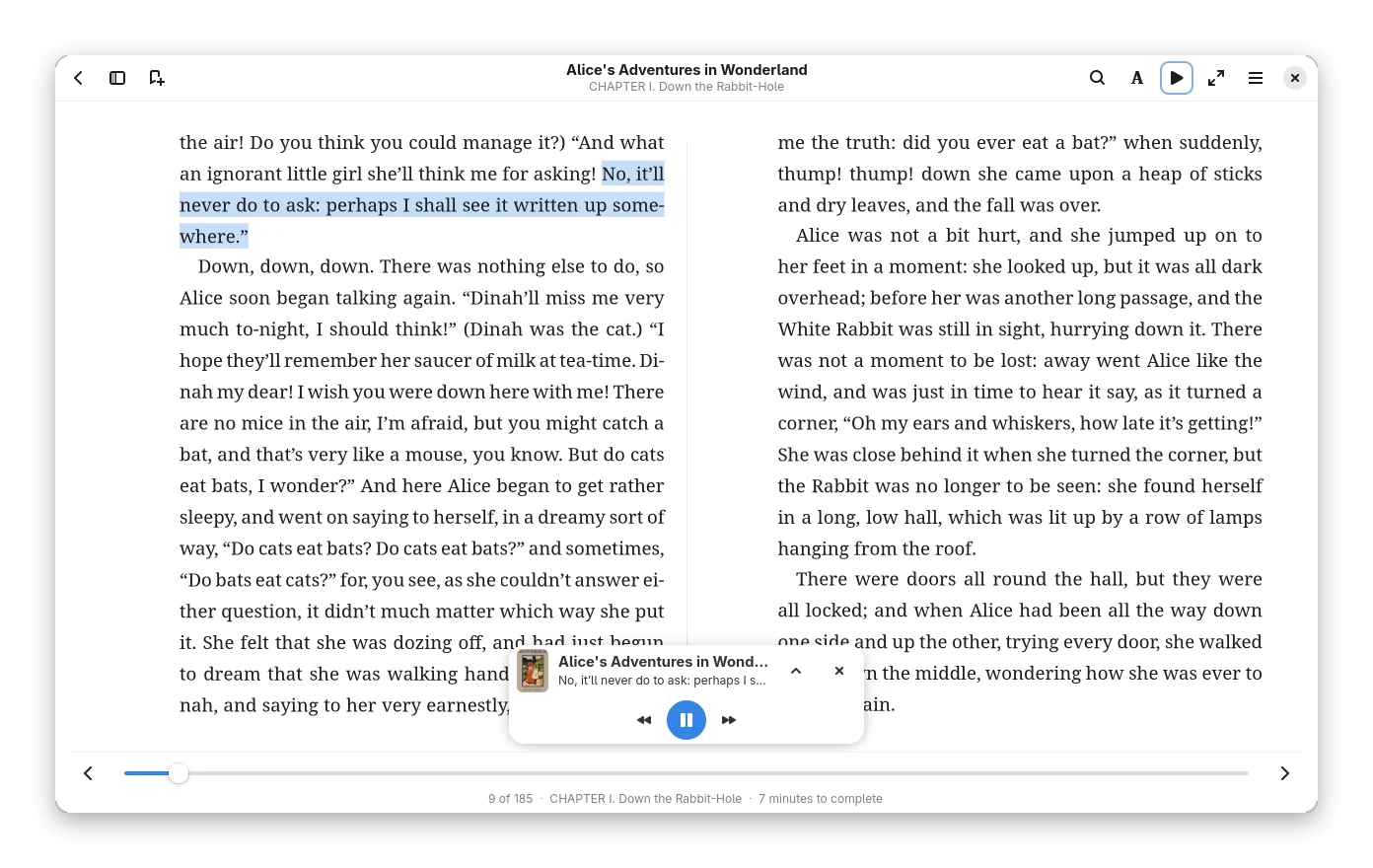
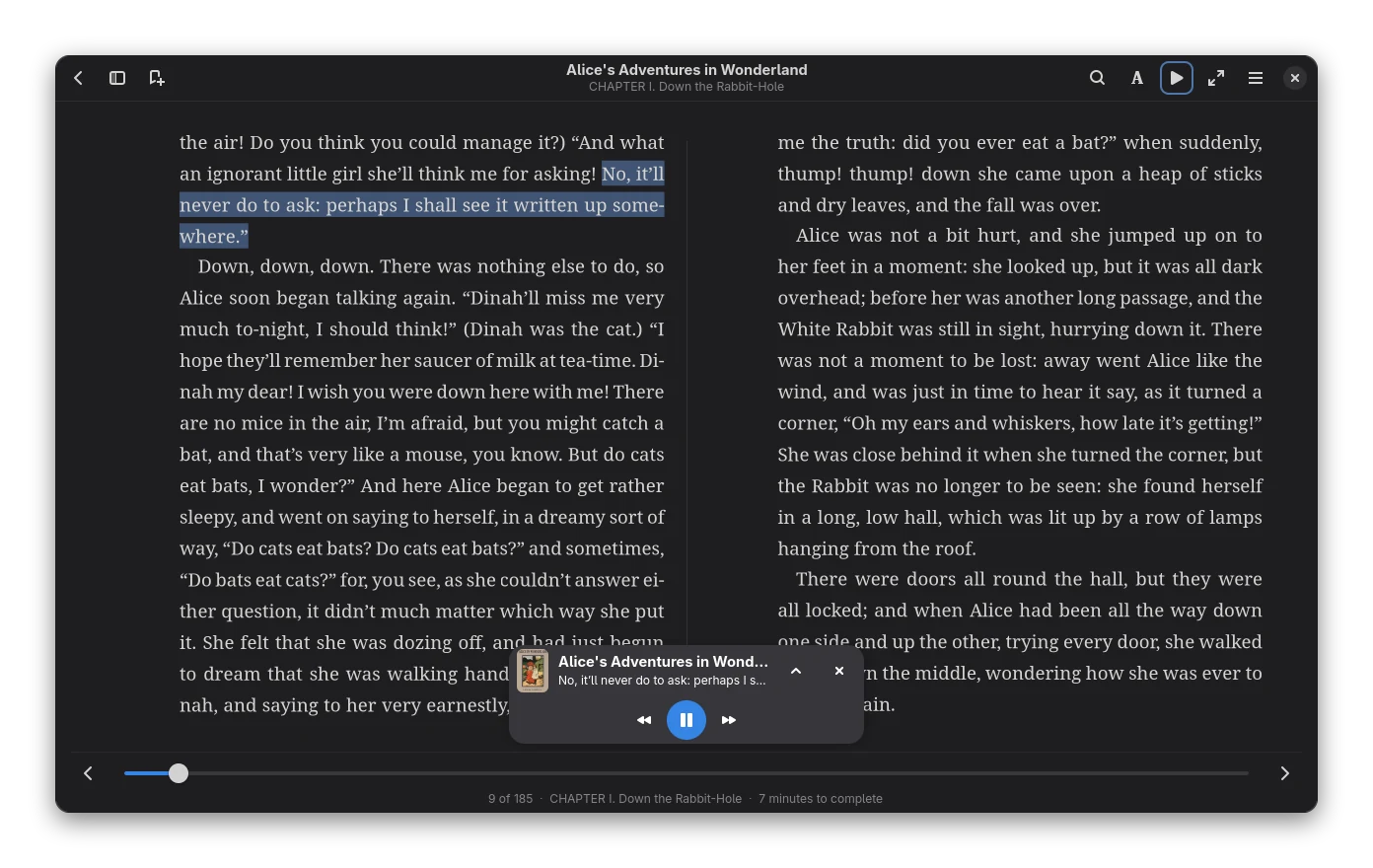
Bookx reads a book to you sentence by sentence, highlights the sentence being spoken, follows it across pages and goes on with the next chapter. There are three kinds of voice:
| Voice | Sounds | Needs | Languages |
|---|---|---|---|
| Kokoro (natural, runs on your computer) | Natural. The recommended voice. | A 130 MB download, espeak-ng |
English (American and British), Spanish, French, Hindi, Italian, Portuguese |
| Piper (light, runs on your computer) | Pleasant, a little synthetic | A 75 MB download per voice, espeak-ng |
German, Dutch, Polish, Czech, Russian, Turkish, English, French, Spanish, Italian, Portuguese |
| Voice server (runs on your computer or your network) | The best there is: XTTS v2, Fish Speech, your own pick | You start a server (see below) | Whatever the server speaks |
Nothing is bundled with Bookx. Models are downloaded when you ask for them, checked against a checksum, and kept in
Bookx's data folder (~/.local/share/bookx/tts, shown on the settings page). Nothing you read leaves your
computer, unless you point Bookx at a server somewhere else.
The first time: the voice downloads by itself
- Press the speaker button in the reader header, then play. If no voice is installed yet, Bookx asks once whether to download the default voice (Kokoro, about 130 MB; the dialog shows the licence and the size). Tick Always do this to stop being asked. A voice that is already installed is always used: Bookx looks at what is on disk (any complete Kokoro model, small or full, and any Piper voice; packs from older versions are moved in) and never offers a download when something usable is there.
- The download is a background job of the application. The player card shows Preparing voice 42% with a Cancel button, and the Background jobs list in the library header shows it with percent, speed, time left, a log and its own Cancel. You can close the book and go to the library: the download goes on, you get a Voice ready notice when it ends, and reading starts by itself only if you are still in that book (otherwise the card waits for you when you open the book again). Big files come in several parallel connections; a download that is cancelled or interrupted (also by closing Bookx) continues where it stopped, from the next Read Aloud or from Resume in Preferences → Text to Speech. Every file is checked against a checksum while it arrives.
- Offline? The card says so and offers Try again; meanwhile you can use an external voice server, which needs no download.
Kokoro and Piper turn text into sounds with espeak-ng. If it is missing, the card shows the install command for your
system (for example sudo dnf install espeak-ng) with a Copy install command button; in the Flatpak it is included.
The engine row in the settings shows what reads and, if it is not the one you chose, why. Kokoro is the default; a
downloaded Piper voice reads the languages Kokoro does not.
The language of a book comes from its metadata. When the metadata has none, Bookx looks at the text.
Piper voices
The same page lists voices from the Piper collection. They are smaller and faster than Kokoro and cover languages Kokoro does not (German is the main one). Every voice was trained on a dataset with its own licence, which is shown before you download; one of the listed voices (Turkish) is licensed for non-commercial use only, which is fine for reading your own books.
The player card
While reading aloud, a small player floats over the page (it is not a menu, so clicking the page does not close it). It is small by default (at most about 360 × 120 px, so it hides little text): the cover, the title and the sentence on one line, previous / next sentence and play / pause. The arrow button opens the full player: the sentence on two lines, a seek bar for the chapter (drag it to jump to a sentence) with the sentence number, previous / next chapter, speed (− and +, 0.75× to 2×), the voice (a list for the language of the book and Voice settings…), the sleep timer and volume. The X in the top right corner (Close read aloud) stops reading and closes the card; Esc does the same while the card has the keyboard focus.
Move it anywhere: drag the card by any part of its background (a finger works too); it stays inside the window and remembers its place as a share of the window size, so it keeps its place when the window is resized. Double-click the background to put it back. The card you moved last is on top of the other one.
The cards never overlap. With both cards open they stand side by side, centred above the bottom panel (one above the other when the window is too narrow). A card you moved keeps its place; the other one slides to the nearest free spot beside it, above or below, and when you drag one over the other the other gives way. While the selection menu, a dictionary or Wikipedia lookup or a footnote is open, a card in its way slides aside and comes back when it closes. Cards stay inside the window when you resize it. The slides take about a fifth of a second and are skipped with e-ink mode or when animations are off.
Read aloud and speed reading are independent. Each card has its own play/pause and keeps its own place, and both can be open at once. They never run together: starting one pauses the other (it stays open, at its place), and pausing or resuming one never changes the other's position.
Coming back. Leaving the book (back to the library, or quitting Bookx) stops playback but remembers which cards were open, where they were, small or full, and the exact place: for read aloud the chapter and sentence, for speed reading the chapter, word and speed. Opening the same book again (also after restarting Bookx) shows the cards where they were, paused (nothing starts by itself, the play button has the keyboard focus), and the page shows the sentence or word they are at. Play continues from that sentence. A card you closed with the X is not brought back. If the book changed (a chapter is gone), the card goes to the nearest chapter start; if the voice is not installed any more, play offers the download.
While reading aloud plays, the reader's bars get out of the way 1.5 s after you let go of the mouse (see Reader focus in Reading); the page and the card stay. Media keys and desktop media controls (play/pause, next, previous, stop) work too: Bookx shows up as a media player named Bookx while it reads.
The speaker button
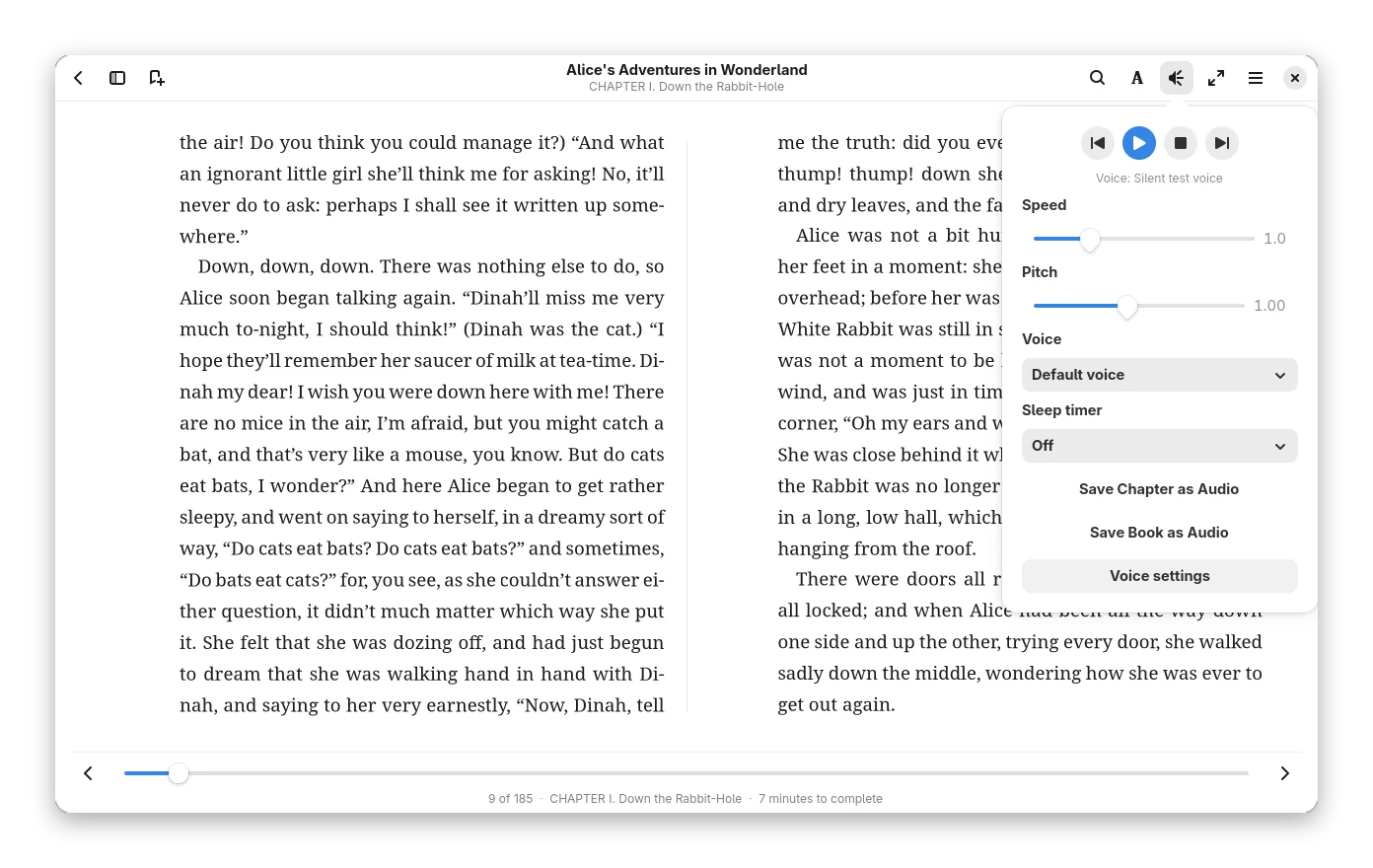
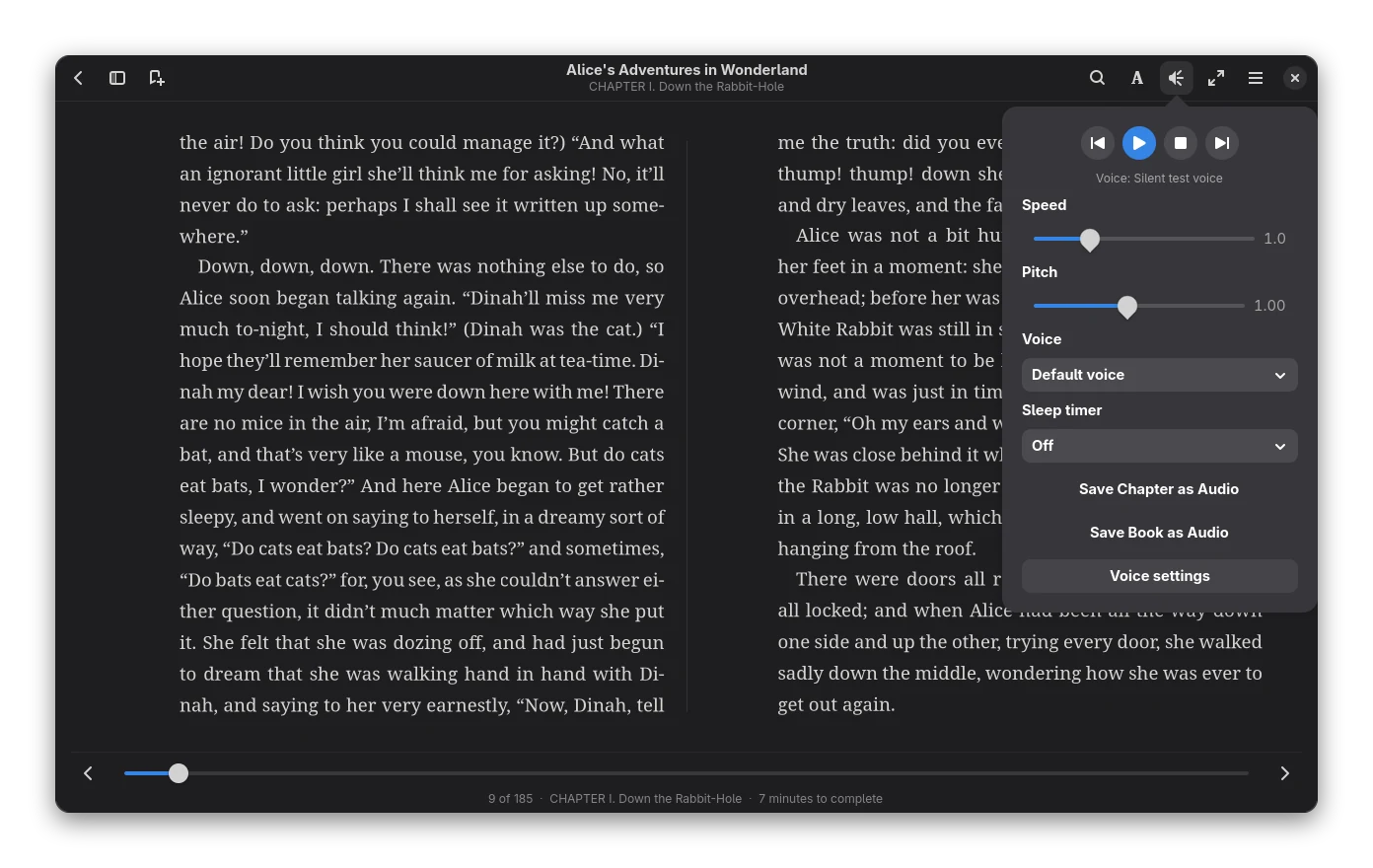
- Play, pause, stop, and previous / next sentence. Reading starts at your selection, or at the top of the page.
- Speed from 0.5 to 2.5 times; pitch from 0.8 to 1.25.
- Voice: the voices that speak the language of the book. Your choice is remembered per engine and language.
- Sleep timer: stop after 15, 30, 45 or 60 minutes, or at the end of the chapter.
- Save Chapter as Audio… / Save Book as Audio write WAV files with the voice you chose (see below).
- Voice settings opens the settings page.
Changing speed, pitch or voice while reading continues from the beginning of the current sentence.
Save as audio
Save Chapter as Audio writes the chapter on screen to one WAV file. Save Book as Audio asks for a folder and writes
one numbered file per chapter (03 - Title.wav). A progress window with Cancel shows how far it is; a cancelled run
leaves no half-written file. WAV files are large (about 3 MB per minute with Kokoro); convert them with
ffmpeg -i chapter.wav chapter.mp3 if you want MP3 or OGG.
Settings
Preferences → Text to Speech:
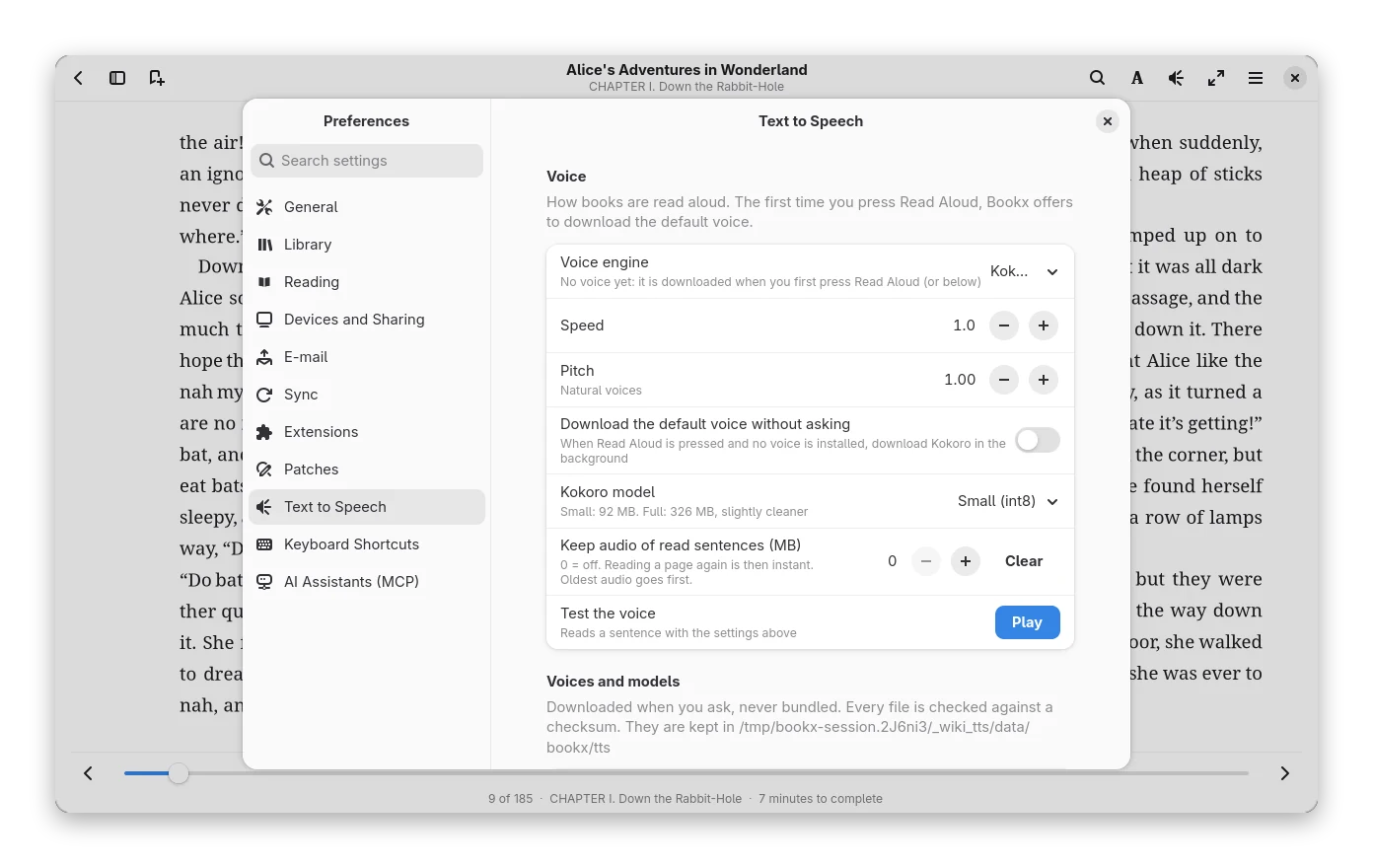
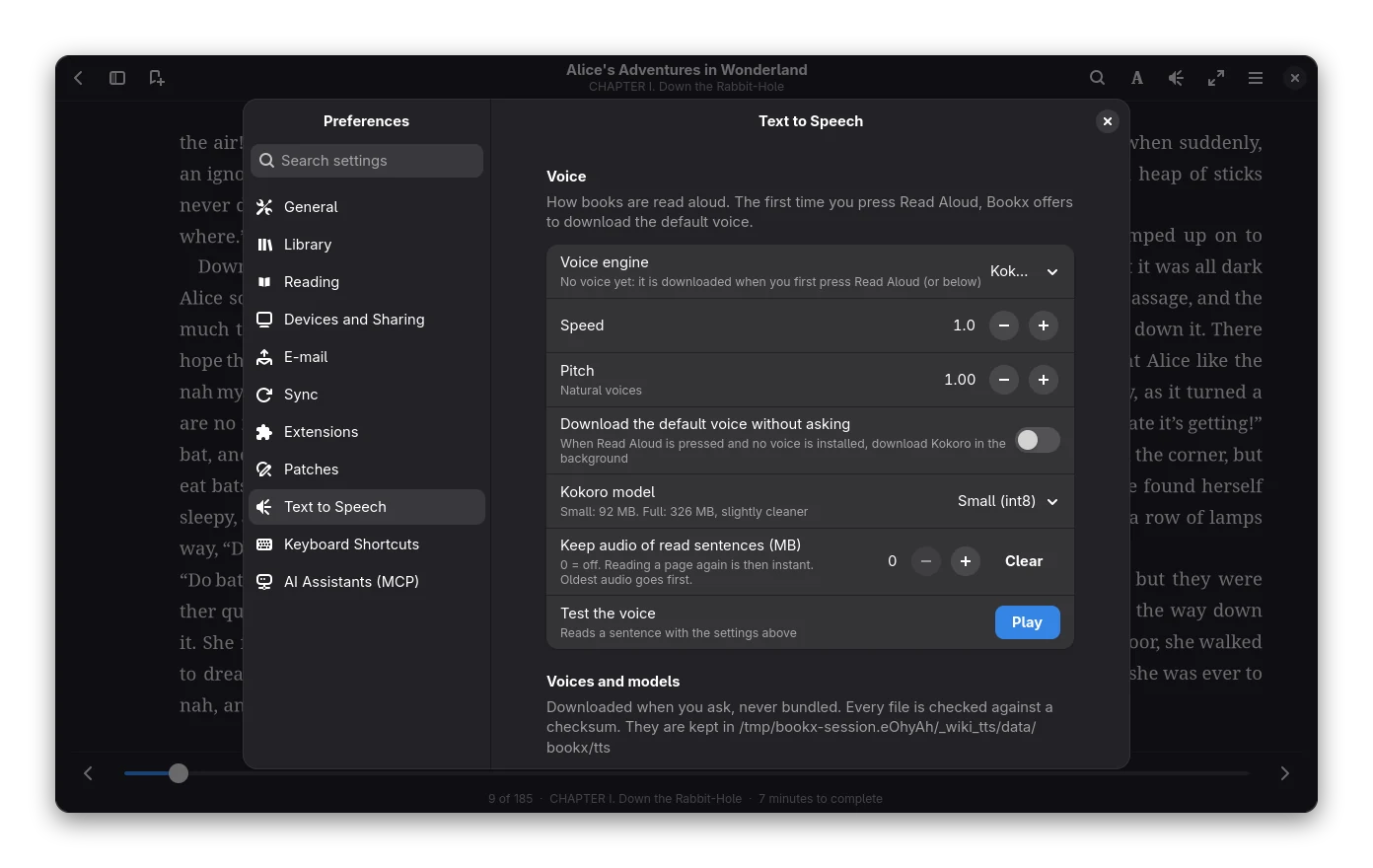
- Voice engine: Kokoro, Piper or External voice server. Settings from older versions that used Automatic or the
basic speech-dispatcher voice (removed) become Kokoro. If your choice cannot read the book
(not downloaded,
espeak-ngmissing, language not supported) the line under the choice says what reads instead. - Kokoro model: Small (92 MB) or Full precision (326 MB). They run at the same speed here; the small one can sound a little rougher on some voices.
- Keep audio of read sentences: a size-capped cache (off by default). Going back over a page is then instant and costs no computing. The oldest audio is deleted first. Clear empties it.
- Download the default voice without asking: the Always do this of the first-time dialog.
- Test the voice reads a sentence with the current settings.
- Voices and models: download and remove, with the licence of each.
Use a voice server (XTTS v2, Fish Speech and others)
The most human-sounding open models are too big, too slow without a graphics card, or not licensed for Bookx to download for you. Run one as a server instead, and Bookx sends it the sentences and plays what comes back. Choose Voice server as the engine and fill in the address.
Licences
The weights of XTTS v2 are under the Coqui Public Model License and the weights of Fish Audio S2 under the Fish Audio Research License. Both allow non-commercial use only, and that includes the audio they produce. Reading your own books for yourself is non-commercial; selling or publishing the audio is not. Bookx does not download or include either model. Check the licence of whatever you run.
Server types:
| Type | Talks to | Address example |
|---|---|---|
| OpenAI-compatible | POST /v1/audio/speech (Kokoro-FastAPI, openedai-speech, Speaches, LocalAI, many others) |
http://127.0.0.1:8880 |
| XTTS API server | POST /tts_to_audio/ and GET /speakers_list |
http://127.0.0.1:8020 |
| Fish Speech API server | POST /v1/tts |
http://127.0.0.1:8080 |
Voice, speaker or reference id is the voice the server should use (a speaker name for XTTS, a reference id for Fish
Speech, a voice name for OpenAI-style servers). Servers that list their voices (OpenAI-style GET /v1/audio/voices, XTTS
/speakers_list) show them in the speaker popover. Test speaks a short sentence and tells how long the server took.
If the server wants a key, enter it in API key on the same page. It is kept in the system keyring. A key given in
BOOKX_TTS_API_KEY is moved there the first time Bookx starts with it.
Ways to start a server (commands change; follow each project's page):
- Kokoro on a server (OpenAI-compatible): the Kokoro-FastAPI project publishes a CPU image; typically
docker run -p 8880:8880 ghcr.io/remsky/kokoro-fastapi-cpu:latest. - XTTS v2: the XTTS API server is a Python package. With uv:
uv venv && uv pip install xtts-api-server(plus the PyTorch build for your hardware), thenuv run python -m xtts_api_server --listen -p 8020 -d cuda(-d cpuworks but is slower than real time on most computers). Put voice samples (6 to 30 seconds of clean speech, WAV) in itsspeakersfolder; their names are the speakers. It downloads the model on first start and asks you to accept the Coqui licence. - Fish Speech: follow the Inference → API Server page of https://speech.fish.audio/ to download a checkpoint
and start
tools/api_server.py, then use the Fish Speech type. It needs a recent graphics card.
Bookx's own checks of these three protocols run against a fake server; XTTS and Fish Speech were not run against the real thing by the Bookx developers (no graphics card), so please report problems.
What it needs
Measured with Kokoro on a desktop CPU (AMD Ryzen 9 9950X): 10 seconds of speech take about 1 second to make with the default settings, and about 2.4 seconds on a single core. Playback needs the voice to be at least as fast as speech, so a normal laptop is enough. Piper voices are about four times faster than that. A voice server on a graphics card is faster still. Reading starts after the first sentence is made (usually under a second); the next sentences are made while the first plays, so there are no gaps within a chapter. Near the end of a chapter the first sentences of the next one are made ahead of time, so the change of chapter is gapless too (with a voice server that answers slowly there can still be a short pause).
Memory: about 400 MB with Kokoro loaded.
Limits
- Speed above 2× is capped at 2× by Kokoro and Piper.
- Kokoro's Japanese and Chinese voices are not available (they need a different text-to-sound tool). Use a voice server for those languages.
- Numbers, dates and abbreviations are read the way
espeak-ngexpands them; unusual ones can be wrong. - Pause silences the output at once; on resume the part you had not heard yet is played again.
- Natural voices need
espeak-ngand a command-line audio player (pacatorpw-catfrom PulseAudio/PipeWire, oraplay). - Audio files are WAV only.
Where the files come from, and installing offline
The speech runtime (ONNX Runtime, about 11 MB) comes from Microsoft's NuGet package on a fast CDN (only the one file that is needed is read out of that package), with the GitHub release as the fallback: if the first place is slow (under about 100 KB/s for 5 seconds) or does not answer, Bookx switches to the second by itself and the download job's log says so. Models come from Hugging Face. Every download is checked against a pinned checksum, also after unpacking.
To install without a network: download libonnxruntime.so 1.31.1 for Linux (the file from the
ONNX Runtime release, 29,345,384 bytes for x86-64) on another computer, put it in
~/.local/share/bookx/tts/onnxruntime/libonnxruntime.so (the Speech runtime folder shown on the settings page) and press Download
next to the voice: Bookx sees that the file is there and has the right checksum and does not download it again. Models can be placed the
same way in their folders.
Privacy and licences
| Download | From | Licence |
|---|---|---|
| ONNX Runtime 1.31 (11 MB) | nuget.org (Microsoft.ML.OnnxRuntime), else github.com/microsoft/onnxruntime | MIT |
| Kokoro-82M model and voices | huggingface.co (onnx-community/Kokoro-82M-v1.0-ONNX) | Apache-2.0 |
| Piper voices | huggingface.co (rhasspy/piper-voices) | per voice, see its model card |
espeak-ng (GPL-3.0-or-later, the same family as Bookx) is run as a separate program and not included.