Library
The library has a sidebar on the left (like the one in Files), your books in the middle and, when you select a book, its details on the right. Search and the view options are in the header bar.
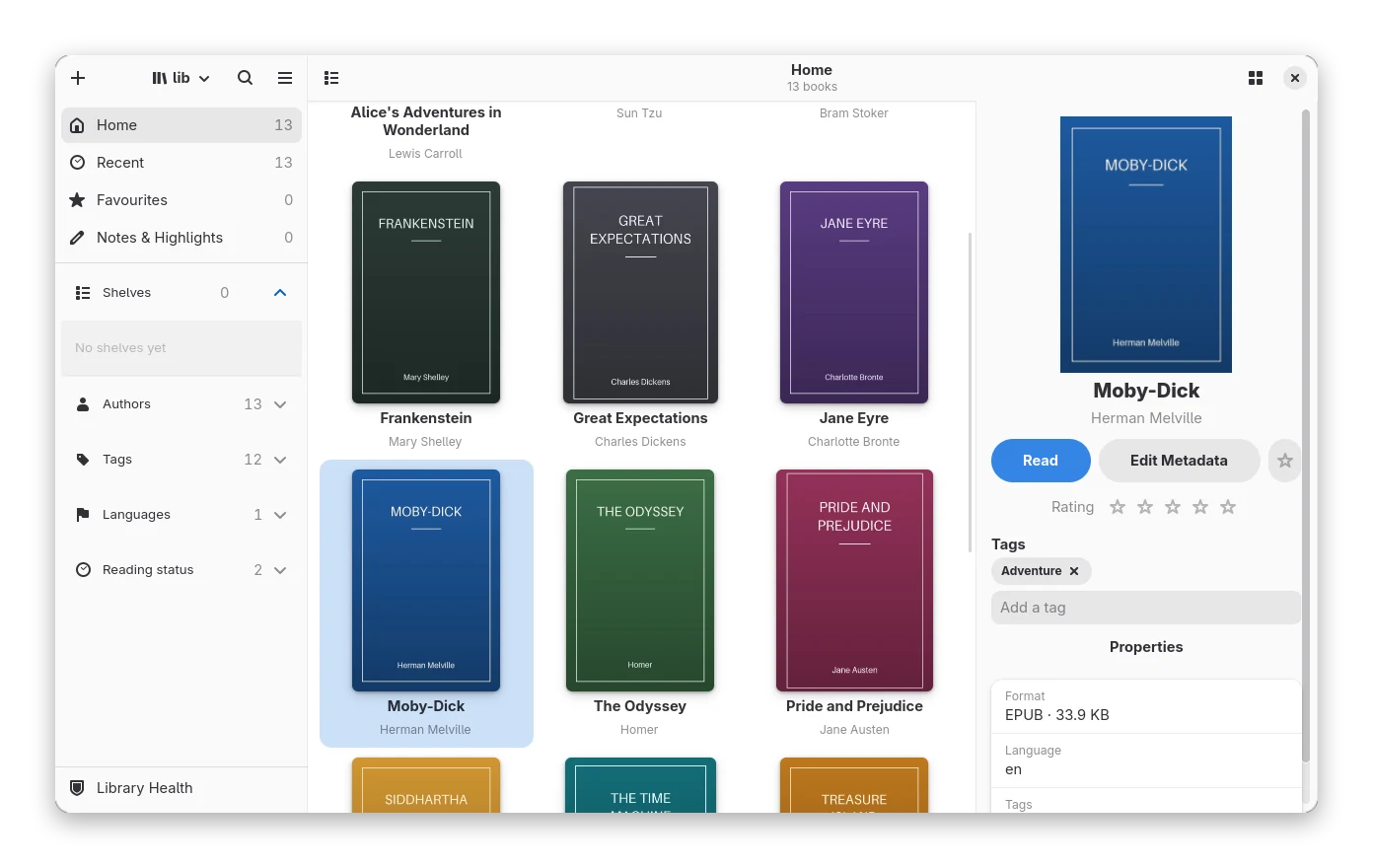
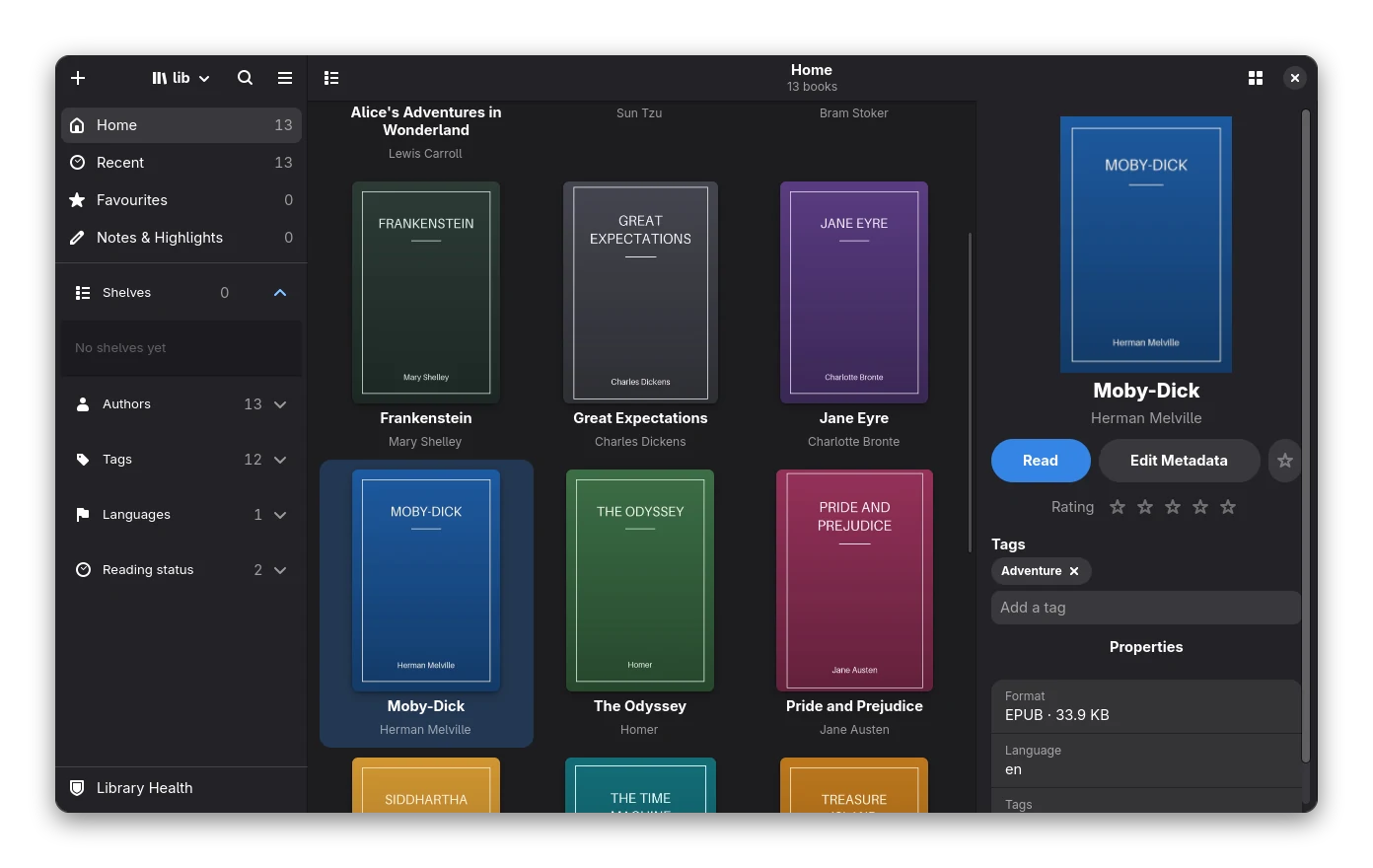 The library with a book selected. The covers here are drawn for the screenshots.
The sidebar
The sidebar is always there on a wide window. In a narrow window it turns into an overlay on top of the books and a sidebar button appears at the left of the header bar to open it; picking an entry closes it again.
| Entry | Shows |
|---|---|
| Home | every book, with the count |
| Recent | the books you opened or added last (newest first) |
| Favourites | the books you starred: press the star in the details panel, right-click → Add to Favourites, or Ctrl+D |
| Notes & Highlights | every highlight and note of every book in the main area, with search, filters and export (see Annotations) |
| Shelves | your shelves and smart shelves; the + makes a new one |
| Saved Searches | searches you named; the pinned one is the virtual library |
| Series, Authors, Tags, Publishers, Languages, Ratings, Reading status | click an entry to filter; the buttons on the Series and Authors rows open the series overview and the author manager |
| Library Health | at the bottom: checks, duplicates, editions, books that need attention, backups, trash and history (a badge shows how many books need attention) |
The view you picked is remembered for the next start.
The sidebar has its own header bar, as in Files: the + (add books, add a folder, news subscriptions), the library switcher, the search button and the main menu. The header bar of the books shows the name of what you look at (Home, a shelf, Search results), the view options (grid or table, sort, cover size) and the window buttons.
Notes & Highlights
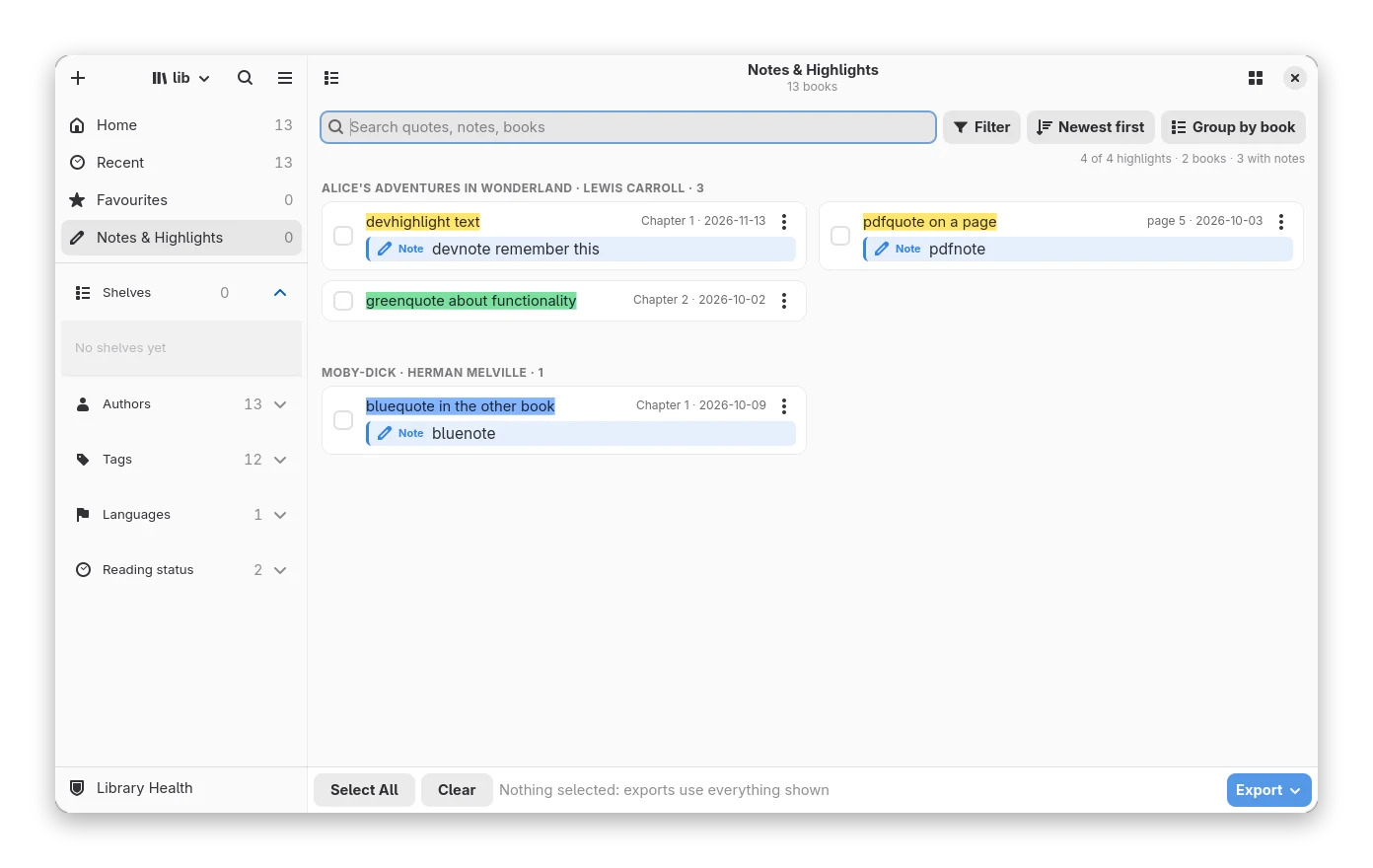
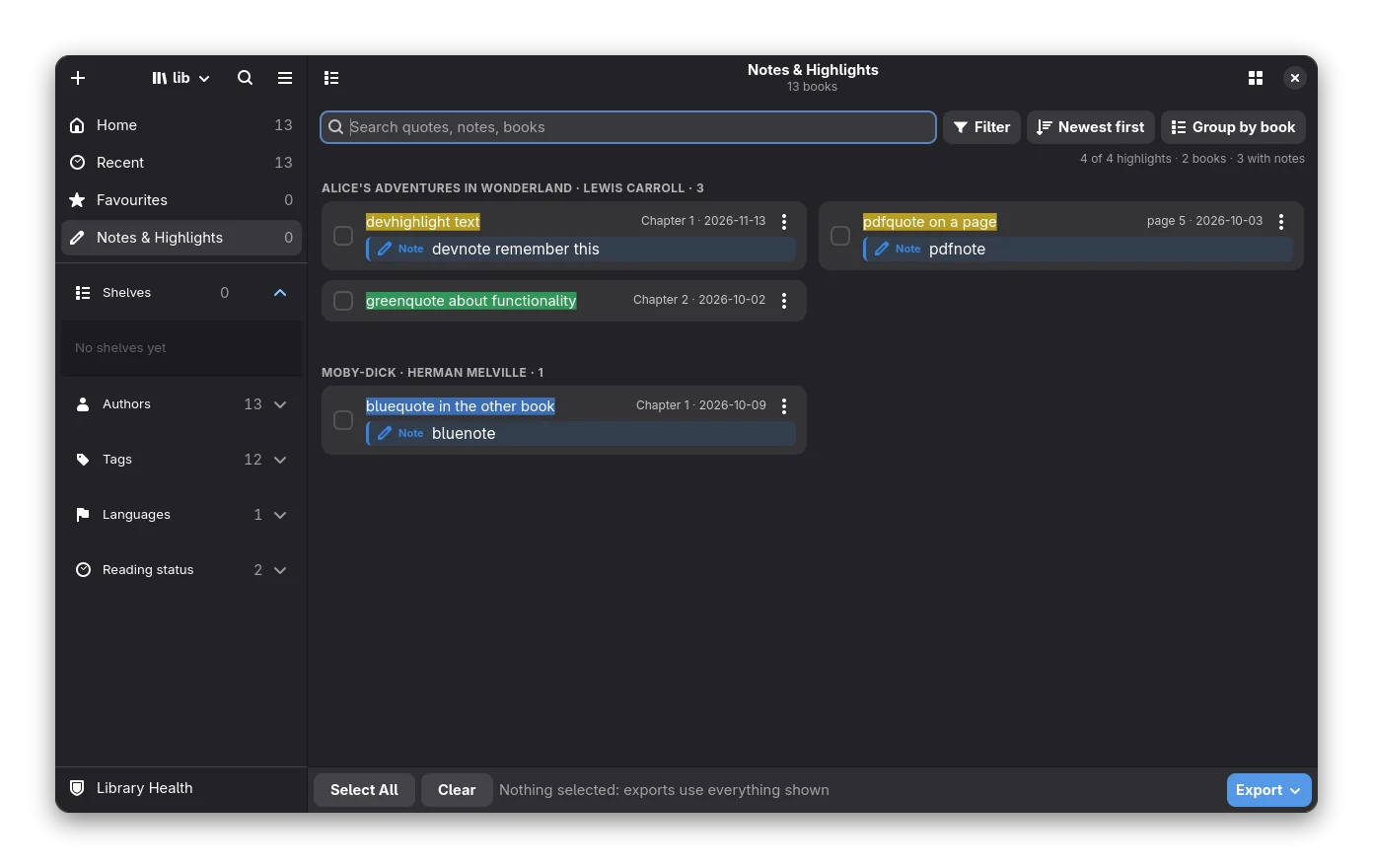 The view uses the full width: the cards flow into two, three or four columns on a wide window.
Highlights are grouped by book. A card is one or two lines of the quote drawn the way it looks on the page (its colour and style), the note you wrote in its own Note line below it, and the chapter and date at the right next to the ⋮ menu (edit the note, copy, delete, colour, style; the same menu as in the reader). The tick box on the left picks cards to export (nothing ticked exports everything shown). Click a card, or press Enter on it, to open the book at the passage.
One toolbar row holds the search box, Filter, the sort button and the group button. Filter opens a popover with colour, book, with or without a note, From and To (calendar buttons, Any time by default) and Clear filters; a number on the button says how many filters are on, and each active filter also shows as a small chip under the toolbar that you can click to remove. The line at the right of the chips says how many highlights are shown.
Views
- Grid or table. Switch in the main menu. The table has sortable columns for title, author, series, rating, progress, date and size.
- Sort and cover size are set in the main menu.
- Covers keep their size. Opening or closing the sidebar or the details panel, or resizing the window, never stretches or shrinks the covers: the grid reflows instead, and books move to the next row (or back up) as the room changes, as in the icon view of Files. The covers are not redrawn when a panel opens.
- Details panel. It slides in on the right by itself when you select a book and slides out when the selection is cleared. For one book it shows the cover, title, progress, Read, Edit Metadata, the star for Favourites, format, language, tags and comments, and a Properties button with every detail (path, identifiers, sources, annotations). For several books it shows how many are selected and the actions for all of them: bulk edit, fetch metadata, favourites, mark read or unread, e-mail and remove. In a narrow window the panel would cover the books, so the selection bar at the bottom has a Details button instead.
- Continue Reading banner. It is about the book you read last, and it changes with the situation:
- Nothing in progress (a new library): no banner, just the welcome page.
- When you open Bookx it is a hero card across the book area (centred, at most about 1100 px wide): the cover, Continue reading, the title, the author, the progress with the chapter and a rough time left, a prominent Continue button and the small buttons Details, Open from start and Mark finished; on a wide window the other books you are reading appear as small covers under Also reading. Its colours come from the cover (softened, with readable text in light and dark mode).
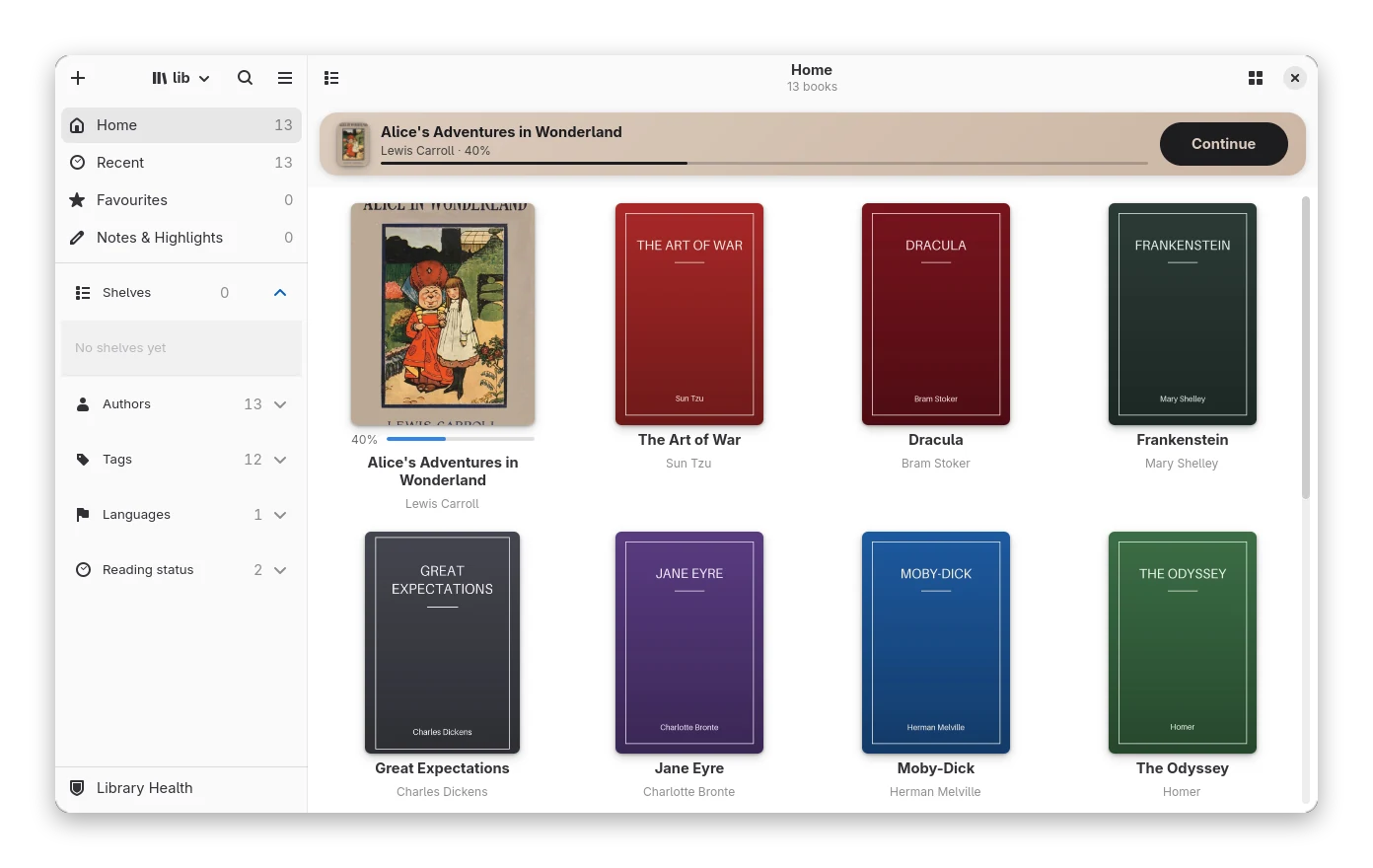
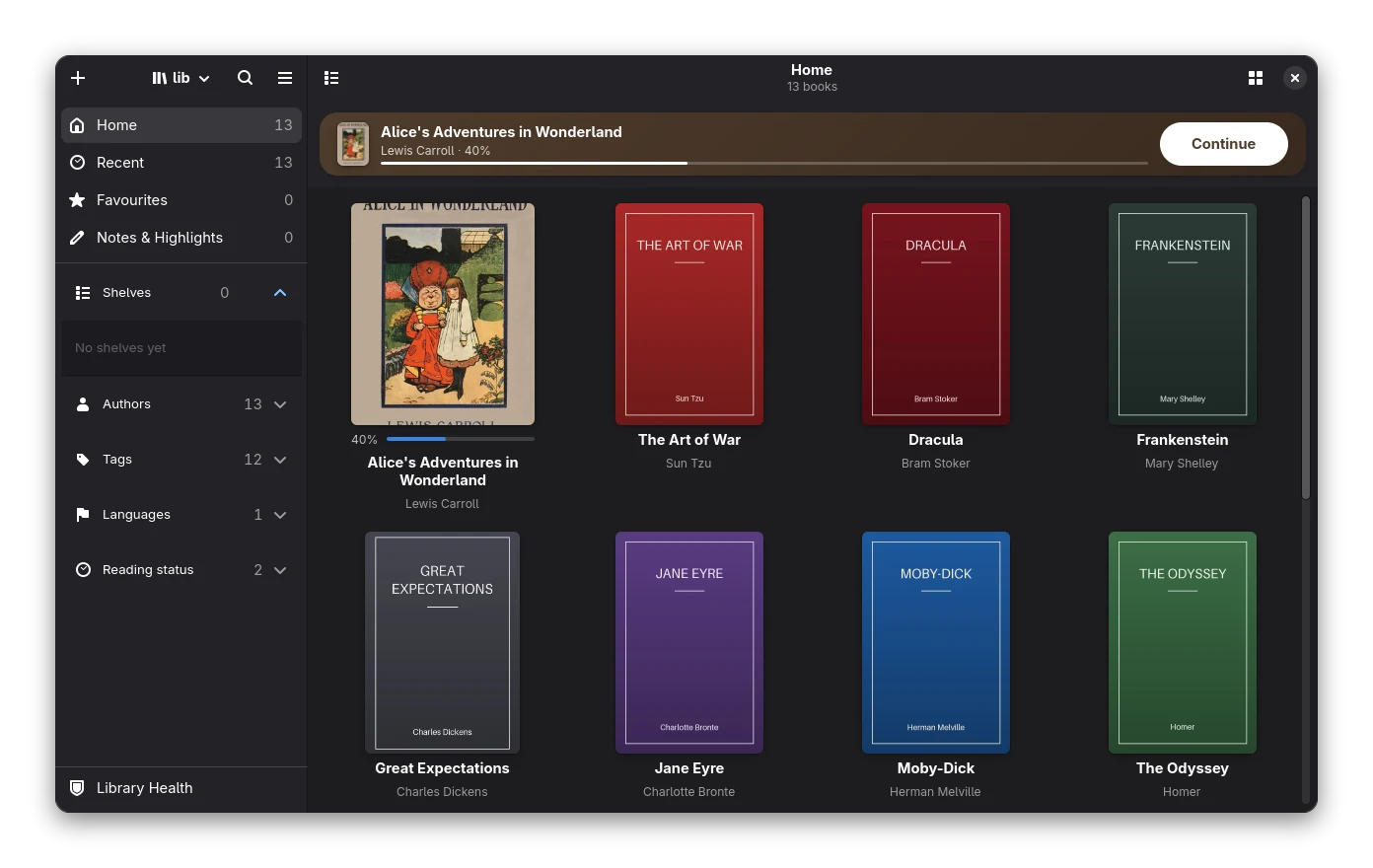
- On the next visits to Home in the same session (you came back from a book or switched views) it is a slim strip: a small cover, the title, the author and progress, and Continue, so the books stay the focus. The hero comes back when you start Bookx again or after about half an hour away.
- It follows the window. The layout depends on the width of the book area (wide, medium, strip, and just the title with a play button on a very narrow one) and the height on the viewport: never more than a quarter of it on a small window (a window lower than about 930 px gets the strip, also on a cold start), about a third on a big one. The size changes smoothly and the books below do not jump. The books scroll with it: the wheel first shrinks it to the strip and then slides it away, and it grows back when you return to the top. There is no animation in e-ink mode.
- Preferences → Library → Continue reading banner can force Large (always the hero), Compact (always the strip) or Hidden; Adaptive is the default.
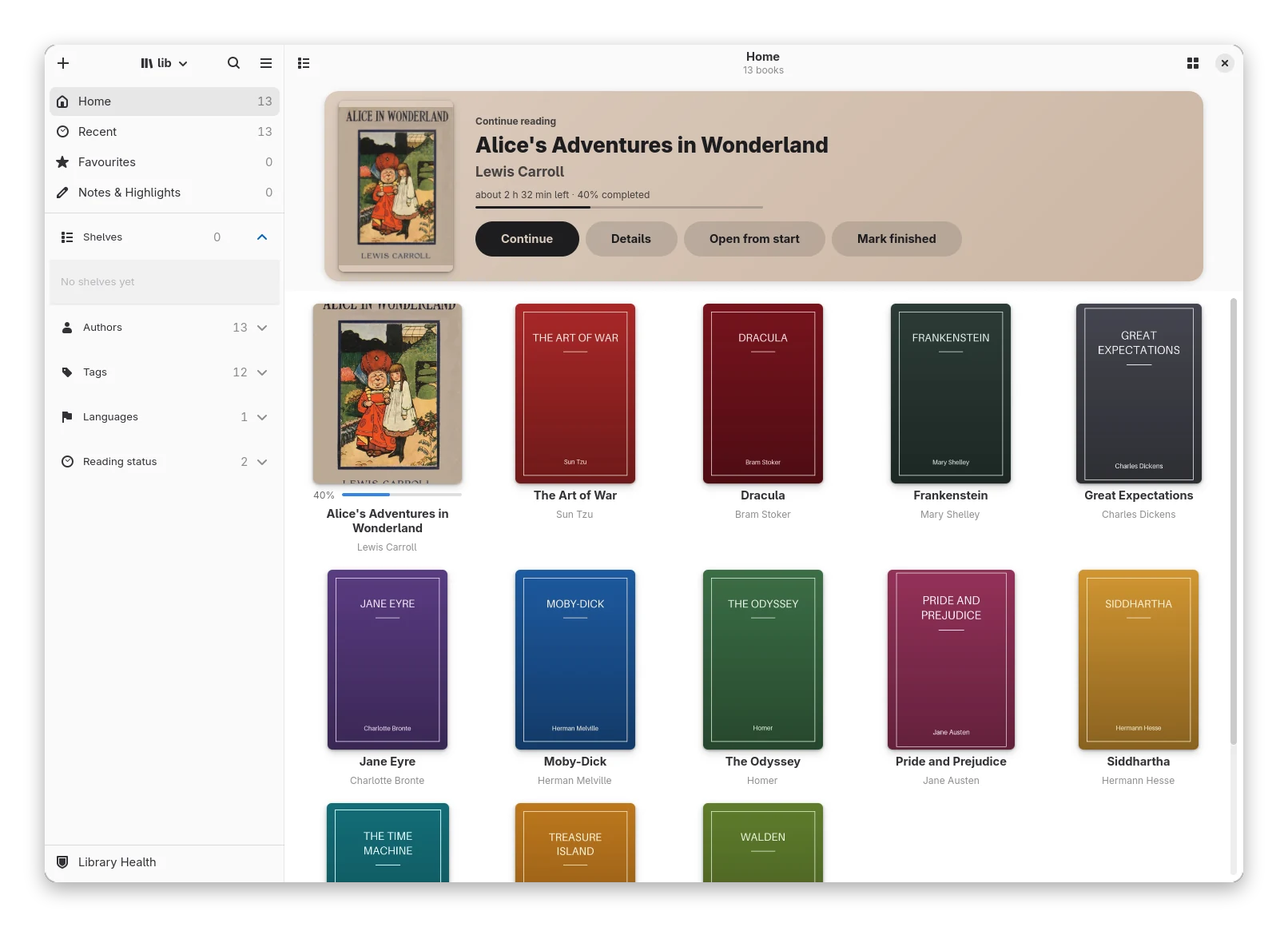
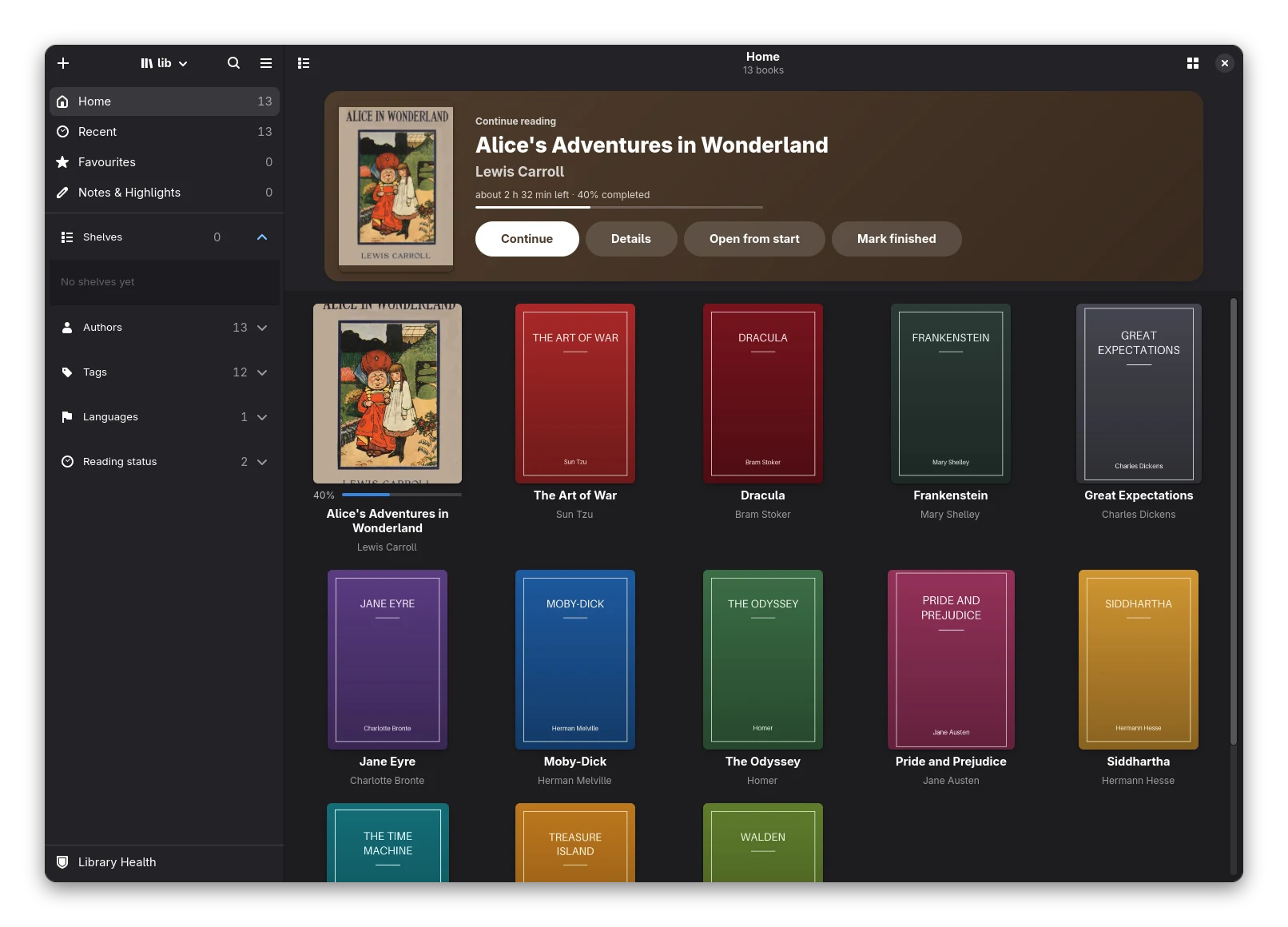 The hero on a big window; below, the strip on the next visits to Home.
- Device button. While an e-reader is connected, its name appears in the header bar. It opens the Device window.
Selecting books
The same as in Files:
- Click a book to select it; click the empty space between or below the books (grid or table), press Esc, or press the clear button of the bottom bar to deselect everything.
- Ctrl+click adds a book to the selection or takes it out; Shift+click selects the range from the last clicked book; drag a rubber band around several; Ctrl+A selects all.
- Right-click a book that is not selected selects only that book and opens its menu; right-click a book that is part of the selection and the menu works on the whole selection.
- Touch: a long press picks a book into the selection.
A bar at the bottom appears for two or more books with Read, Edit Metadata, Remove and a clear button.
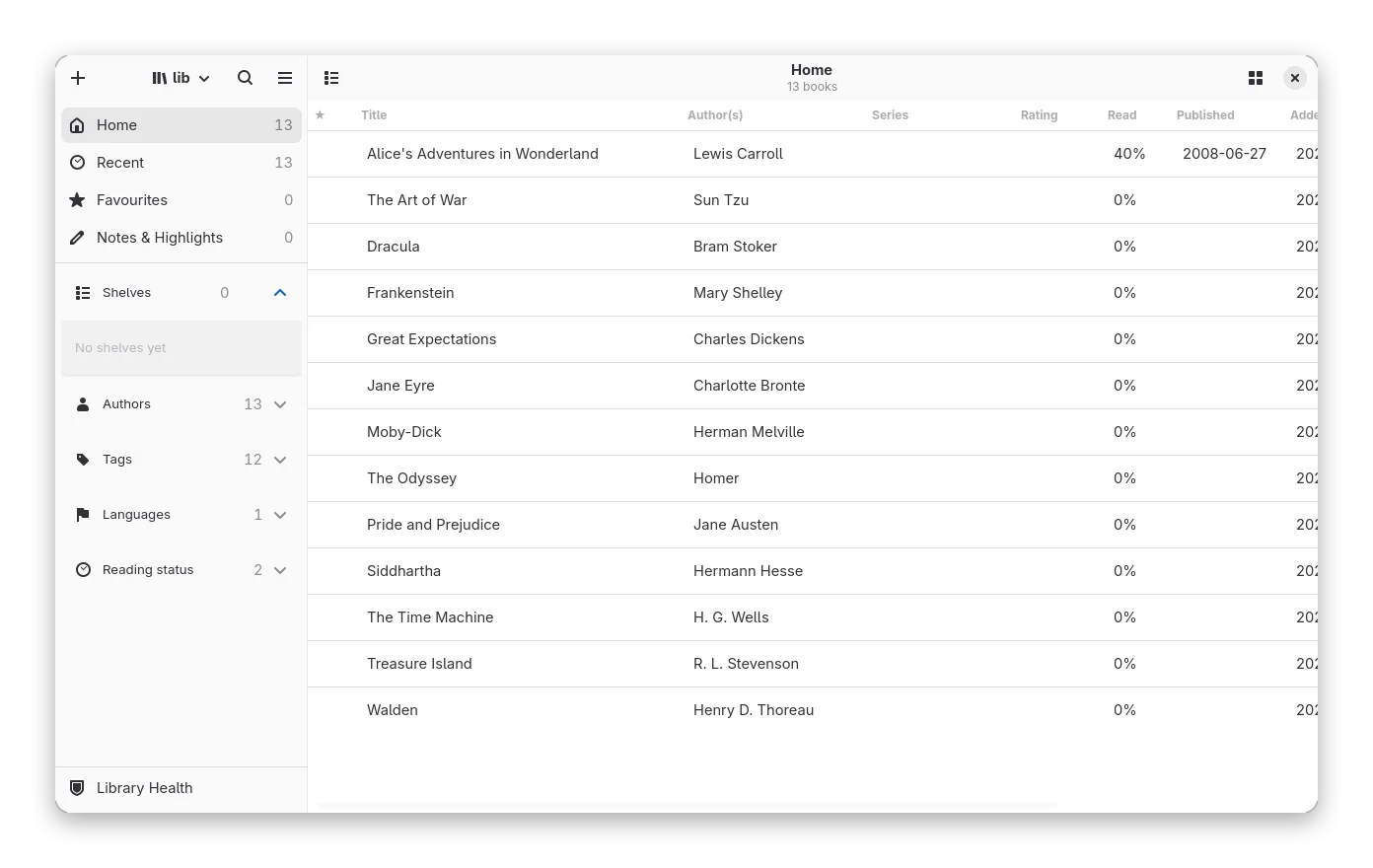
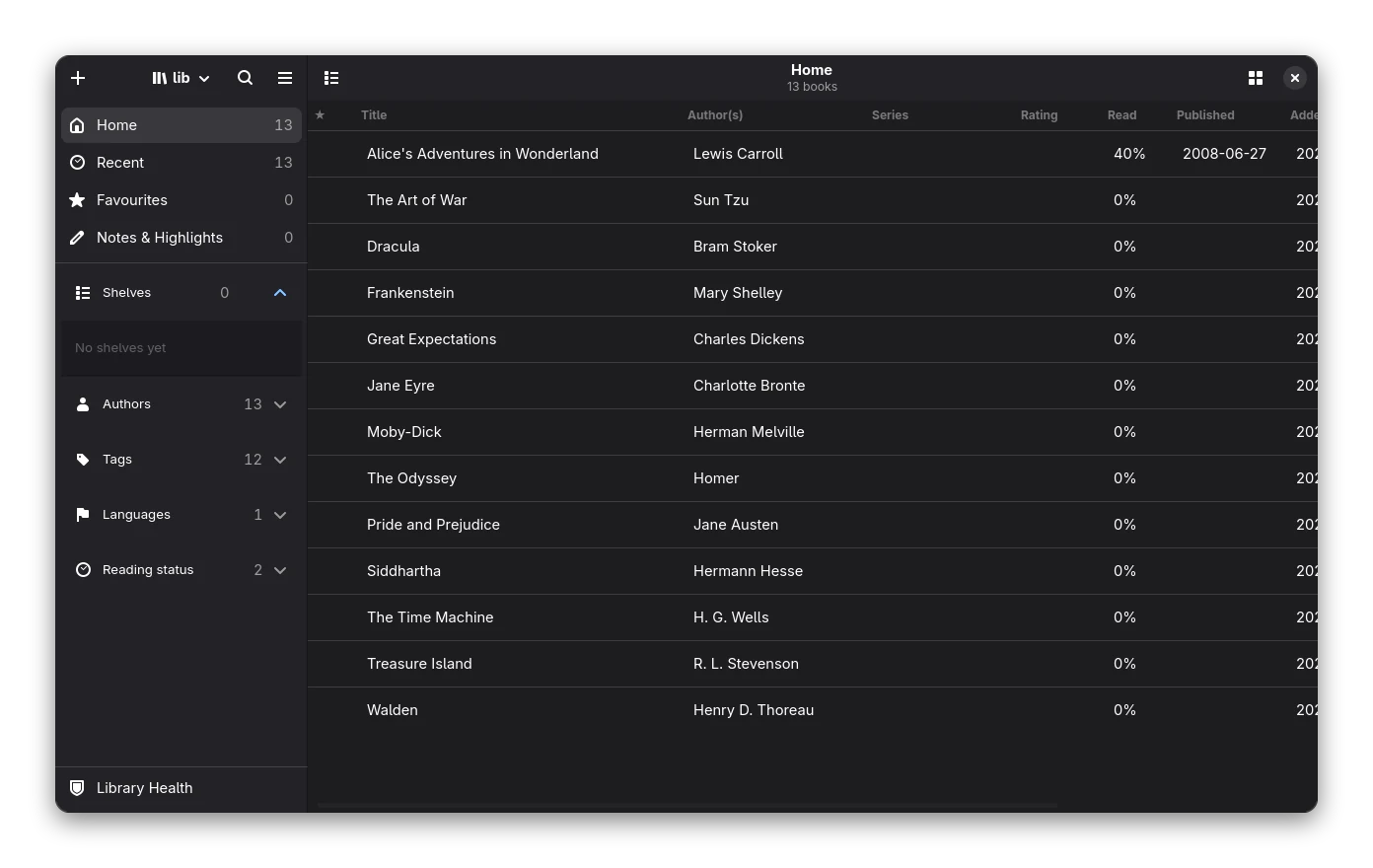 Table view. Real screenshot.
The book menu
Right-click a book (or several) for what concerns the selected books only, in short groups:
- Read
- Add to Favourites / Remove from Favourites
- Edit ▸ Edit Metadata (bulk for several books), Edit Book, Fetch Metadata
- Organise ▸ Mark as Read / Mark as Unread, Add to Shelf (and, on a shelf, Remove from This Shelf and moving it), Merge as Formats of One Book (with two or more books selected; see formats)
- Export and Send ▸ Convert To, Send by E-mail, Check Before Sending, Send to Device (opens the Device window with these books ready; greyed out without a device), Save a Copy, Export Annotations, Import Highlights
- Properties, Show in Files
- Remove
Everything else about e-readers lives in the Device window.
The main menu
The hamburger menu holds the view options (grid or table, sort, cover size) and, in groups: Open Library Folder, Saved Searches, Online Catalogues · statistics, Vocabulary, Reading Trackers, Audiobooks · Import Calibre Library, Import Highlights, Export All Annotations, Share Library, Device · Library Health · Preferences, Keyboard Shortcuts, Copy Diagnostics, About Bookx.
News Subscriptions and adding books are in the + menu (and on the welcome page). Series and Notes & Highlights are in the sidebar. Find Duplicates, Editions & Formats and Needs Attention are tabs of Library Health (next section).
Library Health
Open it from the sidebar or the main menu. Its tabs:
- Health: the check of the database and the files, the import folder, importing from Calibre, tidy names.
- Duplicates: copies of the same book, with a choice of which to keep (merge).
- Editions & Formats: books that are the same work in other formats or editions; merge them as formats.
- Needs Attention: books without an author, with a file-name title, no cover or no language, and identifiers that can be tidied; Fetch Metadata looks them all up.
- Backups: snapshots and off-site backups.
- Trash & History: take back an operation, restore deleted books, empty the trash.
Favourites, ratings and tags
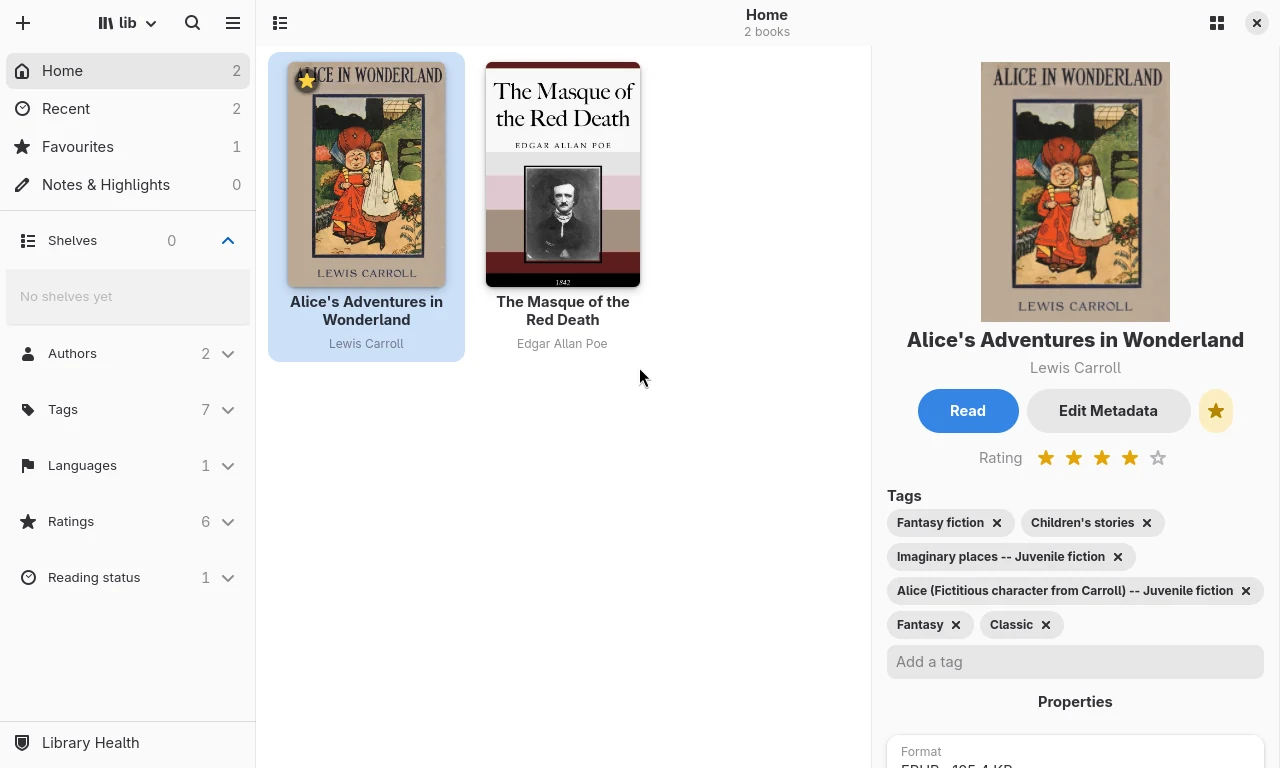
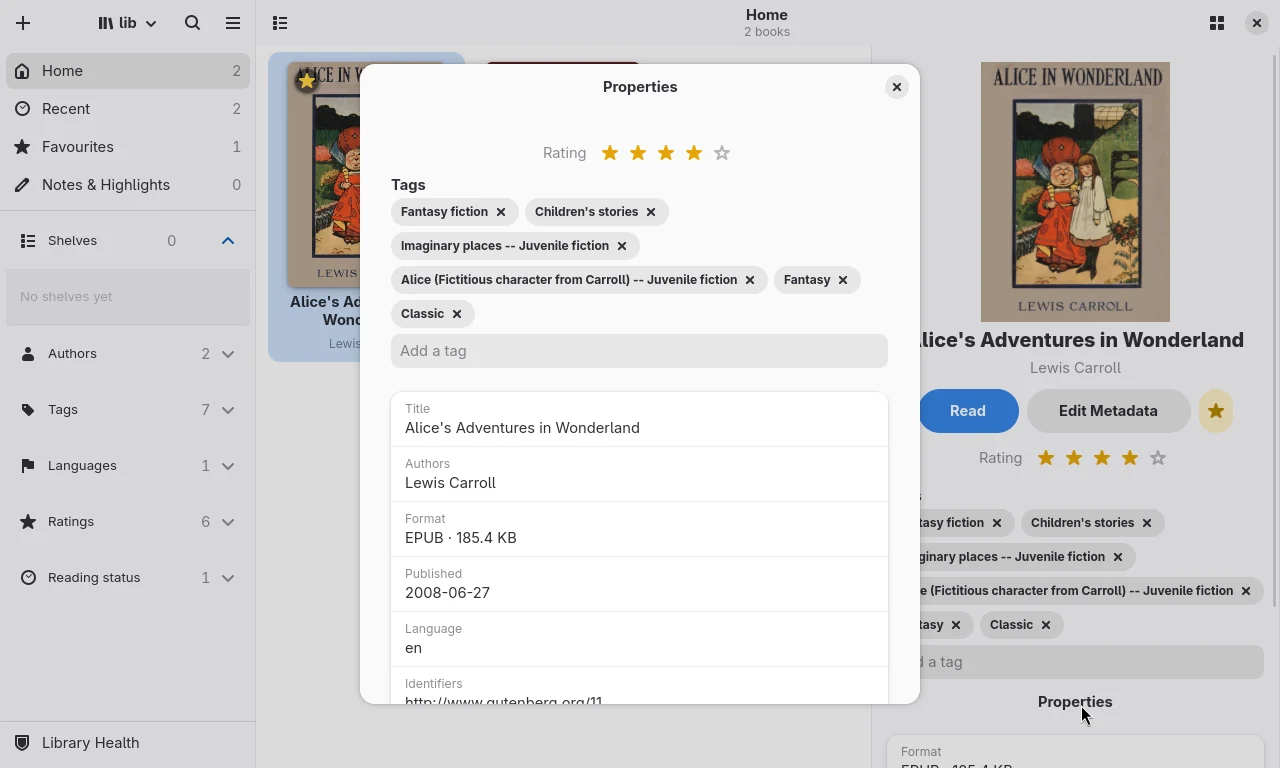
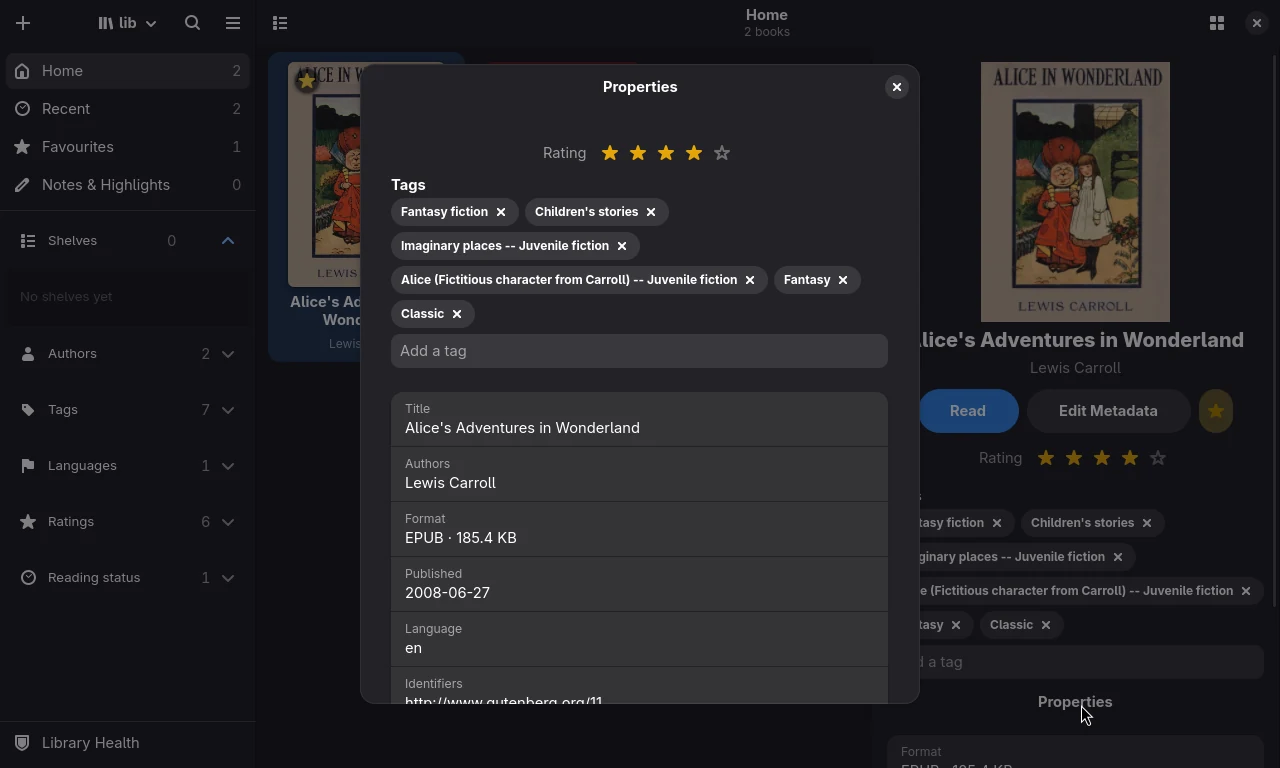
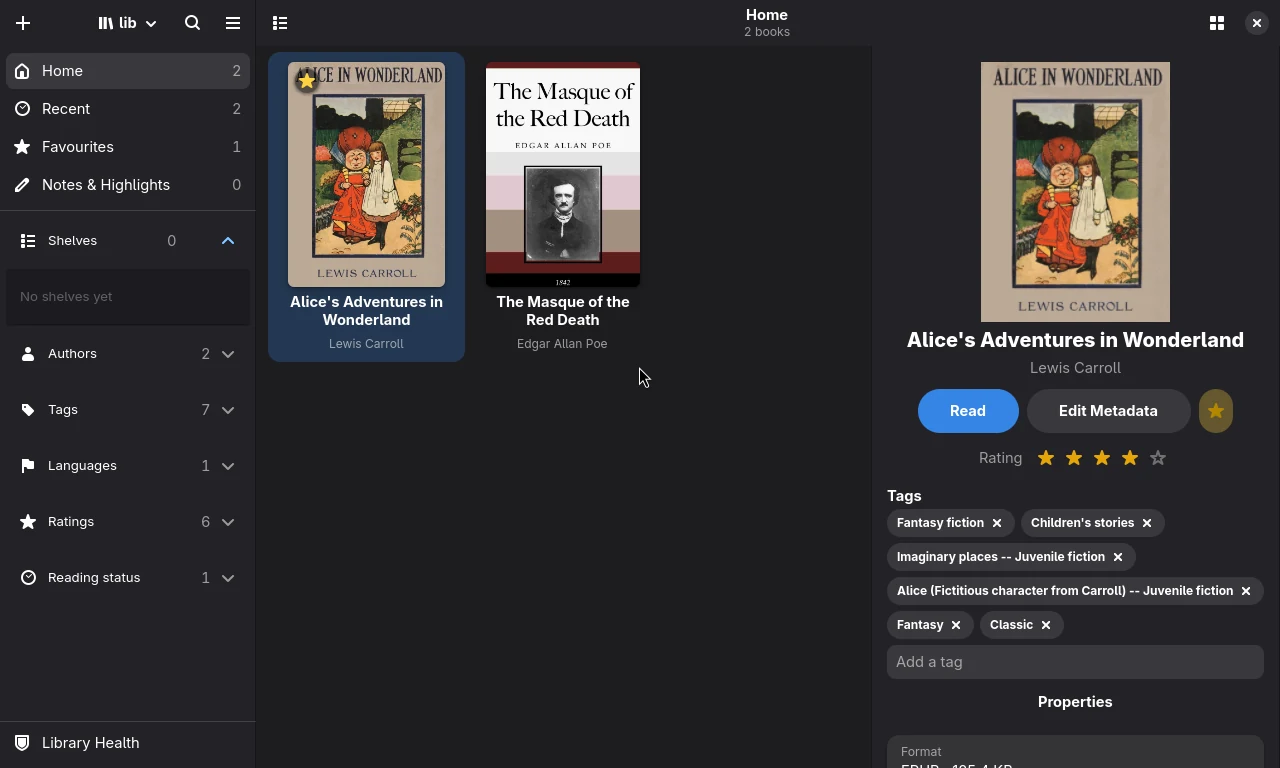 The star on the cover, the favourite toggle, the rating and the tags of the selected book.
- Favourites. A starred book wears a small star badge at the top left of its cover (and a ★ column in the table view).
Click the badge to take the star off, or use the round star button of the details panel (a toggle that shows whether the book is a
favourite), Add to Favourites in the book menu or Ctrl+D. The sidebar's Favourites lists them and
fav:truefinds them. - Rating. The details panel and Properties show five clickable stars. Click a star to rate, click the star that is the rating
to clear it. With the keyboard (focus the stars): Left and Right change it, 0 to 5 set it, Del clears it.
The rating is saved in the catalogue and written into the book's metadata. With several books selected, Rate all sets it for
all of them. Search with
rating:5,rating:>=4,rating:0(unrated), sort by rating in the view options, or use the Ratings group of the sidebar (5 stars down to Unrated). - Tags. The tags of the selected book are chips with a remove button; type in Add a tag (suggestions come from the tags the
library has), press Enter, or type commas to add several. Tags are trimmed and a tag that differs only in case is the same tag.
With several books selected the panel shows every tag with how many of the books have it (click one to remove it from all) and an
entry that adds a tag to all of them. Search with
tag:fantasy,-tag:horrorortag:(any tag), or use the Tags group. Changes are recorded as made by you (see Sources in Properties) and can be undone with the history.
Search
Press Ctrl+F or click the search button and type. Results update as you type. Hover the search field for a cheat sheet.
| Query | Meaning |
|---|---|
tolkien |
the word in title, author, tag, series or publisher |
title:dune, author:"le guin" |
restrict to one field; quote phrases |
author:=Herbert |
= means exactly equal |
tag:fantasy, tag: |
tag contains; a bare tag: finds books that have any tag |
-tag:horror |
a leading - excludes |
rating:>=4, rating:<3 |
stars; also >, <, <= |
progress:>50, size:>10 |
reading progress in percent; file size in MB |
status:unread, status:reading, status:finished |
reading status |
fav:true, fav:false, -fav:true |
favourites or the books that are not |
language:en, publisher:penguin, format:epub |
other fields; format: also finds books that hold that format as a further file |
drm:, drm:kindle |
protected books, any or one scheme |
audiobook: |
books with a linked audiobook |
identifier:isbn:978…, isbn:978… |
identifiers |
comments:wizard |
the description |
a OR b |
either term; terms without OR must all match |
text:"words in the book" |
search inside the books |
Fields are title, author, tag, series, publisher, language, format, rating, identifier, isbn,
comments, status, progress, size, weak, drm, audiobook and text. Matching ignores case.
text: uses a full-text index of the book contents that is built in the background, inside the library database.
Books show up in text: results after they have been indexed.
The same language works on the command line: bookx-cli search 'author:le guin rating:>=4'.
Metadata
Right-click → Edit Metadata (Ctrl+E) edits title, authors, series and number, rating, tags, publisher, date, language, identifiers, title and author sort, description and cover. Changes are written into the EPUB, and the book is re-filed according to your layout.
Fetch Metadata in the edit dialog looks up Open Library, Google Books and Wikidata, including the cover. It can fill only the empty fields or replace everything.
Series number: under Series number there is a field where you type the number the way the book writes it:
3, 03, III, Book Three, #3, 3rd, vol. 4. Bookx turns it into the number and shows where the book
sorts among the other books of the series ("= 2 · sorts between “Dune” and “God Emperor”"), or that another book
already has that number.
Bulk edit: select several books and choose Edit Metadata to add or remove tags and set author, series, publisher, language or rating on all of them.
Fetch Metadata for many books
Select books, right-click → Fetch Metadata. The lookups run in the background; the window shows progress and how each source is doing (ok, slow or failing). A source that keeps failing is left alone for a while (30 seconds, doubling up to 15 minutes), so one dead service never holds the others up.
When the lookups are done, a review table lists every proposed change: book, field, current value → proposed value, the source that gave that very field (the publisher from Open Library, the description from Google Books) and how sure the match is. Nothing is written until you accept rows and press Apply. Tick single rows, press All publisher (12) for one field at a time, Accept All, or Only Empty Fields to accept just the rows that fill a field the book has nothing in yet. Covers are proposed too.
Apply safe changes automatically (a switch in the window) writes the empty-field rows as soon as the lookups are done; everything that would replace a value you have waits in the table for your review.
Every applied field remembers where it came from (the source, or you, bulk edit, tidy names, editor,
identifier cleanup, or the import patch that changed the book); the details panel and bookx-cli library info
show it. Every book is one entry of the operation log, so Undo Last Batch (or bookx-cli library undo) takes it
back, including a replaced cover: the old cover is kept in the library's .bookx/cover-backups folder (covers over
8 MB are not kept, and the folder is trimmed to 64 MB, oldest first; Bookx then restores the metadata only). Very large
batches show the first 400 rows (Accept All still includes the rest).
Remembered between sessions and between lookups. How each source is doing (and a pause after repeated failures) is remembered when you close Bookx. The answers of the sources are kept on disk for a short time (6 hours for Google Books, 24 hours for Open Library and Wikidata, 1 hour for "not found"), so asking again about the same book does not use the network. The cache is limited to 32 MB; Preferences → Library → Metadata lookup → Clear empties it.
Fetch metadata for new books
Preferences → Library → Metadata lookup → Fetch metadata for new books (off by default) looks every book up right after an import and fills in only the fields the book has nothing in. No window opens; a message tells you how many proposals are left. Anything that would replace a value waits for you: select the books and use Fetch Metadata to review it. The filled fields record their source, and the whole batch can be undone.
Series
Menu → Series lists every series with its books in reading order, how many you have read ("2 of 5 read"), the numbers that are missing ("missing #3, #4") and things worth a look (two books with the same number, books without a number). Show filters the library to the series; Fetch Metadata looks up just those books, and the review table then suggests series names and numbers from the sources.
Editions and formats of one work
Menu → Editions & Formats groups books with the same title (ignoring "The", subtitles and punctuation) and the same
author, whatever the edition: expand a work to see its editions with publisher, date, ISBN, size and formats. A book
that holds several formats is listed too, with all of them (epub + azw3).
Formats of one book
A book can hold several format files (EPUB, AZW3, PDF…) and still be one book in the library, with one cover, one reading position and one set of notes.
- Merge as formats of one book: in Editions & Formats press Merge as Formats on a work, or select two or more
books and use the book menu → Merge as Formats of One Book (the first selected book stays). A preview shows the
result (
Dune: epub + azw3), which books are merged, which are skipped and why, and what is not carried over. Books that have the same format are not merged this way, because they are copies or editions: use Find Duplicates. The collections, the reading status and the furthest reading progress of the merged books move to the book that stays. Highlights, bookmarks and the reading position of the merged copies stay in the library's Trash record; Undo brings the merged books back exactly as they were. - Find Duplicates offers Merge Formats instead of deleting when the copies are in different formats.
- Add as another format: when you import a file that is another format of a book you already have (same identifier, or same title and author, in a format the book lacks), Bookx asks: Add as Another Format, Import as Separate Books or Skip. Adding copies the file next to the book (in a linked library it keeps pointing at the file).
- The details panel lists the formats of a book with Open (EPUB in Bookx, other formats in your default application), Convert (for the main file) and Remove for a further format. A removed file waits in the library's trash folder and Undo puts it back.
- The best format per purpose: the reader opens the EPUB; Send to Device sends a Kobo its KEPUB, a Kindle its AZW3 or MOBI and other devices the EPUB; Send by E-mail sends the EPUB first; Convert To starts from the EPUB (or the nearest format that keeps the most structure).
- From the command line:
bookx-cli library formats ID,add-format ID FILE,remove-format ID FORMAT,merge-formats ID ID… [--dry-run]; all of them are part of the operation log (library undo).
Limits: merged books keep their files where they were or in the folder of the book that stays; a library with the linked layout keeps pointing at the original files. Formats other than EPUB cannot be read or edited in Bookx; they are carried along, sent and opened with other applications.
Authors
Menu → Authors lists people instead of spellings: Mark Twain, Twain, Mark and a pen name you merged are one
entry with all their books. Expand an entry to see the spellings.
- Rename gives every book that lists one of the spellings the new name. The window first says how many books change; the whole rename is one step in the operation log, so one Undo takes all books back.
- Use This Name makes one spelling the name for all the others.
- Probably the same person suggests initials against full names (
J. R. R. TolkienandJohn Ronald Reuel Tolkien). Nothing changes until you press Merge. - Renaming and merging remember the old spellings as aliases, so books imported later with an old spelling still show up under the new name in the browser. A pen name can also be declared an alias without changing any book.
- Command line:
bookx-cli library authors [--json],bookx-cli library rename-author "Samuel Clemens" --to "Mark Twain" [--dry-run].
The aliases are stored in the library database, so they are part of every backup.
Copy protection
When you import a book, Bookx looks for the marks of copy protection (DRM): Adobe Digital Editions, Kindle (MOBI/AZW
with an encryption flag, KFX), Kobo, Apple Books (FairPlay) and Readium LCP. A protected EPUB is added to the library
with a Protected (…) notice in the details panel, and opening it says Bookx cannot open it; Bookx does not remove
DRM. A protected file in another format is not imported and the same message is given. Find protected books with
drm:.
Bookx does not remove DRM and never tries to. It only tells you what the file is.
Reading trackers
Menu → Reading Trackers exchanges reading data with Goodreads, StoryGraph and Hardcover.
- Import: choose the CSV export of the service. Books are matched by ISBN, then by title and author; the window
tells you how many rows matched and how many would change before anything is written. Imported are the rating
(kept as is when the book already has one, unless you switch on Replace ratings I already have), the shelves as
tags (a to-read shelf adds a
to-readtag), the reading status, and the date read. The ratings and tags are one Undo step. Hardcover columns are found by name; if your export has other column names and a file is refused, tell us. - Export: Goodreads / Hardcover writes the Goodreads layout (which Hardcover and StoryGraph also import), StoryGraph its own layout, with reading status, rating (stars) and date read.
Audiobooks
Menu → Audiobooks finds .m4b files and folders of audio parts (.mp3, .m4a, .ogg, .opus, .flac) in your
library folder and in folders you add, and pairs them with your books: an audiobook in a book's own folder, one with
the same ISBN in its name, or one named like the book and its author (Frank Herbert - Dune.m4b). You see the
pairings and press Link All. A linked audiobook shows in the details panel with Open, which starts your
system's audio player; Unlink takes the link off and leaves the files where they are. Bookx plays nothing itself.
Needs attention
A book needs attention when it has no author, a title that looks like a file name (my_book_final, scan_0042.pdf),
no cover or no language. The sidebar of the browse panel shows Needs Attention with the number of such books; the
search language knows them as weak: (weak:author, weak:title, weak:cover, weak:language). Menu →
Needs Attention lists them with the reasons, offers Fetch Metadata for all of them, and suggests identifier
cleanups: ISBN: 978-0-441-17271-9 becomes isbn:9780441172719, an ISBN-10 becomes an ISBN-13, store links and
urn:isbn: forms become plain identifiers, and double entries are removed. A wrong ISBN check digit is only
pointed out. Nothing changes until you press Clean Up, and it can be undone.
Saved searches and virtual libraries
Menu → Saved Searches keeps searches under a name. Type the name and a search (the window starts with what is in the search bar) and press Save Search. Then:
- Click a saved search in the list, or in the Saved Searches group of the browse panel, to run it.
- Write
search:name(orvl:name) in any search to use it as a term:search:"to read" tag:fantasy. Saved searches can use each other, and-search:nameexcludes one:search:a OR search:b,-vl:Finished. - Switch on the pin button of a saved search to make it a virtual library: every view of the library, and every search you type, is narrowed by it until you switch it off. The window title shows which one is active.
Names cannot contain quotes or colons. A search that refers to itself, or to a search that was deleted, is refused or
ignored. The search language has no parentheses, so a saved search with OR is combined with the other terms by
spreading them over its alternatives.
Shelves, collections and tags
Shelves hold books you put there by hand; a book can be on several. They are in the browse panel under Shelves (open it with the sidebar button).
- New shelf: the + button of the Shelves row, or Add to Shelf → New Shelf in the book menu (which also puts the selected books on it).
- Put books on a shelf: drag them onto the shelf in the browse panel (a drag of a selected book takes the whole selection), or choose Add to Shelf in the book menu (right-click).
- Open a shelf by clicking it; the count beside it is its number of books. Under the hood a shelf is the search
shelf:"Name", so it combines with other terms (shelf:"To read" tag:fantasy,-shelf:Finished). - Rename, delete, move up or down with the ⋮ button of a shelf. Deleting a shelf never deletes books.
- Remove from This Shelf and Move Earlier / Later on This Shelf are in the book menu while a shelf is shown; a shelf shows its books in the order you gave (otherwise in the library's sort order).
- Smart shelves: your saved searches are listed in the same section (marked with a magnifier) with their number of books.
The order of the shelves and of the books on them is kept in shelves.json next to the settings file, per library.
Tags are the other way to group books. Add them in the metadata dialog or in bulk, then filter with the browse panel or
tag:. News books made by subscriptions are tagged News.
Several libraries
The button at the left of the header shows the library in use. Click it to switch:
- Click another library to open it. The list remembers every library you opened; the one in use is ticked.
- Open Folder as Library adds a folder that already holds a Bookx library (or an empty one), named after the folder, and opens it.
- New Library asks for a name and then where to make its folder.
- ⋮ → Rename / Remove from List: removing never touches the books or files; the library in use cannot be removed from the list. A library on a drive that is not connected is greyed out ("not available").
Switching works like changing the library folder in Preferences: the library you leave gets a last backup and its lock
is released; if another copy of Bookx has the new library open, it opens read-only (see
Locking and read-only). The list is kept in libraries.json next to the settings file.
Background jobs
The list button in the header opens Background Jobs: imports, conversions, e-mailing books, metadata fetches, scheduled backups and news downloads, each with its progress, how long it took and a log (expand the row). The spinner shows while something runs. Cancel (the stop button) is offered for imports, conversions and metadata fetches; the others finish by themselves. Clear Finished empties the list; it keeps the last 30 finished jobs.
Duplicates
Menu → Find Duplicates groups copies of the same book. Pick the one to keep and merge: metadata, highlights, bookmarks and reading progress are united. When the copies are in different formats (an EPUB and an AZW3 of the same book), the button says Merge Formats and keeps every file in one book instead (see formats of one book).
Library files and layout
Preferences → Library files decides where the books are kept:
- Author/title folders (default):
Author/Title (id)/Title - Author.epub. - One flat folder.
- A path template, such as
{author}/{series}/{title}. - Link in place: the books stay where they are and are never moved or deleted by Bookx.
Changing the layout shows what will move first, and it either moves everything or nothing. The choice is stored in
<library>/.bookx/layout.json, so the app and bookx-cli agree.
Library Health
Menu → Library Health is the safety net of the library.
- Backups of the catalogue: automatic snapshots at start-up and exit, Back up now, copies to other places (drives, network shares, cloud drives, WebDAV; optionally encrypted) and Restore from any of them, which first saves the current catalogue. See Backup and restore.
- Library check: database integrity, missing files and covers, book files nobody lists, and optionally books whose metadata differs from their file. Each problem comes with a fix.
- Import Calibre Library (see Getting started).
- Watched import folder with a review queue. Nothing is added on its own; files must stay unchanged for a few seconds before they are offered.
- History and Undo: imports, deletions, edits and layout changes can be taken back.
- Trash: deleting a book moves its files to the trash. Restore or empty it from this window.
- Name tidying: one spelling per author and series, and series with missing numbers.
Locking and read-only
A library that another running Bookx has open opens read-only, with a message saying who has it. A library on a network share or in a Dropbox/Syncthing-style folder shows a one-time warning, because two computers writing to the same database can corrupt it.
All of this is also available as bookx-cli library backup | check | trash | undo | tidy | inbox …, see
Command line.
Limitations
- The catalogue database can store collections, but the app has no screen for them yet. Use tags to group books. There are no virtual libraries.
- Locks from another computer are never taken over automatically; a lock left by a crashed Bookx on the same machine is.
- Library check and name tidying report; always look at the preview before applying fixes.